Scan Date:Aug 5, 2025
Show More


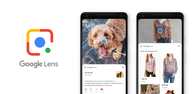
Google Lens helps when you do not know the name of something in front of you or in a photo. It turns your camera and images into a simple way to find information and take quick actions. From finding products to saving details from posters, it reduces typing and speeds up everyday tasks. You can open Lens through several apps on Android, and results appear contextually. If you plan to download Google Lens, expect camera based results that connect to maps, web pages, and tools in a few taps.
Google Lens lets you point your camera at clothing, furniture, and decor to find similar items. You can see product matches with prices and places to buy. Then you can compare options and move to a store page in one tap. This helps when you do not know the brand or model at first glance.
Text scan and translationYou can capture text from posters, documents, and screens, then copy it to your phone. Lens also translates text in real time across many languages, layered over the image so you can read it in place. As a result, saving contacts or adding calendar events from a flyer becomes a quick action with fewer steps.
Identify places and things around youGoogle Lens recognizes plants, animals, landmarks, restaurants, and storefronts. When available, it shows ratings, hours, facts, and popular dishes through Google Maps. This helps you decide where to go and what to order, especially when you are in a new area. On Android, results connect to detailed pages for faster follow up.
Homework helpLens provides explainers, videos, and step by step support for math, history, chemistry, biology, physics, and more. You can scan a problem and see structured guidance that points to learning resources. It is designed for quick checks when you need direction before deeper study.
Scan QR codes and barcodesPoint your camera at a code to open links, see product details, or trigger actions. Lens reads both QR codes and barcodes so you can avoid manual typing. This is useful in stores, on packaging, or when you join a Wi Fi network from a posted code.
Lens is available in multiple places on Android to reduce setup friction. Look for the Lens icon in the Google app search bar, inside Google Photos when viewing a picture, and in Chrome through image options. On select devices, the Camera app includes a Lens button or mode. These entry points make Lens easy to reach without switching to a separate app view.
Some features require an internet connection and work only in supported languages or regions. Availability can vary by device, account settings, and Google Lens latest version. For current feature coverage, supported languages, and region notes, see the official help resource at g.co/help/lens. This helps set expectations before using translation or place information.
Image based search can be helpful for users who prefer visual input or use voice assistance. Lens reduces the need to type complex queries by letting you point and tap. It can also aid with reading text in images through copy and translation options. These behaviors may support everyday tasks for many users.
You can use Lens to search from your camera and photos in a few steps. To explore Google Lens APK features, begin in the Google app or Google Photos and move through modes as needed.
Google Lens turns your camera into a tool for search, translation, shopping, and quick actions. Open Lens from supported apps, then choose a mode and follow results. To stay current, check features that match the Google Lens latest version in your installed apps.
For official resources and support, use the links below.
Latest Version
1.18.250731009Uploaded by
Google LLC
Requires Android
Android 6.0+
Category
Free Tools AppContent Rating
Everyone
Security Report
Report
Flag as inappropriateLast updated on Aug 6, 2025
Lens now analyzes camera motion for more accurate results.



APKPure - A multi-platform app store primarily focused on Android, providing extensive app-related content. Discover the app you want easier, faster, and safer, with quick and efficient downloads and installations.