Package Name:ru.zdevs.zarchiver
SHA-256:80a2246aaea1bd7d9e0b6682b308a4a07562b59ecec9a5ceeb1d52da2bd3d990
Show More


ZArchiver helps you manage everyday archives directly on your phone or tablet. Many users deal with email attachments, course materials, or game resources that arrive in compressed folders, and this app keeps the process simple and local. With a clear layout, it focuses on getting tasks done without needing a connection. Because it runs offline, your files stay on the device and access remains stable even without signal. If you prefer a direct installer, the ZArchiver APK delivers the same tools in a compact package.
Broad format support
ZArchiver opens a wide range of archive types and creates several common ones. You can create 7z, zip, bz2, gz, xz, lz4, tar, and zst. You can extract 7z, zip, rar and rar5, iso, tar, deb, rpm, dmg, wim, and more. This coverage lets you work with files from different sources without switching apps.
Edit and protect archives
Beyond format coverage, you can manage archive contents without extracting the entire file. Open an archive to preview items, then add or remove files inside zip, 7z, tar, and apk packages. When needed, set a password during creation to protect the archive. This approach helps you save time and reduce extra storage use.
Handle multipart and split files
When files arrive in pieces, ZArchiver detects multipart sets and processes them together. It works with series such as 7z.001, z01, and part1.rar. You can also create multipart 7z archives and decompress multipart rar sets, which is helpful for large transfers that were split into segments.
Android backups and game data
For mobile games and large apps, ZArchiver supports common backup workflows. You can install APKs stored inside archives and restore OBB folders from backups to the expected location. This helps you bring a backed up title back online after a reset or device change without extra tools.
Private offline operation and speed
The app requests no internet permission, so it works entirely offline. Multithreading improves extraction and compression speed on modern devices, and on Android 9 or later small files can be opened directly. File names in UTF 8 and UTF 16 are supported, which helps when archives use multiple languages or shared project naming. These details make everyday tasks faster while keeping work on the device.
Many users ask about cost and ads. ZArchiver is widely noted as free and ad free for core tasks. If you see mentions of ZArchiver Pro, compare features carefully because the main release already covers everyday archiving. For those who want optional cloud storage access, look for the separate ZArchiver Cloud Plugin, which adds connectivity without changing the lightweight nature of the base app.
ZArchiver operates offline and requests no internet permission. According to the developer, no data is collected or shared. This design limits exposure by keeping processing on the device. As always, the safety of your workflow also depends on the source of the archives you open and the passwords you choose.
Archives from global teams often include non Latin characters in file names. ZArchiver supports UTF 8 and UTF 16 file name encoding, so names in different languages remain readable after extraction and when repacking. This reduces renaming issues when you exchange projects across regions or platforms.
This short guide covers basic tasks with the ZArchiver latest version. Follow the steps in order for a smooth setup, from extraction to creating and updating an archive.
Open ZArchiver, then allow storage access if prompted. Next, browse internal storage or your SD card to locate the files you want to manage.
To extract, tap an archive and choose Extract here or Extract to select a folder. For multipart sets, place all parts in the same folder first, then tap the first file in the series to start extraction.
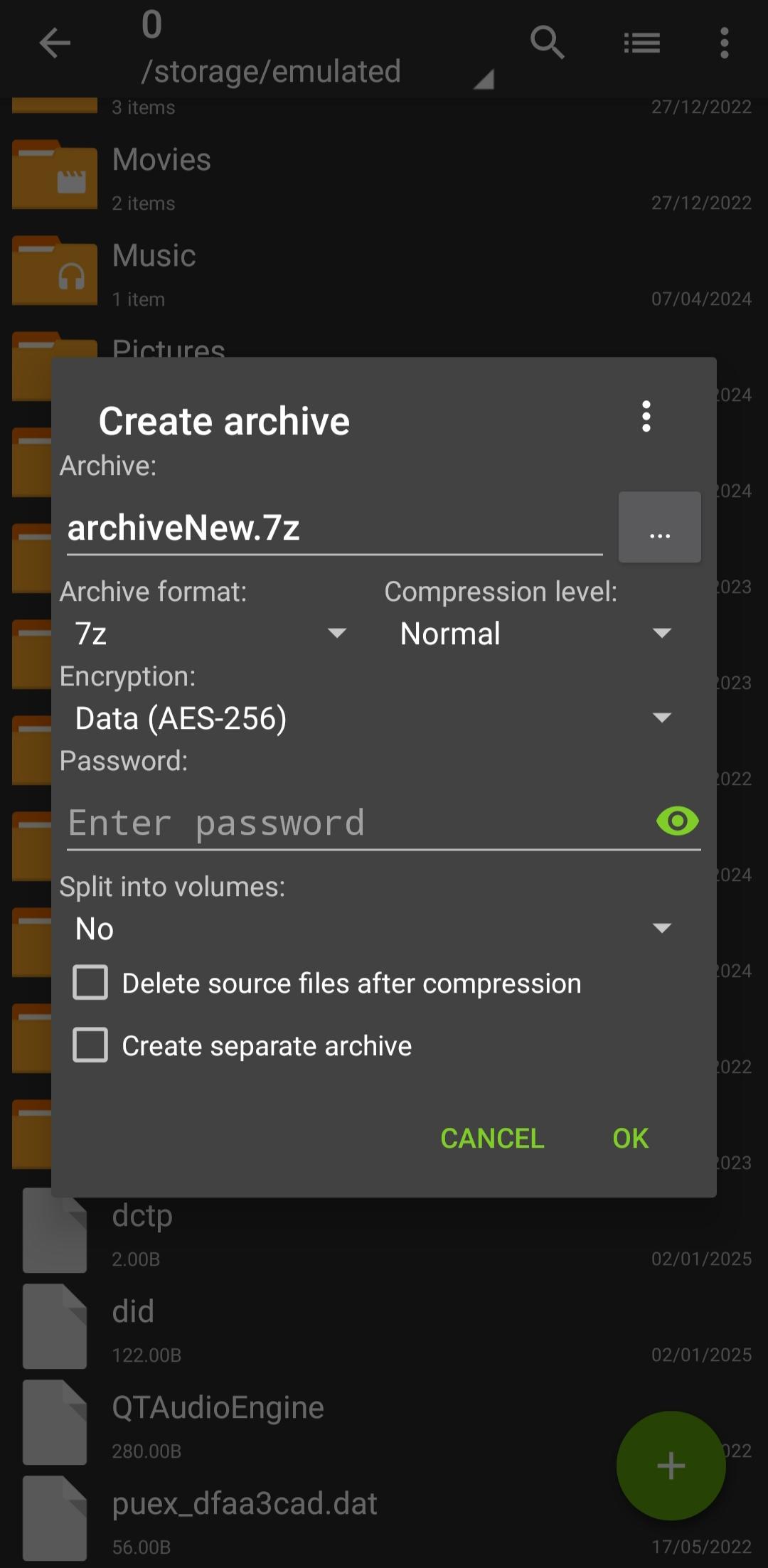
To create an archive, select the files and folders you need, tap the compress option, then pick a format and compression level. Add a password if you want protection, and confirm to start the process.
To edit an archive, open it to preview contents, then add or remove items as needed. Confirm the changes so ZArchiver updates the archive without a full unpack and repack.
To restore game data, open your backup archive, copy the OBB folder, and place it into the Android or obb directory as required by the game. Finally, install the APK if it is included.
ZArchiver focuses on everyday archiving tasks with offline control, broad format support, and tools for backups. For quick setup and reliable local work, download ZArchiver latest version APK from APKPure and keep your files on the device.
For official support and more information, use the links below.
Website: http://zdevs.ru/
Email: support@zdevs.ru
Latest Version
1.0.10Uploaded by
David Lộc
Requires Android
Android 6.0+
Category
Free Tools AppContent Rating
Everyone
Security Report
Check Now
Report
Flag as inappropriateLast updated on Jun 29, 2024
- speedup file operations;
- added SUI support;
- added E-Ink theme;
- added drag and drop file in or out from ZA;
- other fixes and improvements.





APKPure - A multi-platform app store primarily focused on Android, providing extensive app-related content. Discover the app you want easier, faster, and safer, with quick and efficient downloads and installations.