Scan Date:Nov 14, 2023
Show More
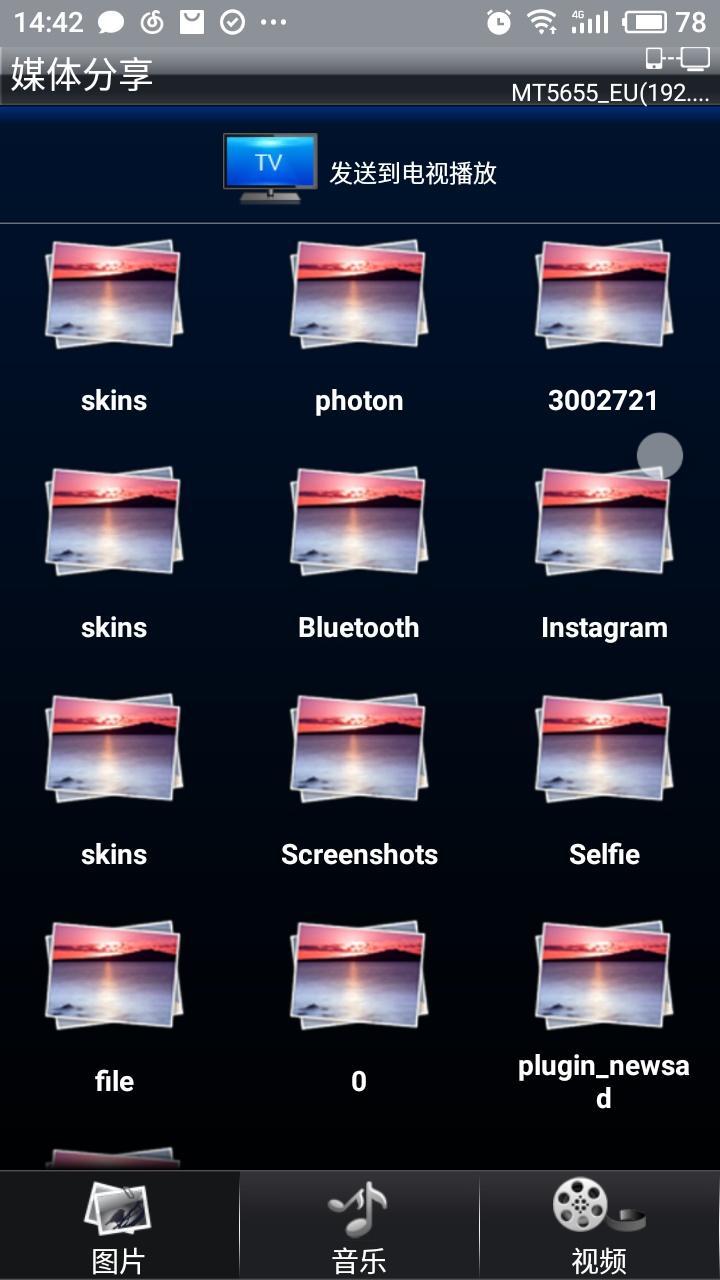
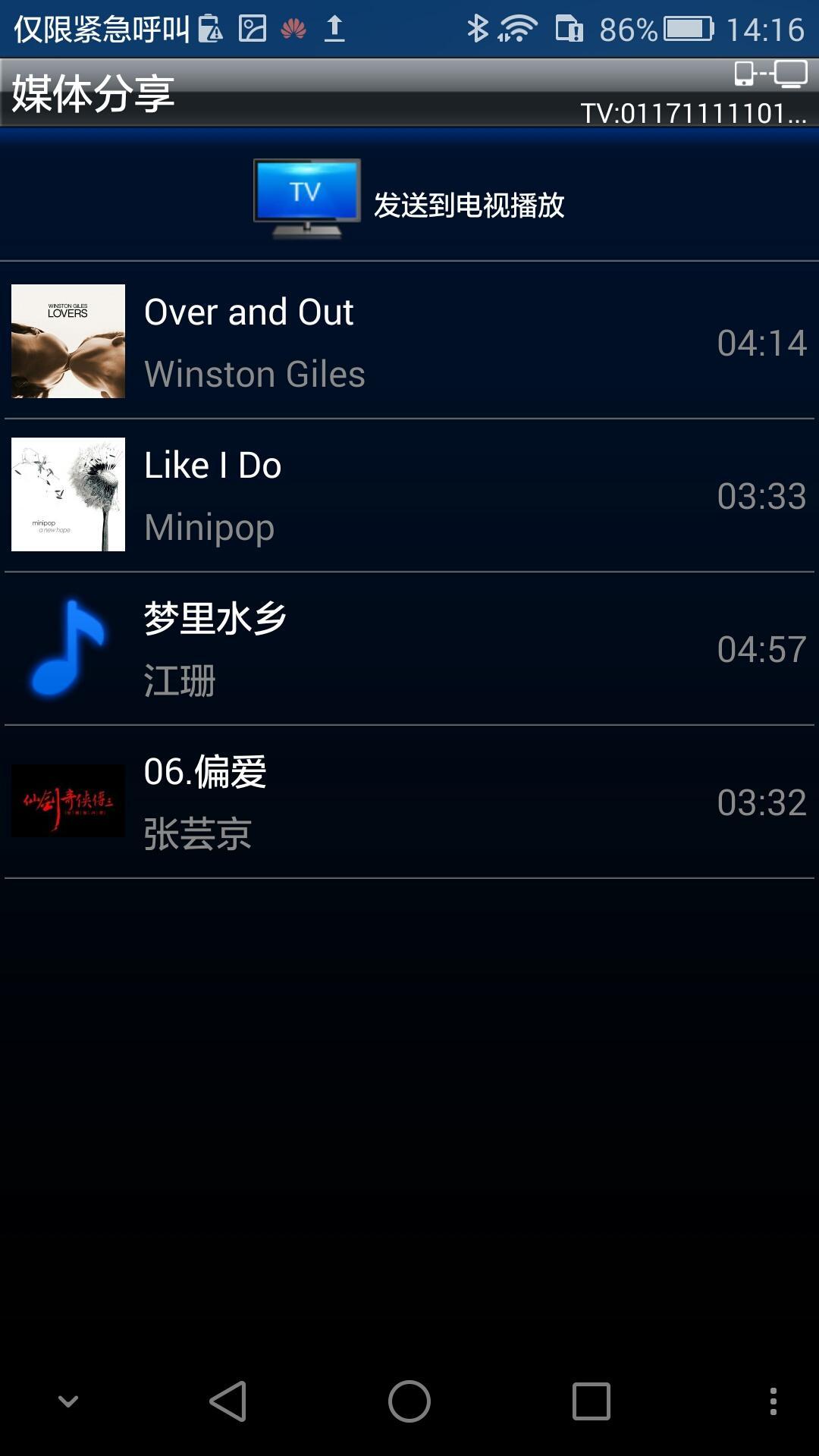
Centering around the Smart TV as the core, it realizes the interconnectivity and interoperability among TV, mobile phone and Pad, the interactivity of multimedia, remote control, and other functions. Multi-panel interaction contains “Transfer File”, “Video-on-Demand”, “Remote Control”, “Interactive Games”, and other applications. Multi-screen Interaction + Cloud Entertainment: use mobile phone to remotely control the TV for sharing media on the large screen, watching on-demand HD video, and playing Active Game. Transfer File: after mobile phone/Pad establishes a connection with the TV, you can send pictures, videos and music in the mobile phone/Pad to the TV for playback.
Detailed Steps:
1. Run Multi-panel Interactive feature on the mobile phone/Pad, and establish wireless connection between the mobile phone/Pad and the TV.
2. By clicking “Transfer File” feature on the mobile phone/Pad, you can browse pictures/videos/music folders or files. By long pressing a folder or file, and dragging it to the bottom of the page, you can send the media file to TV for playback. Or, during playback, click “Send to TV for Playback” on the play console.
Video-on-Demand: after mobile phone/Pad establishes a connection with the TV, you can send Internet video in the mobile phone/Pad to the TV for playback. Detailed Steps:
1. Run Multi-panel Interactive feature on the mobile phone/Pad, and establish wireless connection between the mobile phone/Pad and the TV.
2. Click “Video-On-Demand” on the mobile phone/Pad. Click a video and select “Send to TV for Playback”. Or, during playback, click “Send to TV for Playback” on the play console.
Interactive Games: currently three HD interactive games are supported. They are Motorboat, 3D Balance Ball, and Boxing. After the mobile phone/Pad establishes a connection with the TV, you can use the mobile phone/Pad to control the TV to play a game.
Detailed Steps:
1. Run Multi-panel Interactive feature on the mobile phone/Pad, and establish wireless connection between the mobile phone/Pad and the TV.
2. By clicking “Interactive Games” feature on the mobile phone/Pad, you can use the mobile phone/Pad to control a game on the TV. You have finished reading the contents corresponding to the icon.
Latest Version
1.0.0Uploaded by
Oshmore Fittest Mike
Requires Android
Android 2.2+
Category
Free Tools AppContent Rating
Everyone
Security Report
Report
Flag as inappropriateLast updated on Dec 30, 2017
Fix some bugs.





APKPure - A multi-platform app store primarily focused on Android, providing extensive app-related content. Discover the app you want easier, faster, and safer, with quick and efficient downloads and installations.