
ROG Gaming Center helps you prepare your gaming laptop before a session and keep an eye on it while you play. It connects your Android phone to a supported ASUS ROG laptop using Wi‑Fi Direct, so you can see status and make changes without leaving your game. In practical terms, it brings core controls and system insight into one place, making setup less cluttered and faster. For quick access on mobile, install the ROG Gaming Center APK and pair with your device.
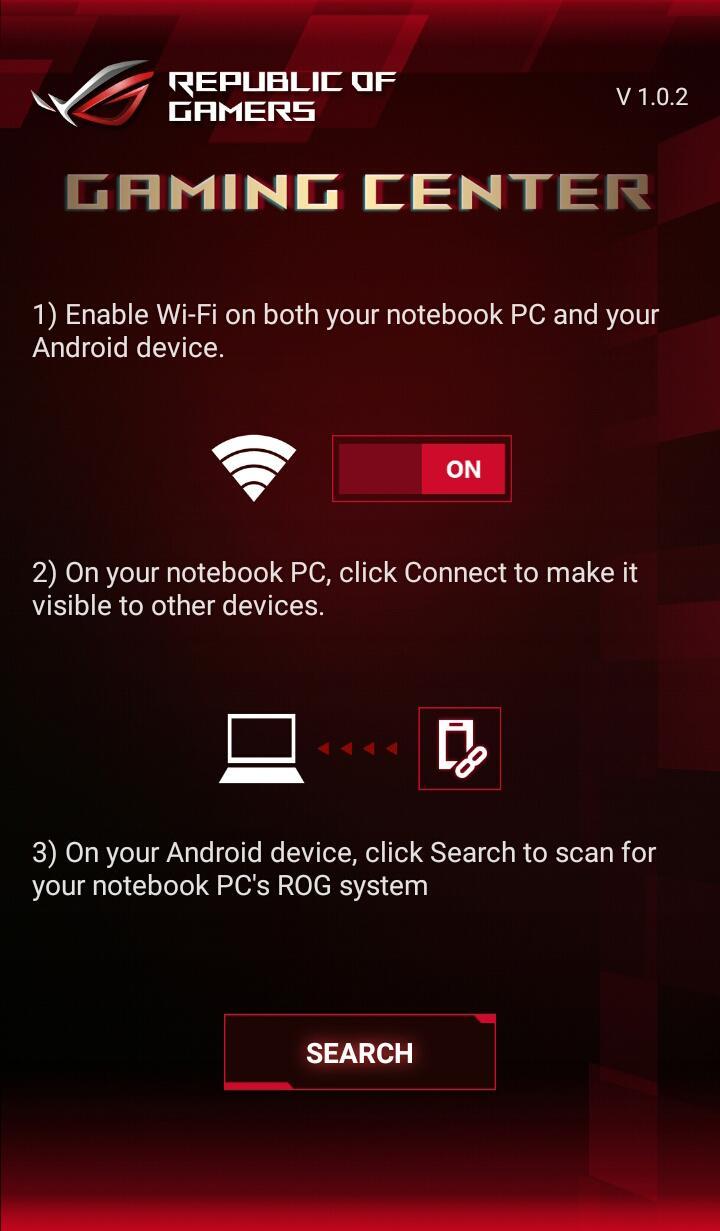
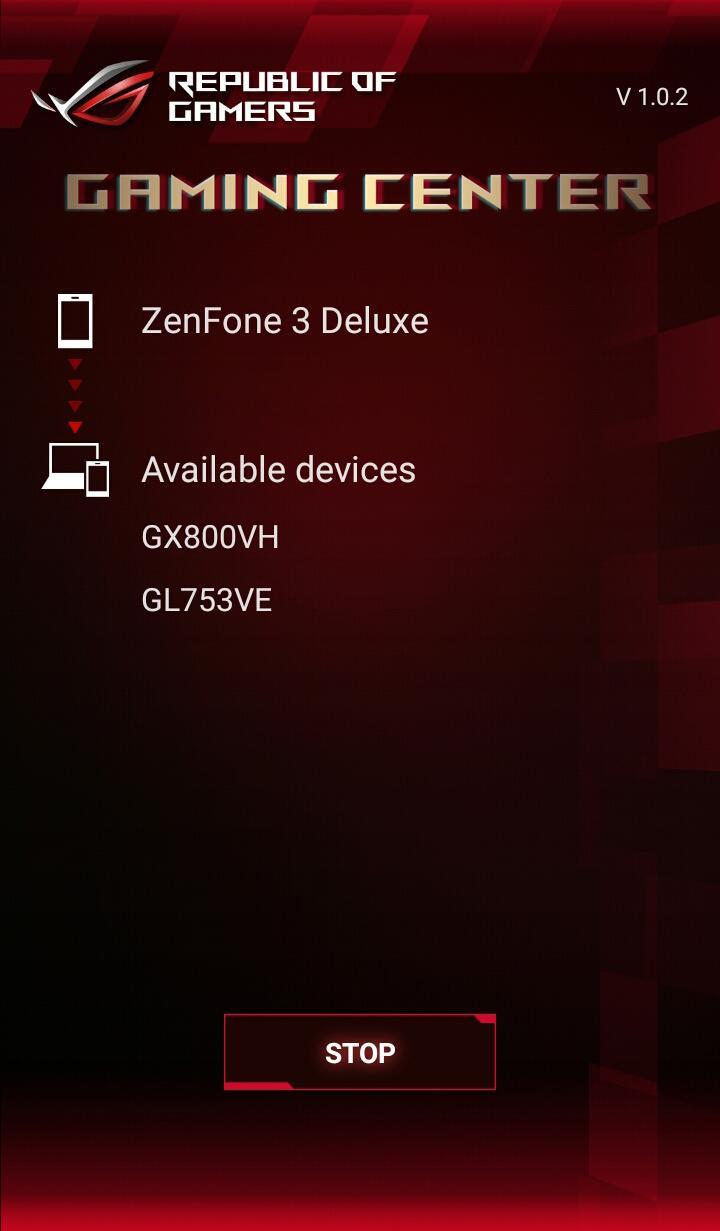
ROG Gaming Center pairs with your ROG laptop through Wi‑Fi Direct. After connection, you can monitor and change supported settings from your phone without a cable. This helps when the laptop is docked or placed away from your play area.
Live CPU and GPU statsYou see current CPU and GPU frequency, voltage, temperature, and other indicators in real time. With this view, you can check how the system responds to load and decide when to adjust performance for smoother gameplay.
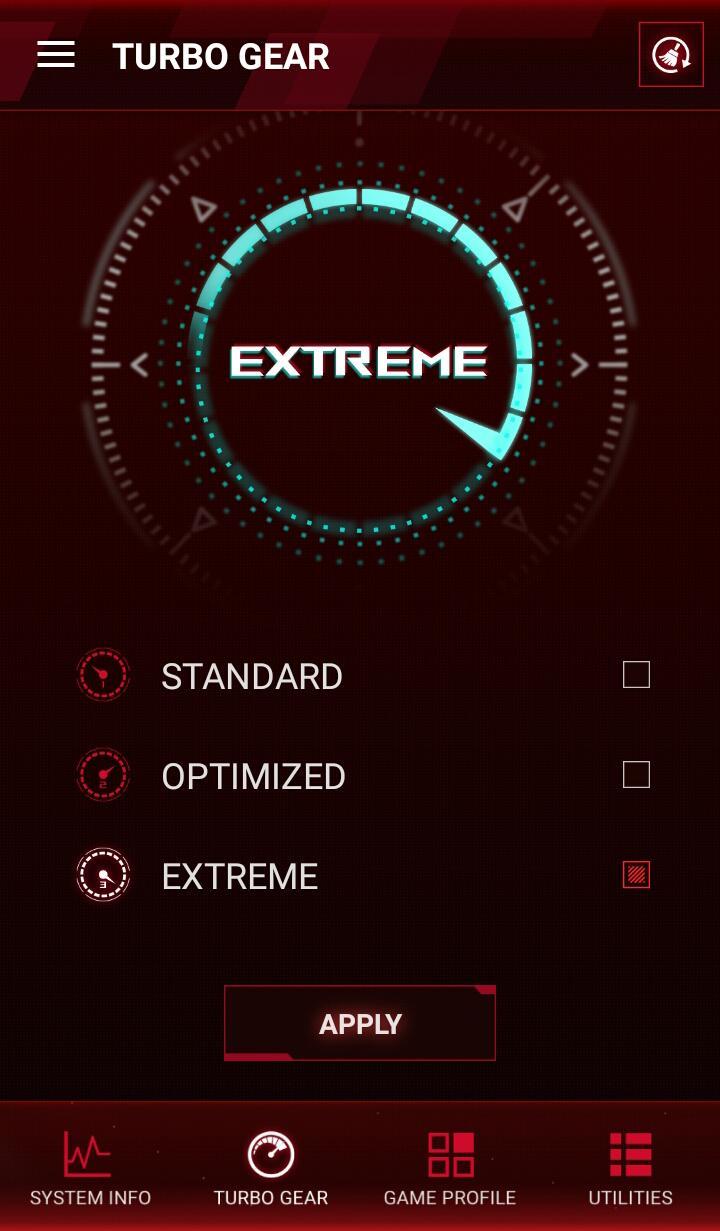
Turbo Gear performance modesYou can switch Turbo Gear modes to match the task at hand. ROG Gaming Center applies the selected profile so the laptop targets higher speed or balanced operation as needed, which keeps performance aligned with your current game or work.
One tap Game ProfileBefore launching a title, apply the Game Profile to set related ROG app options together. This reduces setup steps and keeps settings consistent across sessions, so you start each game with your preferred configuration in place.
Quick utilities for fans and Aura lightingAdjust fan speed and LED lighting with direct controls. The app surfaces Aura choices and system toggles in one screen, making small changes simple while you play or when you fine tune a build for daily use.
ROG Gaming Center is a legacy companion for specific ASUS ROG laptops. Armoury Crate is the current unified control app on many newer models. If your laptop uses Armoury Crate, follow that ecosystem. If your model supports ROG Gaming Center, this Android app can pair with it for remote monitoring and control.
This Android app requires the PC side ROG Gaming Center version 2.0.0 or later installed and running on a supported ROG laptop. Connection uses Wi‑Fi Direct, so both devices need Wi‑Fi and should be nearby. If no system info appears after pairing, confirm your laptop model supports mobile pairing and that the PC app is updated, then review the official ASUS troubleshooting guide for pairing steps. There is no iOS version of this app, and it does not function as a standalone PC installer.
To set up the laptop side, visit the official ASUS ROG Download Center and search by your exact model name. Download the ROG Gaming Center package that matches your device and update to version 2.0.0 or newer before pairing. The Android app does not install software on a computer, which helps avoid confusion around downloading tools for a PC.
Before pairing, make sure the laptop is running the ROG Gaming Center latest version and is ready for Wi‑Fi Direct. Then connect your phone and start monitoring and control from mobile.
ROG Gaming Center centralizes monitoring and control so you can prepare and tune your ROG laptop from your phone. To begin, download ROG Gaming Center and pair it with a supported laptop for remote access to key settings.
Latest Version
1.0.13Uploaded by
Javier Morado
Requires Android
Android 4.4+
Category
Free Tools AppContent Rating
Everyone
Report
Flag as inappropriateLast updated on Sep 18, 2018
Supports connecting with PC's ROG Gaming center v2.5.x via Wi-Fi Direct or Bluetooth.




APKPure - A multi-platform app store primarily focused on Android, providing extensive app-related content. Discover the app you want easier, faster, and safer, with quick and efficient downloads and installations.