Remote Desktop Connection can control any application on your computer
This free app works as wireless remote control
with this application, you can use the your smartphone/tablet as a wireless mouse/keyboard
Remote Desktop Connection can simplify your job as a presenter, you can play the powerpoint slideshow remotely via smartphone/tablet
Turns your android smartphone or tablet into wireless remote control for your computer
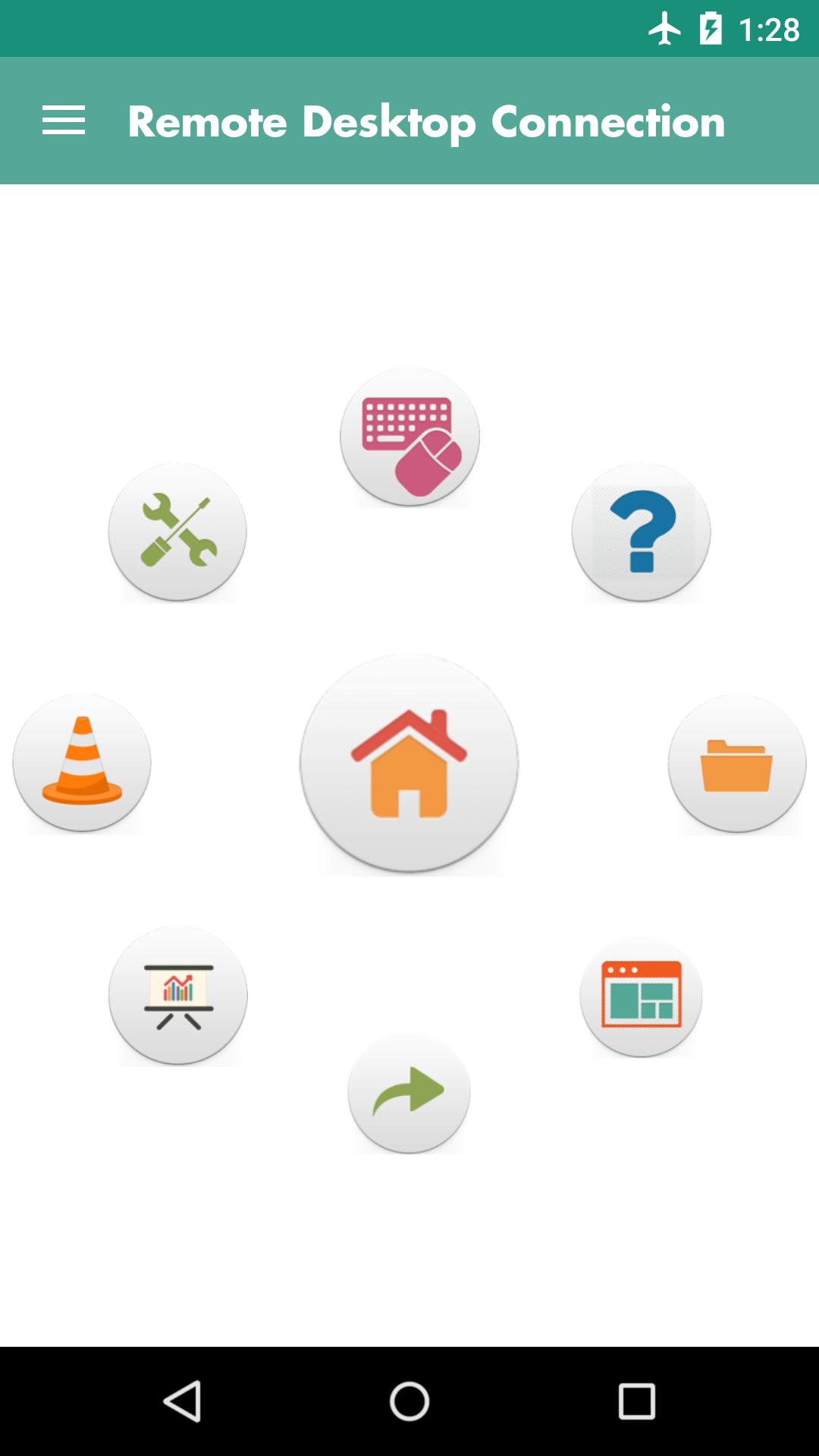
What can you do with this app?
- Remote mouse or keyboard
- Play media player
- Open file explorer
- Remote Power Point Presentation
- Remote Shortcut
- Remote Web Browser
All the features of this app is free, you can use it freely without paying anything.
How to connect:
On your computer:
1. Turn on your computer wifi
2. Connect it to your android smartphone hotspot
3. Click Remote Desktop Connection Server (jar file), make sure you have java installed on your pc (http://www.wikihow.com/Run-a-.Jar-Java-File)
4. Access the Remote Desktop Connection Server settings on PC system tray
5. Right click the icon to settings password and ip (or let default, remote is default password)
On your android smartphone/tablet
1. Use your android smartphone as wifi hotspot
(Android -> Settings -> More -> Tethering -> Wifi Hotspot)
2. Click Remote Desktop Connection app
3. Choose Connections
4. Add Wi-Fi connection type
5. Fill Password, IP Address (look at your PC System Tray on Remote Desktop Connection), leave port.
(There is two IP Address on your PC, select the first IP)
6. Don't forget to save your Connections then hold on for two second then choose USE
7. Happy remote your PC
Tutorial with screenshot : https://goo.gl/KUyv7y
Download Remote Desktop Connection Server file : https://goo.gl/oycHUZ
Make sure java runtime installed on your PC : https://java.com/en/download/
Please, let us know your opinion and suggestions about this app in order to improve it.
If you are a google+ user and you like this app, please press 1+ button. So you will help us to improve and to create more valueable apps. Thank you!!!
If something doesn´t work or if you want to let us know your suggestions, please write us an e-mail.
Latest Version
4.2Uploaded by
Rajmohan Rangasamy
Requires Android
Android 4.0.3+
Category
Free Tools AppContent Rating
Everyone
Report
Flag as inappropriateLast updated on Oct 15, 2015
- Stable Version
- All Features Free



APKPure - A multi-platform app store primarily focused on Android, providing extensive app-related content. Discover the app you want easier, faster, and safer, with quick and efficient downloads and installations.