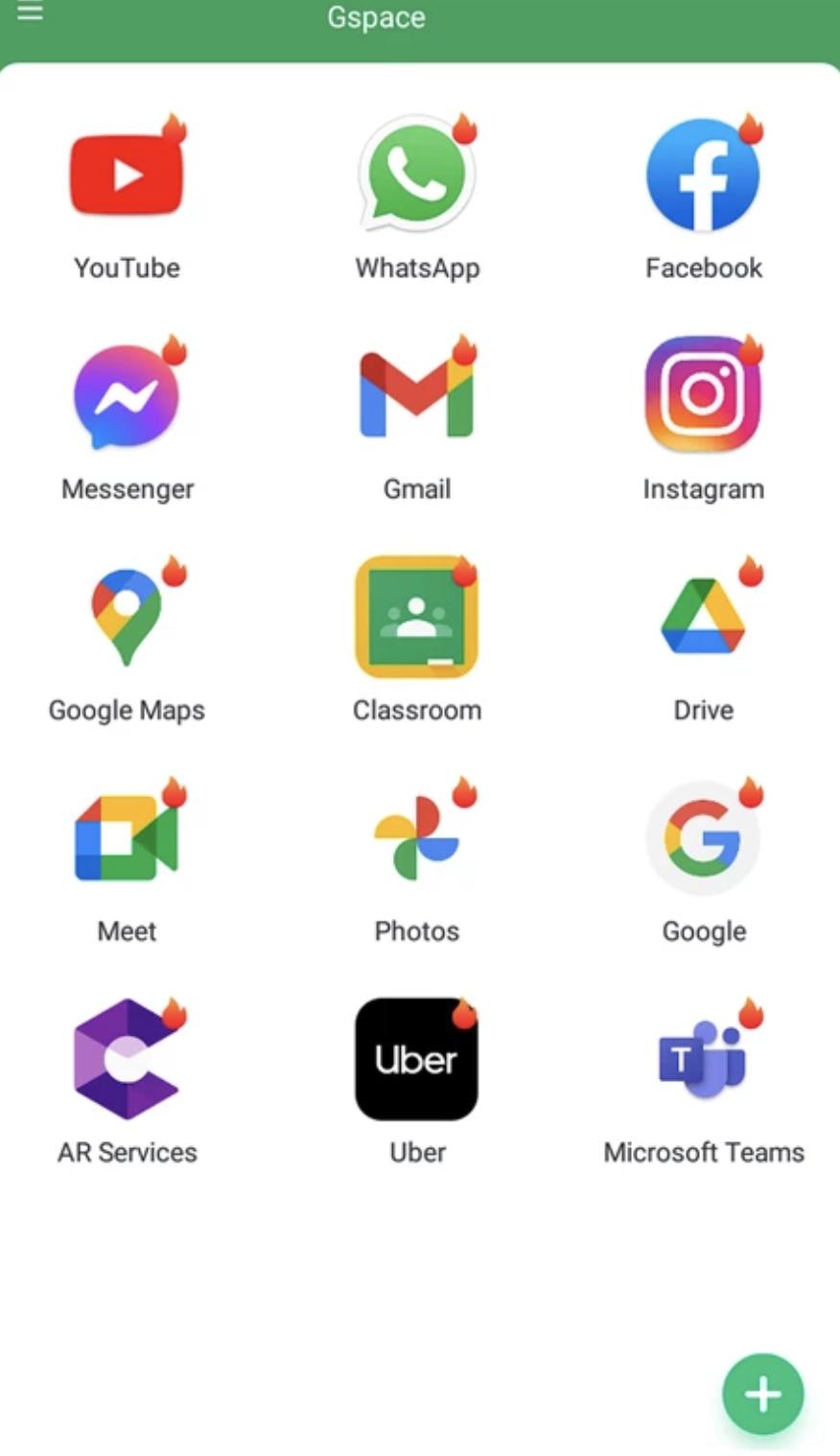
Gspace helps users who need everyday Google tools on phones that ship without GMS, especially many Huawei and Honor models. It creates a separate space on your device where you can access mail, maps, and video services while keeping the main system unchanged. For example, you can open a dedicated workspace to sign in and sync with your Google account without altering system settings. If this matches your needs, you can download Gspace to set up that space and get back to daily tasks.
Run Google apps without GMS
Gspace creates a contained environment where Google apps run independently of your main system. You do not need to modify the device or use root. This keeps setup simple and leaves core settings untouched.
Helpful for Huawei and Honor phones
Many Huawei and Honor devices do not include Google Mobile Services. Gspace provides a practical way to reach Gmail, Maps, YouTube, and other services in one place. It also works on many other Android phones if you want a separate space for specific apps.
Built in app store for easy setup
Inside Gspace, you can search for, install, and open Google apps directly. The store view handles installation inside the virtual space so everything stays organized. This approach makes first time setup more straightforward.
Quick cloning and home shortcuts
Gspace lets you clone essential Google apps inside the space and then add shortcuts to your home screen. You can open Gmail, Maps, or other tools in one tap without opening Gspace first. This reduces extra steps in everyday use.
Data separation for stability
Sign in and app data remain inside the virtual space. Sync works as usual while your main system stays unchanged. This separation helps reduce conflicts and keeps routine tasks reliable.
A few settings can help apps inside the space run as expected during daily use.
Enable notifications for Gspace and allow it to run in the background in your battery settings so mail and messages arrive on time.
If you do not see a store icon inside the space, long press an installed app and tap Upgrade to reach its store page and restore update access.
Add app shortcuts from Gspace to the home screen for one tap access to the services you open most.
Before installing, some users prefer to check for the Gspace latest version to match recent fixes and improvements. Reviewing version details and updating regularly helps apps inside the space sign in and sync as expected.
After installing the Gspace APK, setup is straightforward. The app creates a separate workspace for Google services on your device. Follow these steps to start using it right away.
Open Gspace and grant the requested permissions so it can create the virtual space.
Inside the space, open a Google app icon and sign in with your Google account when prompted.
Use the built in store to find Gmail, Maps, YouTube, and other services, then install what you need.
Long press an installed app and choose Add to Home Screen to create a shortcut for faster access.
To update an app inside the space, long press it and select Upgrade to open its store page.
Gspace provides a contained space to run Google apps on phones that do not include GMS, while keeping your main system intact. It focuses on daily needs like mail, maps, and video services with a clear setup process. If needed, check for the Gspace latest version before you begin.
Latest Version
2.3.3Uploaded by
JR TECHNOLOGY LIMITED
Requires Android
Android 4.4+
Available on
Gspace
Category
Free Tools AppReport
Flag as inappropriateLast updated on Dec 9, 2025
This release includes minor bug fixes and general improvements. Update to the latest version for the best experience.



APKPure - A multi-platform app store primarily focused on Android, providing extensive app-related content. Discover the app you want easier, faster, and safer, with quick and efficient downloads and installations.