Scan Date:Aug 4, 2026
Show More


Cx File Explorer suits users who want one place to check phone folders, connected accounts, and shared network locations. It uses a desktop style layout that separates content into clear sections, so files are easier to locate without switching between several tools. The app also combines everyday file handling with storage maintenance options. If you need an APK package for Android, the Cx File Explorer APK page provides the relevant download information.
Browse and organize folders
Cx File Explorer lets you browse internal storage, SD cards, and connected locations from the same interface. You can create folders, copy or move items, rename files, delete content, and share selected files. This is useful when sorting downloads, documents, photos, or transferred files into separate folders.
Use Local, Library, and Network tabs
You can use the Local tab to open device folders and storage locations. The Library tab groups media such as photos and videos, while the Network tab focuses on remote connections. As a result, you can choose a view based on the type of content you need instead of searching through every folder.
Connect cloud and network storage
Cx File Explorer supports cloud storage, NAS devices, and network servers through FTP, FTPS, SFTP, SMB, WebDAV, and LAN connections. You can use these connections to view and manage files stored away from the phone. This makes the app suitable for users who keep files on a home server or a shared network folder.
Check storage and remove unneeded files
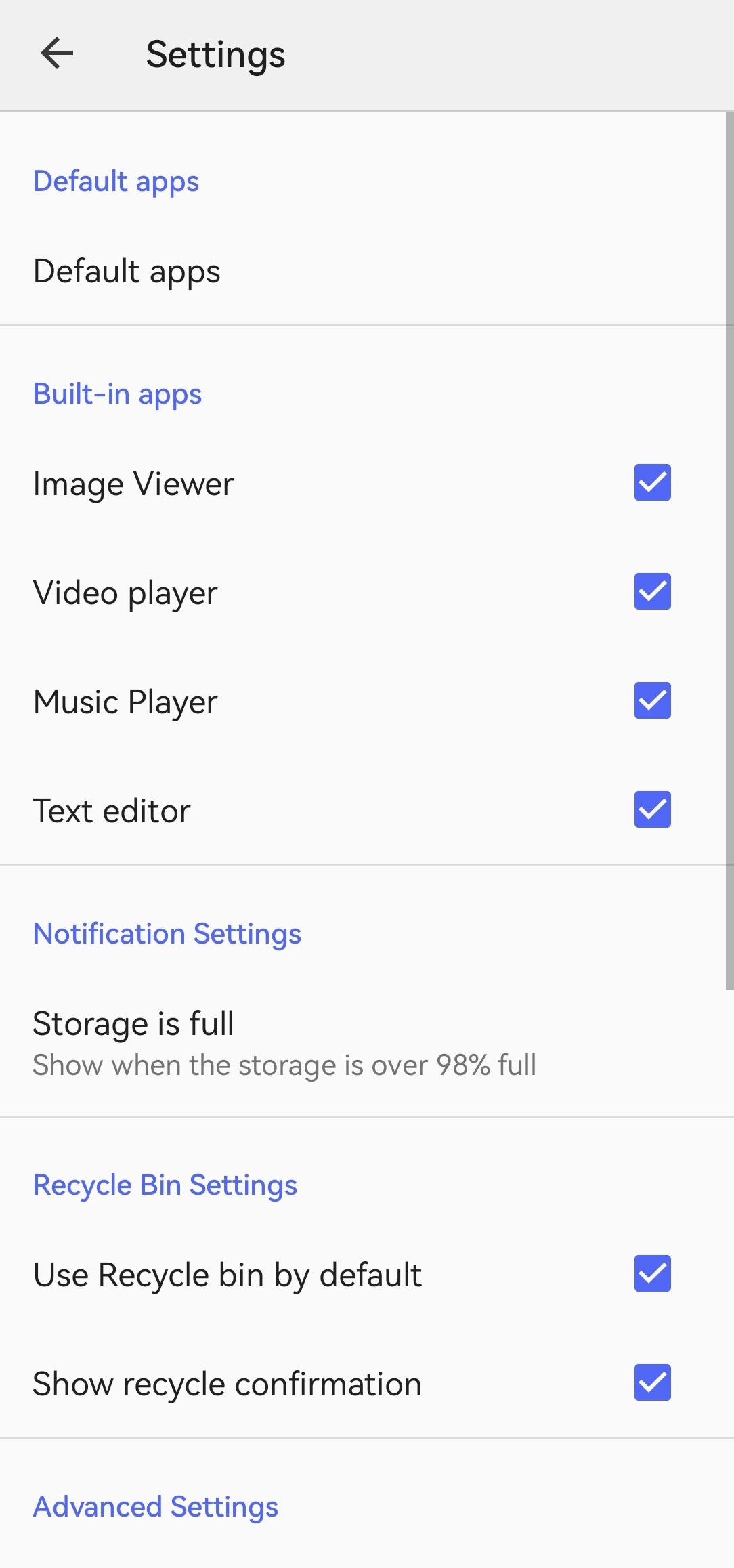
You can view storage usage in a visual format to see which content takes up space. Cx File Explorer can help locate junk files, duplicate files, and unused apps for review. Deleted items can also be sent to the Recycle Bin, which gives you a chance to restore them when needed.
Work with archives and file details
Cx File Explorer can create ZIP archives and extract their contents. It can also open password protected ZIP files, show hidden files, and let you choose default apps for opening certain file types. For transferred archives or installers, checksum calculation can help you compare file data and verify that a file matches its expected value.
Cx File Explorer works on Android phones, tablets, and Android TV devices. It can manage installed apps alongside regular files, which may be useful when reviewing apps that are no longer needed. However, it does not include a dedicated built in dark mode toggle.
Access to the /Android/data folder may be limited on certain Android devices because of operating system restrictions. In supported cases, Shizuku is the stated workaround for accessing this location. Users who regularly need to manage files inside that folder should check whether their device and setup support this method before relying on it.
Start by choosing the part of your storage that matches the files you want to handle. The download Cx File Explorer page is intended for users who want to install the app before following these steps. Once opened, use the tabs to move between device storage, media categories, and connected servers.
Open Cx File Explorer and select Local to browse internal storage, an SD card, or another available device location.
Choose a folder, then press and hold a file or folder when you need to copy, move, rename, delete, compress, or share it.
Switch to Library when looking for media by category, such as photos or videos, rather than by folder name.
Open Network and add the connection details for a cloud account, NAS device, or server using a supported connection type.
Review storage analysis when space is low, then check duplicate files, junk files, and unused apps before removing anything. If you delete an item by mistake, look in the Recycle Bin for recovery options.
Cx File Explorer combines local folders, cloud storage, NAS file access, archive handling, and storage cleanup in one Android app. Check the Cx File Explorer latest version details to confirm the available release before installation.
For app related support, the developer provides the following contact address:
Email: cx.fileexplorer@gmail.com
Latest Version
2.7.8Uploaded by
Ankush Verma
Requires Android
Android 5.0+
Category
Free Tools AppContent Rating
Everyone
Security Report
Report
Flag as inappropriateLast updated on Jul 30, 2026
- Bug fixes and minor improvements.
- On some devices, access to the /Android/data folder may be restricted by the operating system. You can work around this limitation by using the Shizuku app, which allows Cx File Explorer to access the folder
2.7.7
- Fixed an FTPS connection error
2.7.0
- Built-in music player engine changed
2.6.6
- Added 'Copy again' and 'Return to source folder'
2.5.8
- Multi-archive extraction supported
- 7z compression added




APKPure - A multi-platform app store primarily focused on Android, providing extensive app-related content. Discover the app you want easier, faster, and safer, with quick and efficient downloads and installations.