Package Name:com.sec.android.app.launcher
SHA-256:95422bbff4f0fa83fe7783116b483a0022f53ba6a2cd4ff6b6b3536f8073cf45
Show More


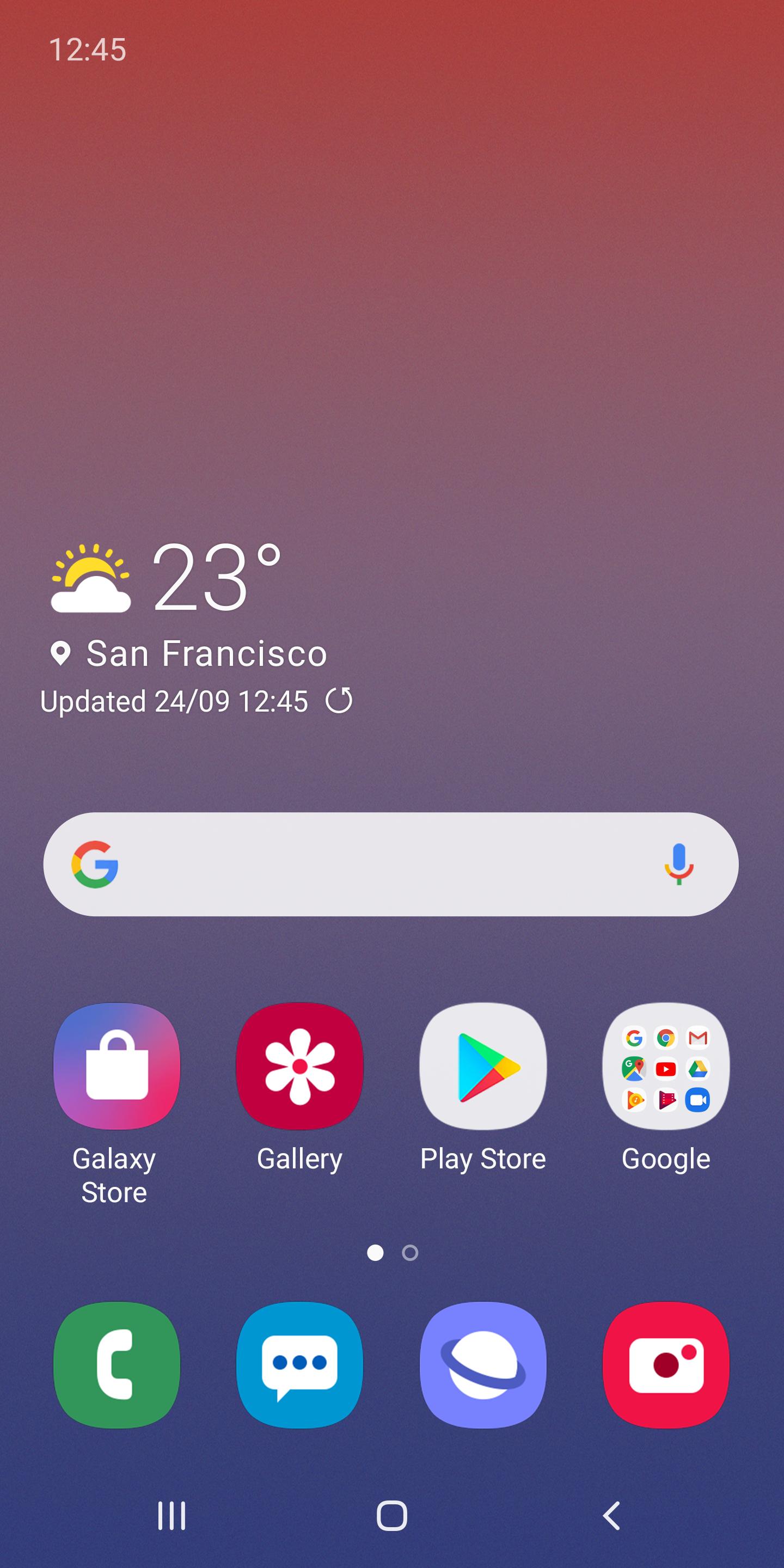
Samsung One UI Home helps you keep the Home screen clean, consistent, and easy to use across Galaxy phones and tablets. It provides a familiar layout that lowers friction when opening apps or checking widgets, while also offering controls that adapt to how you use your device. Because it is part of the Galaxy experience, some settings and options may differ by model and software version. However, the Samsung One UI Home latest version continues to focus on clarity, simple navigation, and practical customization that fits everyday use.
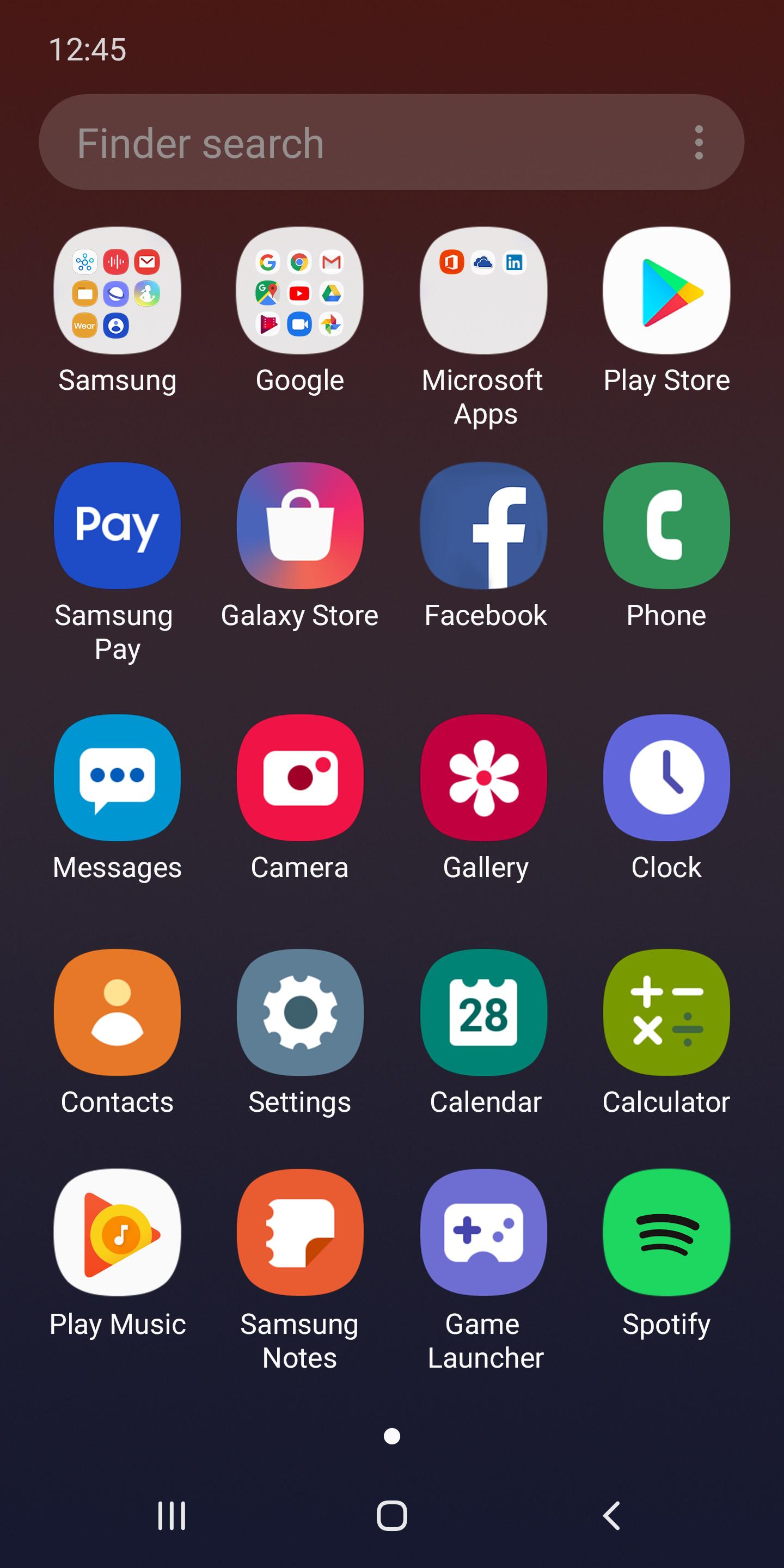
Samsung One UI Home arranges icons and pages so you can scan quickly and reach apps without extra steps. The Home and Apps screens feel familiar from one Galaxy device to another, which reduces confusion when switching phones or using a tablet. As a result, you spend less time searching and more time getting to what you need.
Full screen gesturesYou can hide the navigation buttons and use swipe gestures to move around the system and switch apps. This gives more space to your Home screen and widgets. The gesture settings live in the system display controls, and exact menu names may vary by device, so check your phone’s Settings if you do not see the option inside Home screen settings.
Lock Home screen layoutLocking the layout prevents accidental icon moves, deletions, or added pages. This is useful if the device is shared or if you prefer a fixed arrangement for faster muscle memory. When the lock is on, icons and widgets stay in place until you turn it off in Home screen settings.
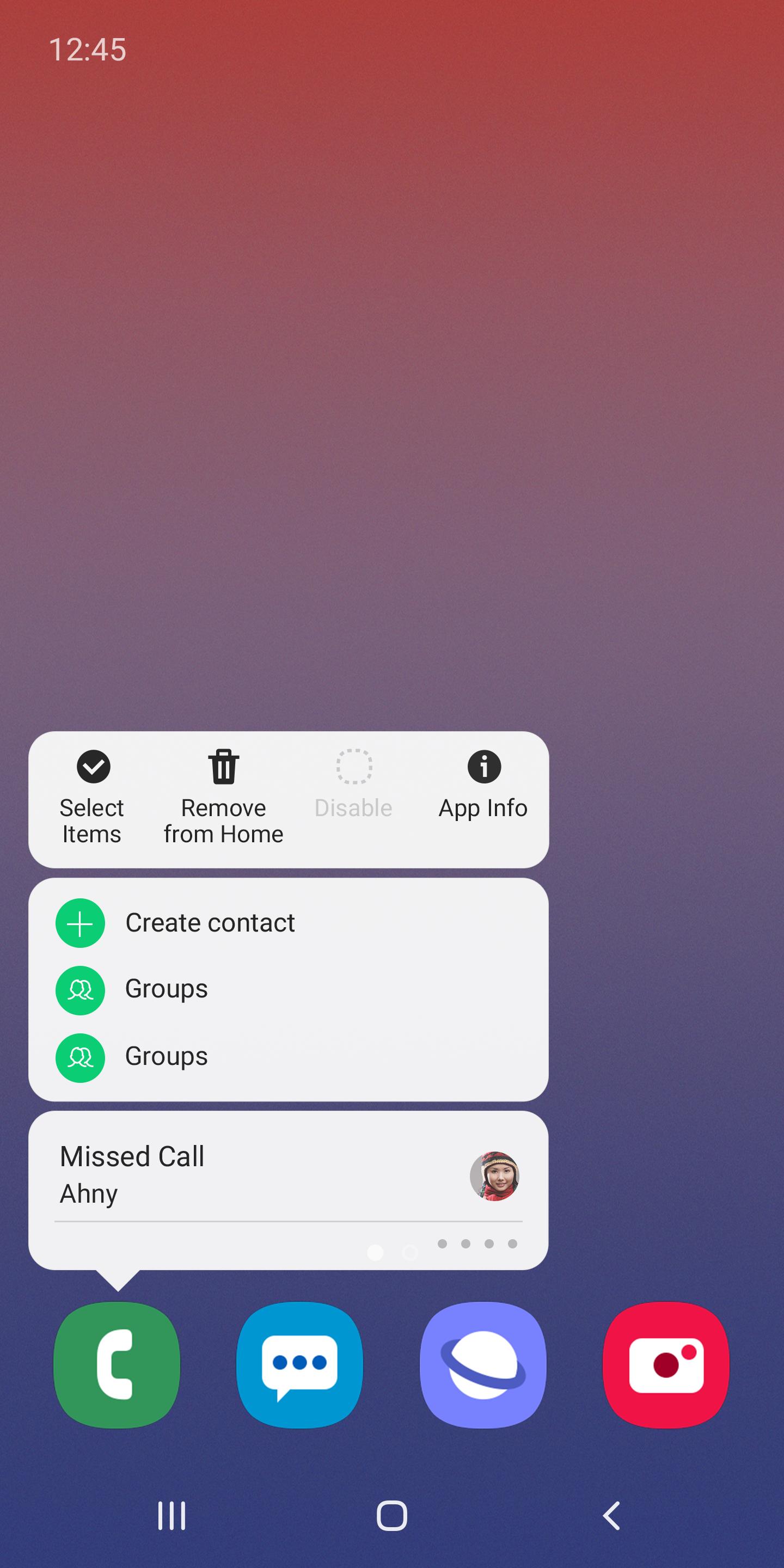
Quick actions with long pressLong press an app icon or a widget to jump to App info or Widget settings directly. This shortcut cuts out extra menu browsing when you need to clear data, manage notifications, or adjust a widget’s display. It is a small control that saves time during routine maintenance.
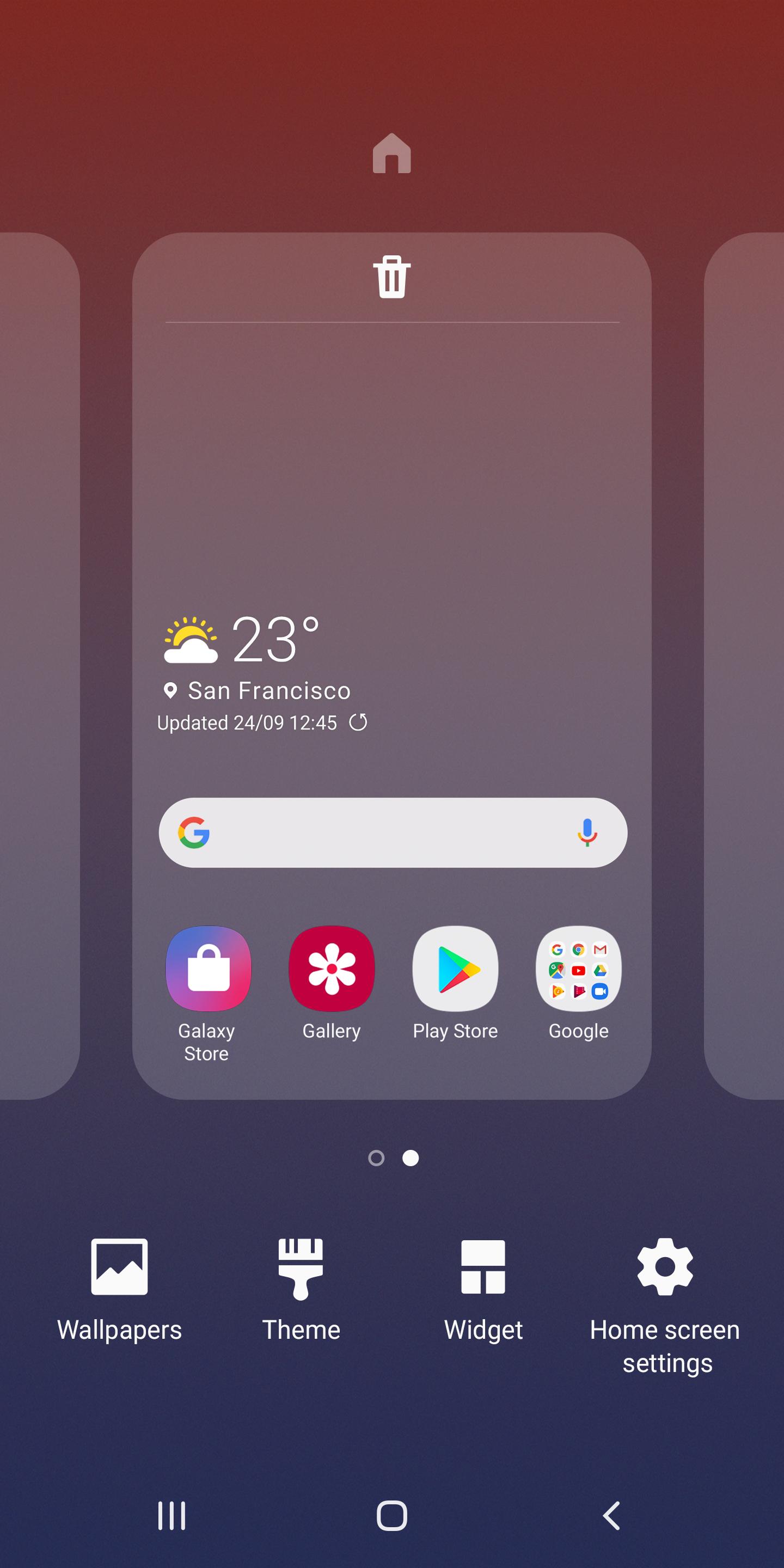
Customization and hidden appsSamsung One UI Home lets you choose wallpapers, adjust icon styles, arrange widgets, and apply themes to match your workflow. You can also hide selected apps from the Home and Apps screens to reduce distractions or keep certain apps out of view. Hidden apps remain installed and can be shown again from the same setting.
Samsung One UI Home is the preinstalled system launcher on Galaxy devices and is generally necessary for normal Home and Apps screen operation. Most users cannot delete or fully disable it, and attempting removal may affect basic navigation. Feature availability can differ by model, carrier configuration, and software version, so some options may appear in different menus or may not be present on older software.
Certain functions may request optional permissions. Storage is used to back up and restore the Home screen layout, including icon positions and folders. Contacts is used to restore information for contact widgets when you bring back a saved layout. Permissions are asked only when you use related features, and you can proceed without them if those functions are not needed.
Updates to Samsung One UI Home are typically delivered through official Samsung channels, such as Galaxy Store or Samsung Members on Galaxy devices. If a feature is missing or behaves differently, check for device updates, then review Home screen settings again. Settings names and locations can change with software updates, so new options might appear after updating.
On Galaxy devices, Samsung One UI Home controls the Home and Apps screens with simple, direct settings. If you use the Samsung One UI Home APK, the steps below cover common actions for organizing and customizing your layout. Follow them in order to keep your Home screen tidy and predictable.
Samsung One UI Home offers a consistent launcher experience with practical gestures and straightforward customization on Galaxy devices. To set up your layout, open Home screen settings, choose your preferences, and lock the arrangement when finished. If needed, download Samsung One UI Home updates through official Samsung channels on your device.
For official resources, visit:
Latest Version
15.1.03.55Uploaded by
Samsung Electronics Co., Ltd.
Requires Android
Category
Free Personalization AppContent Rating
Everyone
Security Report
Check Now
Report
Flag as inappropriateLast updated on Apr 1, 2024
Minor bug fixes and improvements. Install or update to the newest version to check it out!

APKPure - A multi-platform app store primarily focused on Android, providing extensive app-related content. Discover the app you want easier, faster, and safer, with quick and efficient downloads and installations.