Scan Date:May 9, 2026
Show More


Phoenix suits users who want fast page loads, smooth video viewing, and reliable downloads in one place. It keeps everyday browsing responsive, even when the network is slow, and helps you save data during long sessions. You can read news, watch videos, and manage files without switching apps, which makes routine tasks more straightforward. For those looking for a direct install package, Phoenix APK is often chosen when a simple browser setup is needed.
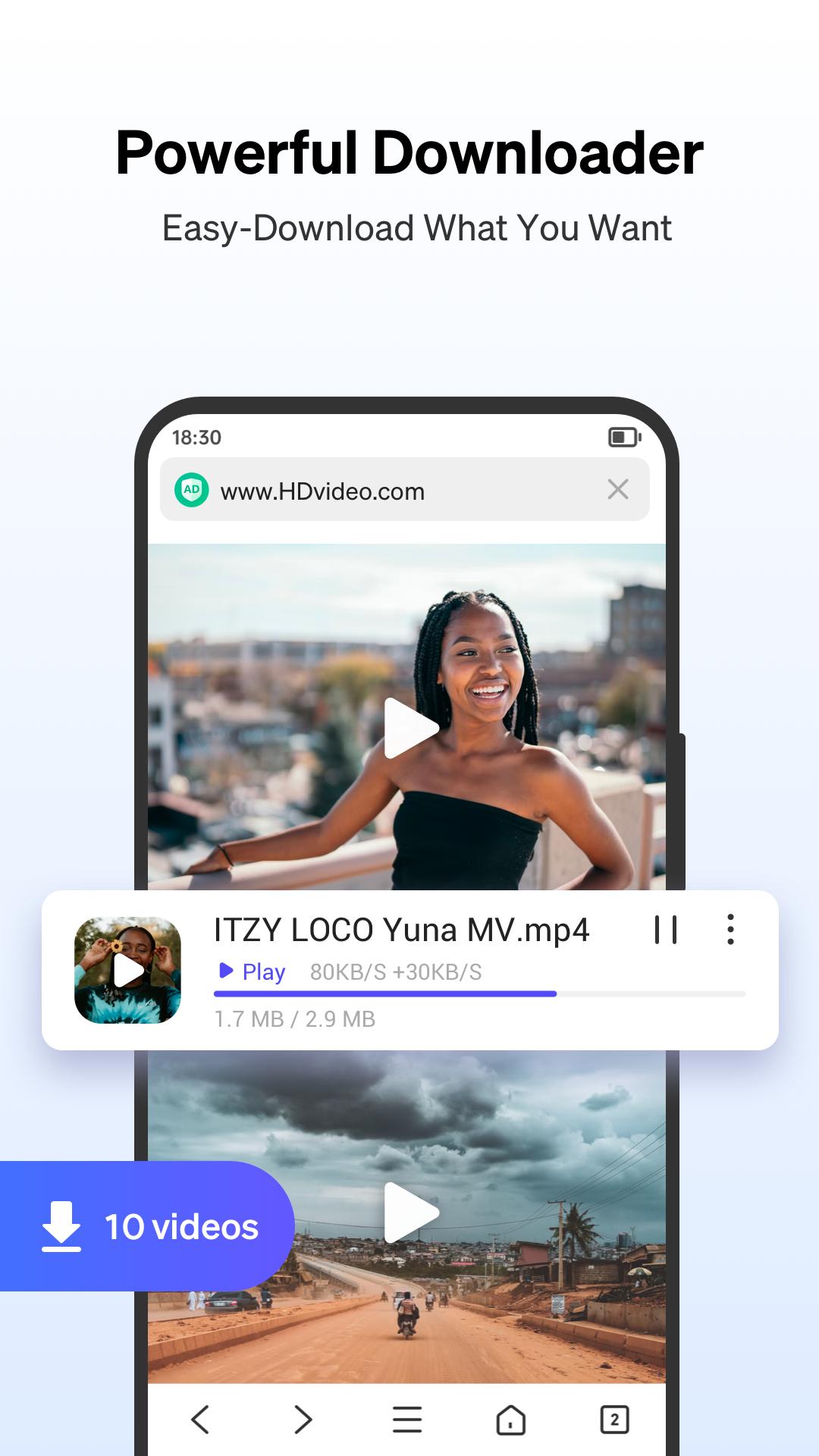
Phoenix loads webpages quickly and supports multi file downloads at the same time. It auto detects downloadable videos on popular sites like Facebook and Instagram, so you see a clear save option when content is available. Phoenix also supports BitTorrent and magnet links, which lets you handle more file types without extra tools.
Smart Video Downloader and built in playerWith the Smart Video Downloader, Phoenix gives you a one tap save button when a video is detected. You can watch saved videos inside the built in player, so there is no need to switch to another app. Playback stays convenient while the download continues in the background.
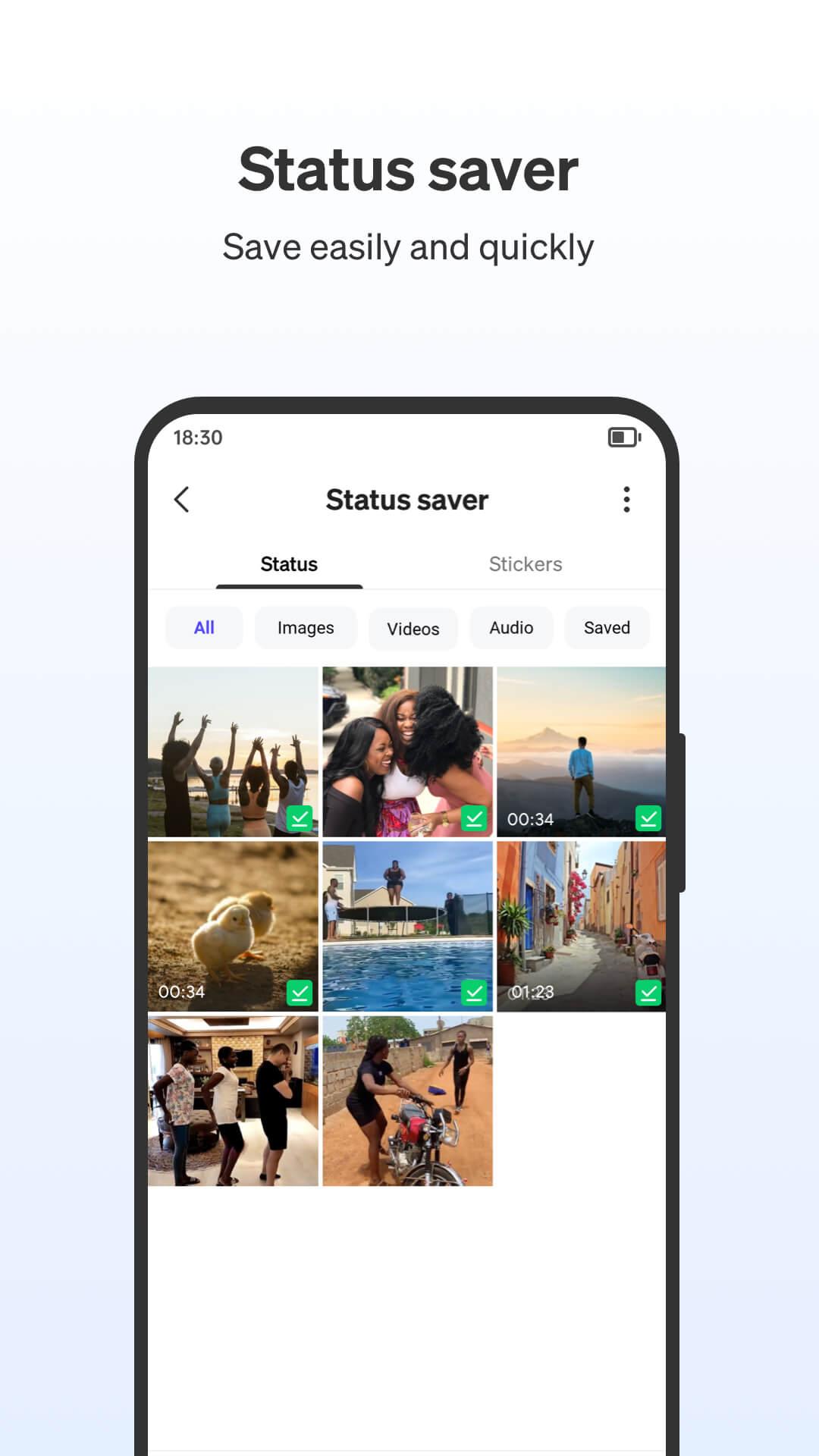
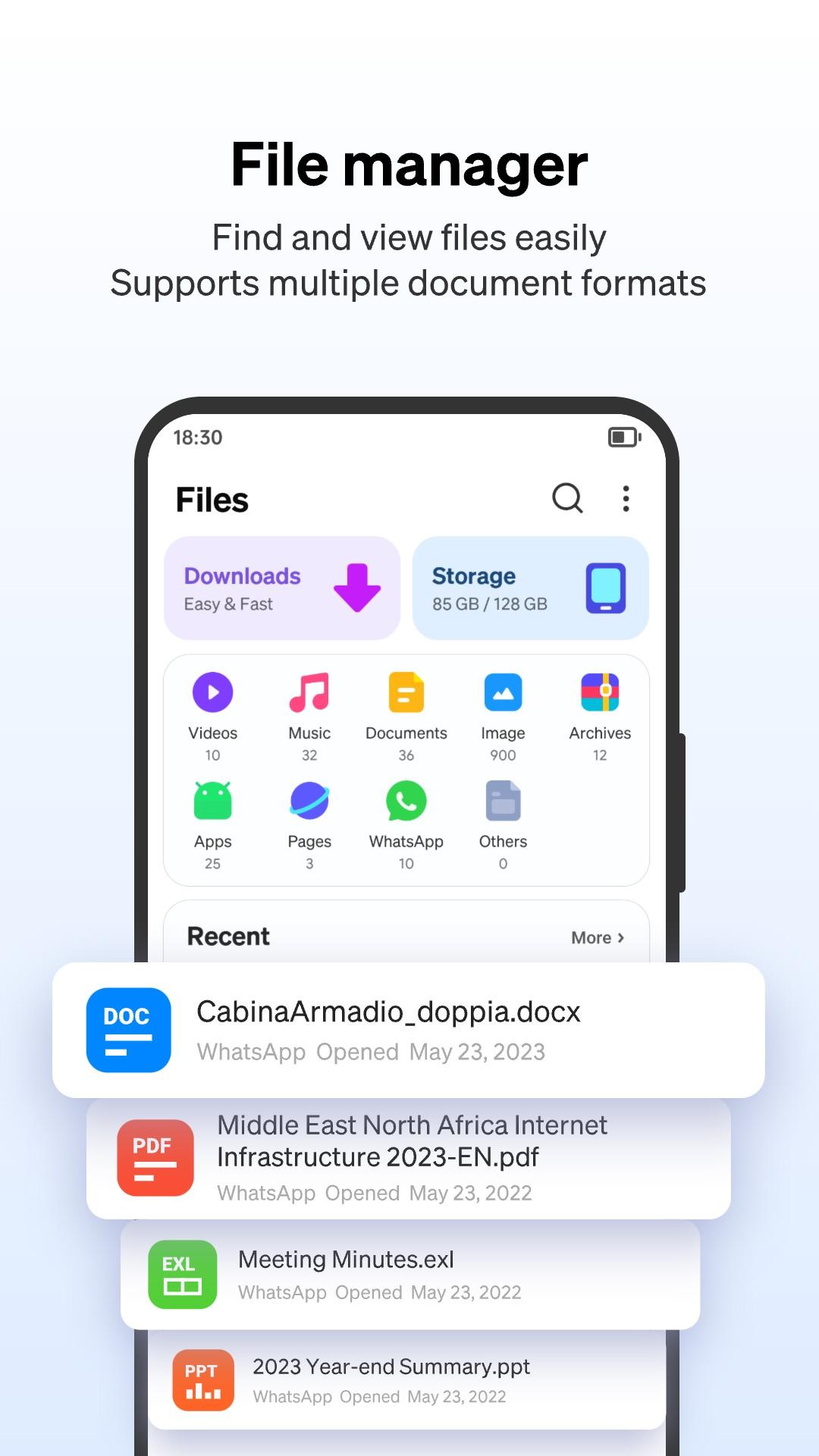
File Manager and WhatsApp Status SaverPhoenix includes a powerful File Manager that helps you open, move, rename, and share more than 50 common file formats such as Word, Excel, PPT, PDF, photos, music, and videos. You can also save friends’ WhatsApp statuses directly, then manage those files alongside your other downloads.
Data Saver for slow networksTo reduce bandwidth usage, Phoenix compresses webpages and images so browsing stays quick on poor connections. Data Saver can cut usage by up to 90 percent, which is helpful on limited data plans. This keeps pages responsive while you read or watch content.
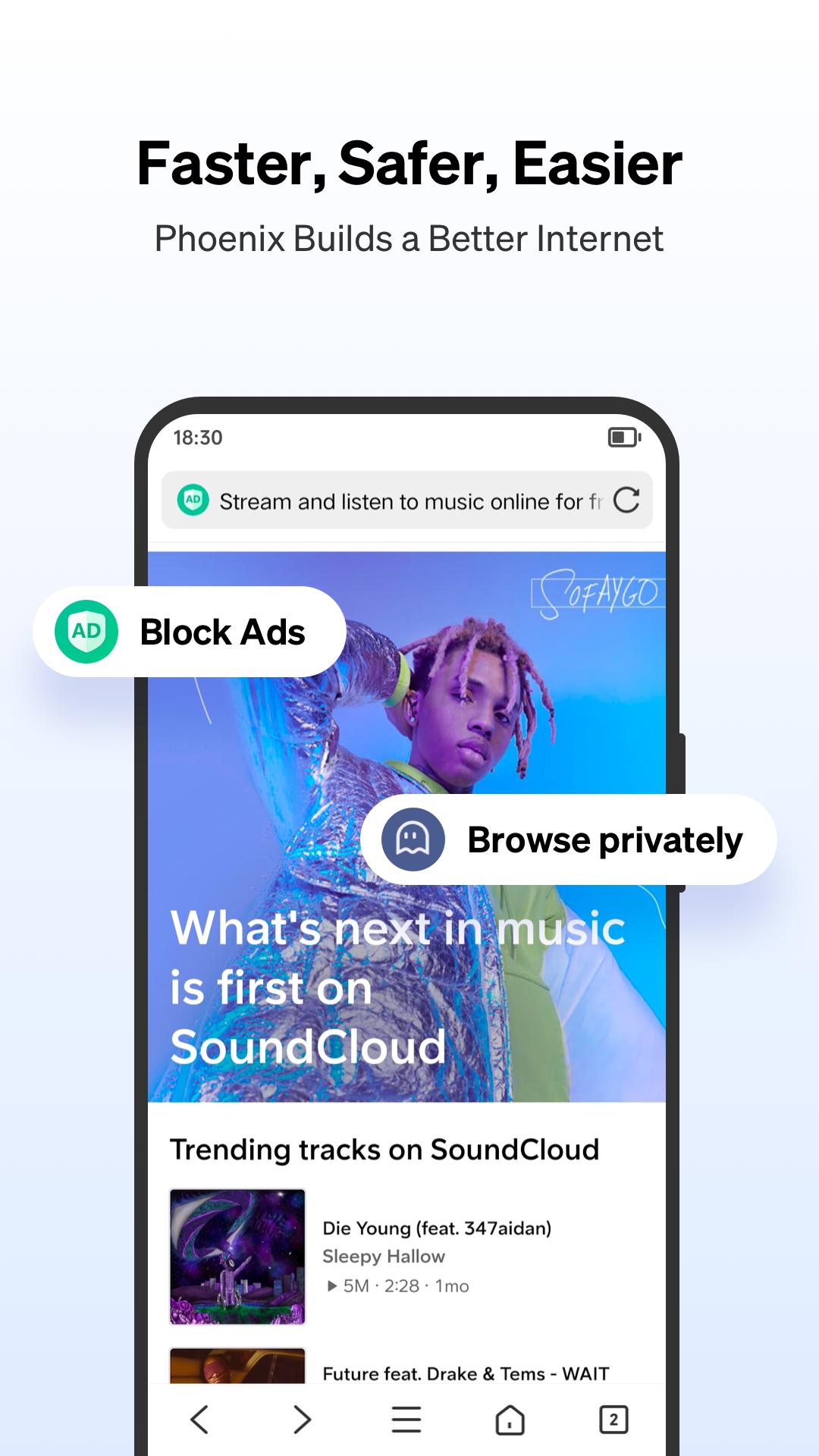
Privacy tools with Ad Block and IncognitoPhoenix offers Ad Block to limit popups and distracting banners during browsing. Incognito Mode runs a private session without saving history, cookies, or cache. These tools work together to keep sessions cleaner and limit tracking across sites.
Downloading videos from YouTube is not available in Phoenix due to Google policy. This avoids playback and access issues many users encounter when trying to save YouTube content. If a video save button does not appear on that site, it is working as designed.
Phoenix requests the All Files Access permission, also known as MANAGE_EXTERNAL_STORAGE, so it can browse, organize, and play your files, videos, and photos. This access is used to manage content on your device for a better file browsing experience. Phoenix does not upload user information and only works with files stored on your phone or SD card.
Phoenix supports torrent files and magnet links inside the browser. For safe use, only open links from trusted sources, check file details before starting, and respect local laws about copyrighted material. Keep an eye on data usage when downloading large files, and pause or cancel a task from the download manager if needed.
Phoenix is a practical choice if you often save videos, organize files, and browse on slow or metered connections. Its private mode and ad blocking help reduce tracking and interruptions, while compression helps limit data use during long sessions.
To begin, install and open Phoenix for everyday browsing and downloads. If you want direct installation packages, you can look for Phoenix APK to set up the app quickly. The steps below cover common actions on Android.
Phoenix brings fast loading, video saving, file control, and private sessions into one Android browser. To keep browsing current and stable, consider Phoenix latest version when installing or updating. Users who need efficient downloads and simple file management can set it up in minutes.
Latest Version
21.3.1.6525Uploaded by
Ehsaan Danish Mughal
Requires Android
Android 7.0+
Category
Free Communication AppContent Rating
Everyone
Security Report
Report
Flag as inappropriateLast updated on May 9, 2026
📚 Novel homepage upgraded:
New Easy to Start recommendations, story tags, and direct access to the reader for faster book discovery.
⚽️ Football updates:
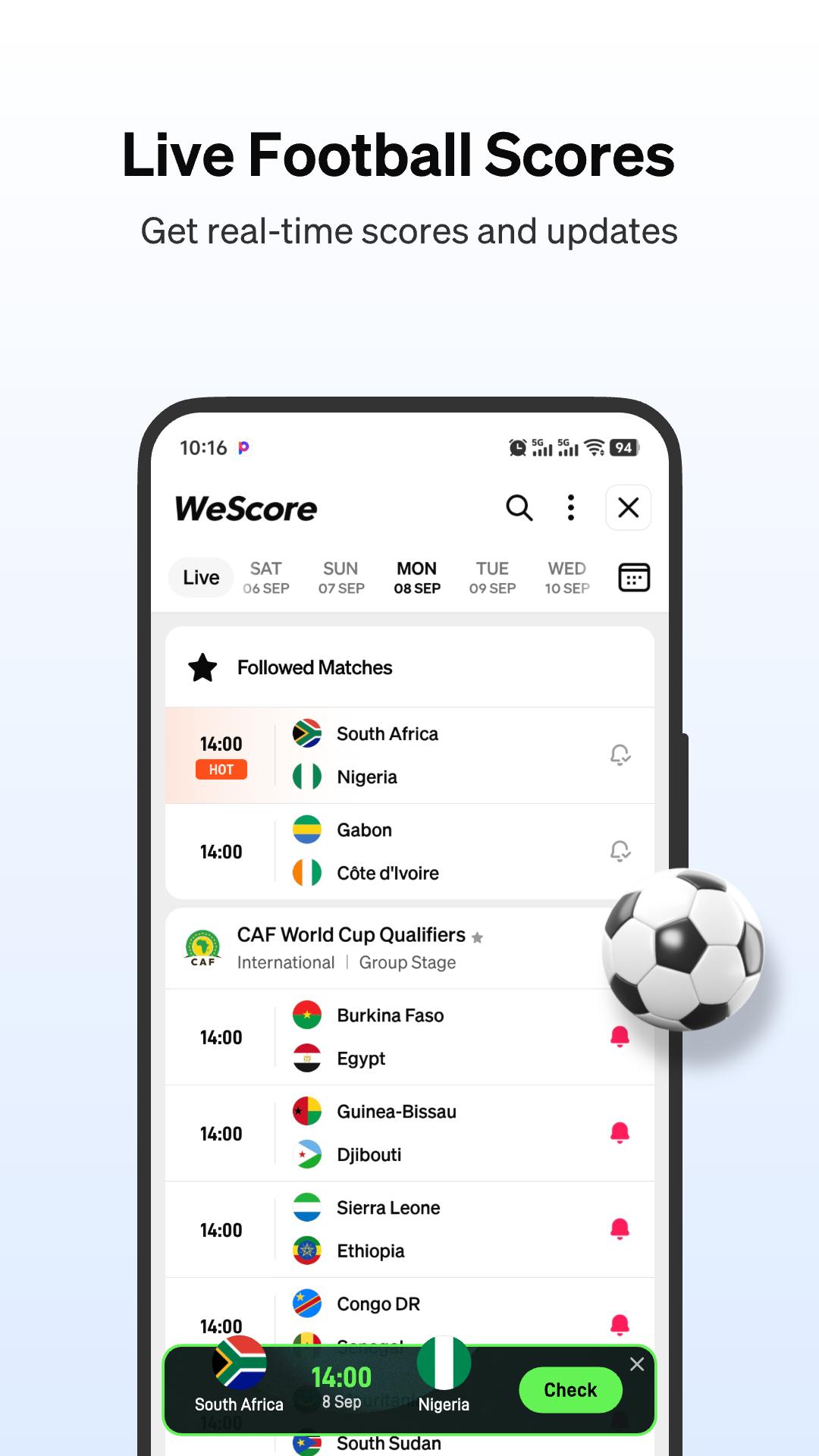
More competitions and richer match insights.
Resolved video download issues for a smoother offline experience.


APKPure - A multi-platform app store primarily focused on Android, providing extensive app-related content. Discover the app you want easier, faster, and safer, with quick and efficient downloads and installations.