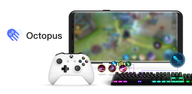

Octopus helps users who prefer physical controls map buttons to on‑screen actions in mobile games without root. It centralizes setup so you can add games, launch them from Octopus, and apply a control layout that fits your style. You can start with a preset and later fine tune details as you go. As a result, aiming, camera movement, and skill use can feel more consistent across titles, and Octopus APK offers a simple way to keep profiles organized.
Broad controller and device support
Octopus works with a wide range of gamepads and input devices. You can connect Xbox and PlayStation controllers along with IPEGA, GameSir, Razer, and Logitech models. Generic Bluetooth and USB devices are also recognized in most cases. This lets you bring a familiar setup into many mobile games.
Presets and game modes to start faster
Octopus provides more than thirty starter keymaps so you can get into a match quickly. You can enable Advanced Shooting mode for first person shooters to handle aim and fire mapping, and Smart Casting for MOBA games to place skills efficiently. These modes reduce setup time and give you a clear base to edit later.
Deep control customization
You can build a layout that fits each game. Octopus includes more than twenty control components, per game profiles, and options for sensitivity and camera tuning. You can move, resize, and assign actions to match your habits and then save the profile for future sessions.
Built in tools for play and capture
Screen recorder is available to capture gameplay directly while you play.
Virtual mouse helps with precise cursor control in menus and strategy titles.
In the Pro edition, you can set a custom shortcut for the virtual mouse to speed up access.
Reliability and Pro control upgrades
Octopus adds controller calibration to help non standard gamepads behave correctly. A plugin supports Google Play login so you can sync game progress through supported titles. There is also an optional fake location tool for apps that need a set location. Pro features include Swipe bindings for gestures, Multiply to trigger repeated taps, Order Key for sequences like combos, and Analog Deadzone tuning to reduce stick drift.
Octopus is designed to work with many popular controllers and input styles. Xbox and PlayStation controllers are supported along with IPEGA, GameSir, Razer, and Logitech models. Generic Bluetooth and wired USB devices can work as well. For Bluetooth, pair the controller in system settings first, then open Octopus and check detection. For USB, connect through a compatible cable or OTG adapter, then open Octopus to confirm inputs. If your sticks or triggers feel off, run controller calibration inside Octopus to correct the range.
Octopus asks for certain permissions so input mapping and tools function properly. Accessibility permission enables Octopus to translate your controller or keyboard actions into on screen touches. Display over other apps is needed to show the keymap overlay and editing interface while a game is running. Storage and microphone are used by the screen recorder to save and record gameplay when you choose to capture it. Location permission is only used if you turn on the fake location tool. You can manage each permission in your device settings at any time.
The setup process is straightforward and does not require root. After you install the Octopus latest version, you can add games, pick a preset, and fine tune controls. The same flow applies whether you use a controller, keyboard, or mouse.
Open Octopus and tap the add button to select the games or apps you want to control. Launch those titles from within Octopus so your keymap loads correctly.
Connect your controller by Bluetooth or plug it in with USB, then confirm that button presses appear in Octopus. If inputs feel misaligned, run controller calibration before you enter a match.
Choose a starter preset for your game. Turn on Advanced Shooting for shooters or Smart Casting for MOBA games so the base layout fits common actions.
Edit the keymap to match your preferences. Move buttons, assign actions, and adjust sensitivity and camera speed. For shooters, set ADS and mouse sensitivity to a comfortable level.
Test the layout in a training room or casual match. In games like Free Fire Max, enable Advanced Shooting, refine aim sensitivity, and confirm recoil control feels right before playing ranked.
Octopus maps your controller, keyboard, or mouse to touch controls so you can play mobile games with familiar inputs. You can start with presets and then adjust details per game as needed. To begin, download the Octopus APK and follow the setup steps above.
Latest Version
7.2.8Uploaded by
Nguyet Huynh
Requires Android
Android 4.4+
Category
Free Tools AppContent Rating
Teen · Violence
Report
Flag as inappropriateLast updated on May 10, 2024
Crash Fix & Google login Fix;



APKPure - A multi-platform app store primarily focused on Android, providing extensive app-related content. Discover the app you want easier, faster, and safer, with quick and efficient downloads and installations.