Scan Date:Apr 28, 2026
Show More

Miracast suits users who want to show videos, photos, music, or games on a larger screen without cables. It helps you mirror your phone or tablet to a compatible TV or adapter on the same Wi‑Fi network, so everyone can watch together. In everyday use, it focuses on simple setup and quick discovery of available receivers. As a result, you can move from phone display to TV in a few taps. For direct installation, some users look for Miracast APK when preparing a backup option.
Quick connect on the same Wi‑Fi
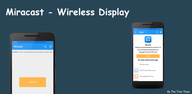
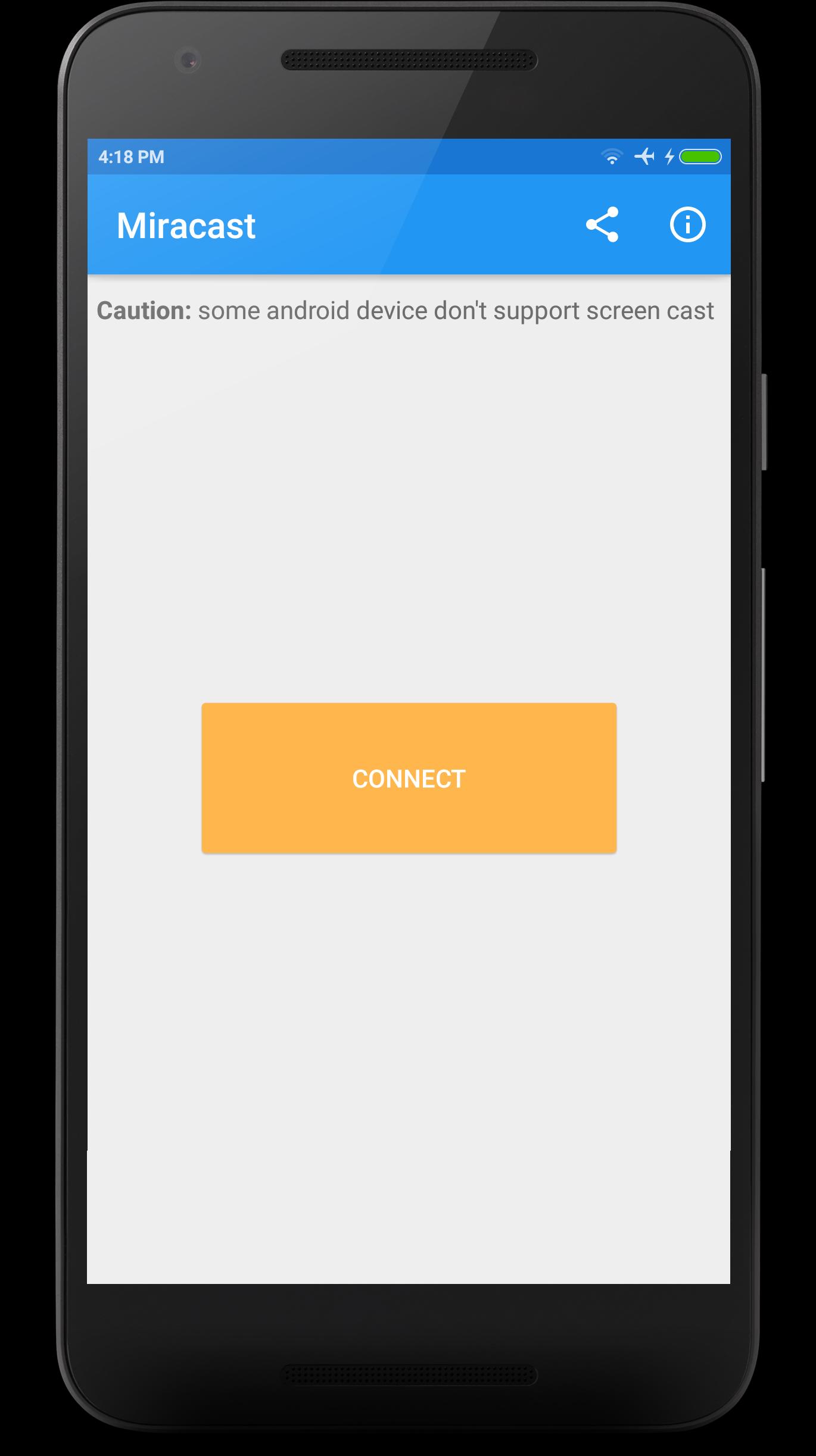
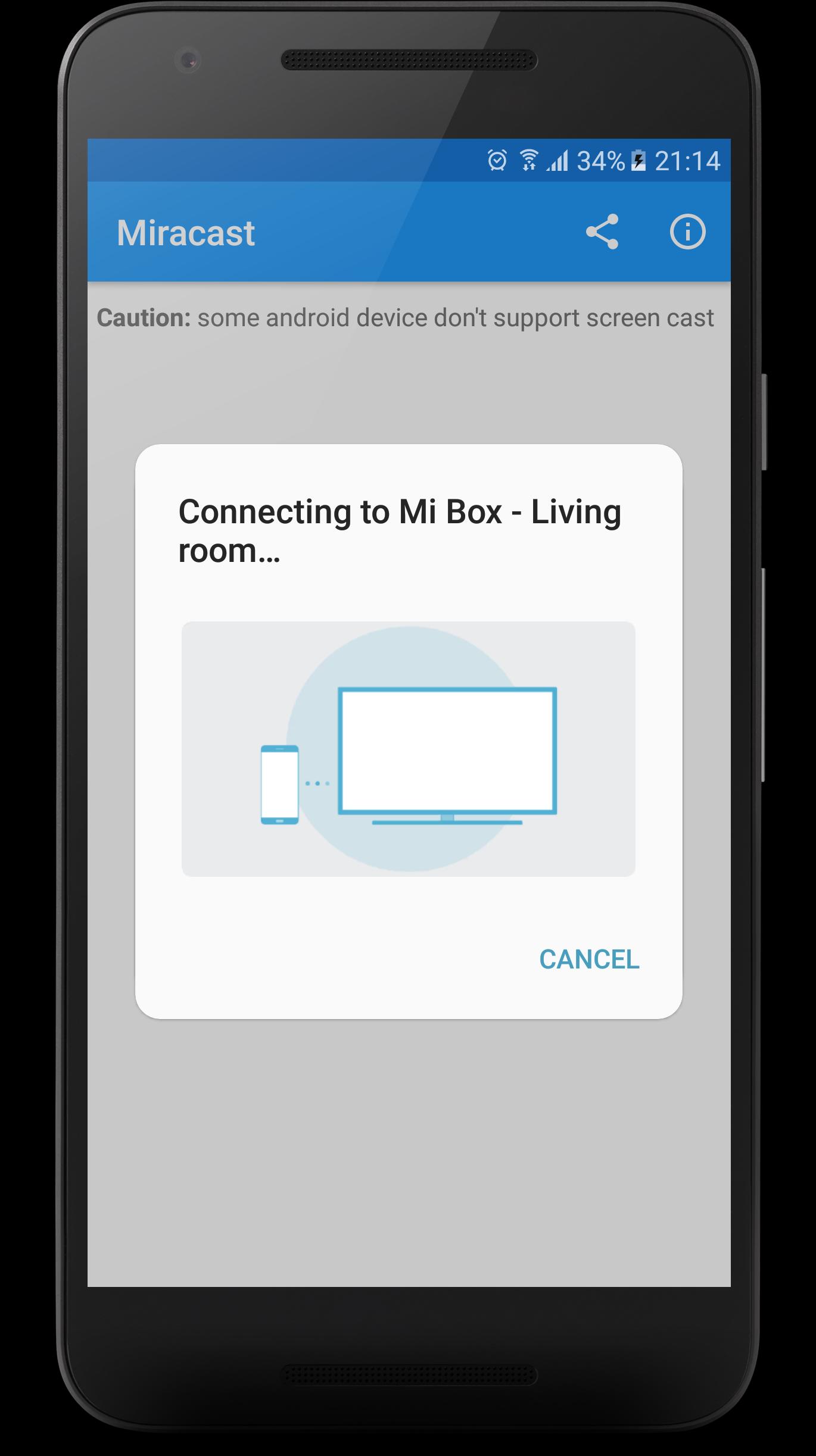
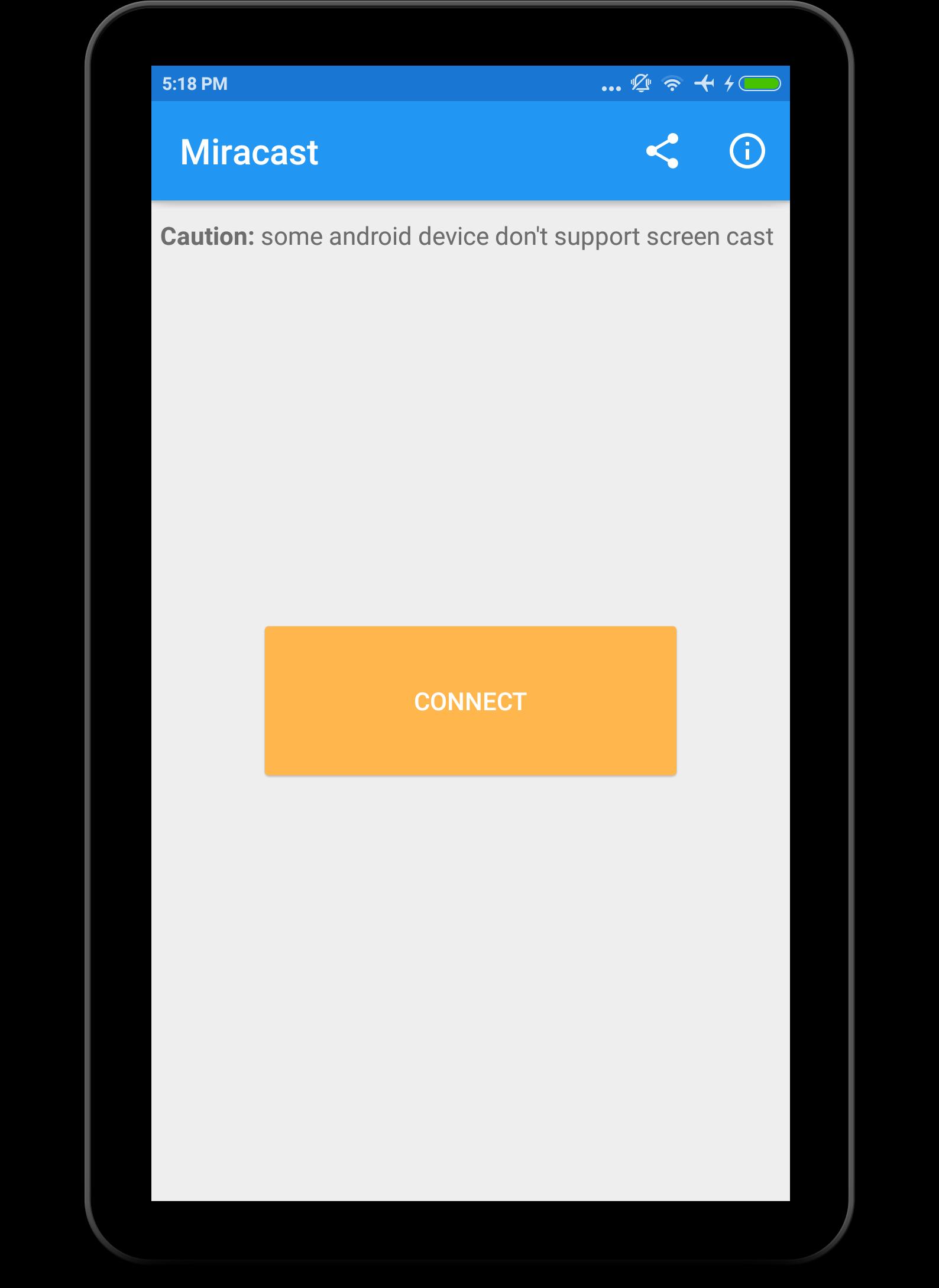
Miracast lets you start mirroring with a straightforward flow. Turn on wireless display or Miracast on your TV or adapter, confirm both devices share the same Wi‑Fi, then pick the receiver on your phone. The connection is designed to get your screen onto the TV with minimal setup. This helps you switch from solo viewing to shared viewing in a short time.
Cast videos, photos, and games with audio
You can display videos, photo slideshows, mobile games, and music on the big screen with real time audio. Miracast focuses on smooth playback for common media so the TV matches what you do on your phone. In regular use, this helps when you want to watch a clip with friends or check photos from a trip on the TV. It also supports quick access to local files for faster viewing.
Playback controls for Chromecast setups
When you use a Chromecast enabled TV or dongle, Miracast offers convenient media controls. You can adjust volume, rewind, or fast forward content during casting. This saves you from juggling remotes when you just want to control playback from the phone. It is especially useful during longer videos or when you want to jump to a specific scene.
Automatic device discovery on your network
Miracast scans your current Wi‑Fi network to find compatible TVs and wireless display adapters. You see available receivers and can choose the one that fits your room setup. This reduces guesswork when different rooms have different devices. It also helps new users confirm that their TV or adapter is ready before starting the session.
Works with TVs, adapters, and more
Miracast supports a wide range of display targets, including many smart TVs, wireless display adapters, and consoles such as Xbox. It is designed to mirror from Android phones and tablets so you can present content where you need it. If your TV does not support Miracast, you can connect through a compatible adapter. This flexibility helps in living rooms, classrooms, or meeting areas.
Before you start, check that your TV or receiver supports Miracast or Chromecast, and confirm both phone and TV are on the same Wi‑Fi network. Here are brand focused notes that many users find helpful:
Common questions:
Miracast, screen mirroring, Chromecast, and cast to TV features have no affiliation with Google. All product names and brands mentioned, including Chromecast, Roku, Mi TV, and Xbox, are the property of their respective owners.
This is a simple setup that works best when both devices share the same Wi‑Fi network. After installation, you can mirror the phone screen or cast media with basic controls where supported. To begin, users who plan ahead often choose to download Miracast in advance of a meeting or movie night.
Miracast helps you mirror your Android screen to compatible TVs and adapters with a straightforward setup. For the most stable experience, keep both devices on the same Wi‑Fi and use the controls offered for your receiver. To get the Miracast latest version, check the download options on this page.
For official support and updates, refer to the information below.
Latest Version
2.7Uploaded by
Demareyon Thomas
Requires Android
Category
Free Tools AppContent Rating
Everyone
Security Report
Report
Flag as inappropriateLast updated on Apr 28, 2026
Minor bug fixes and improvements. Install or update to the newest version to check it out!

APKPure - A multi-platform app store primarily focused on Android, providing extensive app-related content. Discover the app you want easier, faster, and safer, with quick and efficient downloads and installations.