The FUJIFILM Camera Application is an application provided by FUJIFILM that can be used to copy up to 30 images at a time from wireless-equipped digital cameras to smartphones or tablets and to view the pictures on the camera on large smartphone or tablet displays.
【Notice】
If you are using a smartphone with Android 6.0, set the "Location" of the smartphone and this application to "ON".
[Supported Cameras]
X-E2(firmware version 1,00-2.10), XQ2, XQ1, X-M1, X-A2, X-A1,
FinePix S9400W, S8400W, F900EXR, F800EXR, XP200 XP70, Z2000EXR, X1100EXR
[Smartphone System Requirements]
Android Smartphone/Tablet: Android OS Ver.2.2 to 5.1
[How to use "Send Email to Us"]
1.When the email window is launched, click "Send" without the title and description changed.
2.The link to "Contact Us" website will be sent to you.
3.Please send your inquiries and messages to us via the website.
Thank you for your cooperation.
[Using FUJIFILM Camera Application]
Uploading Multiple Pictures to a Smartphone
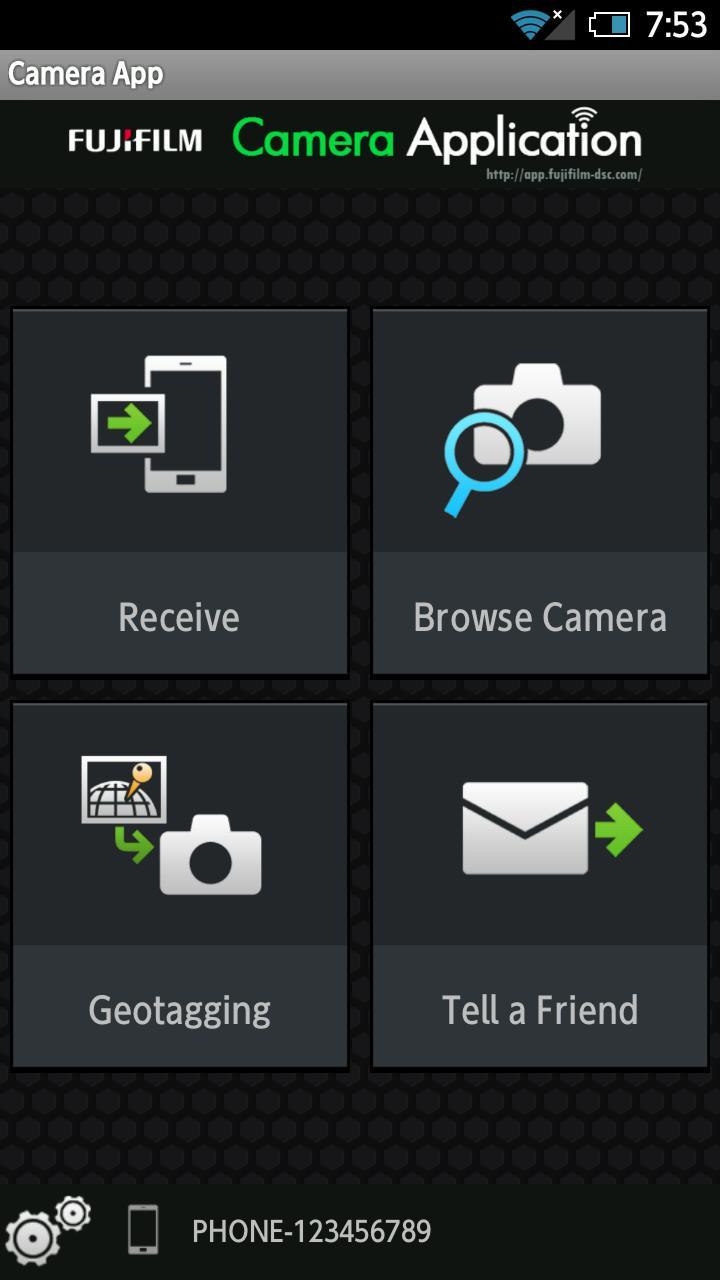
1.Launch the FUJIFILM Camera Application app.
2.Tap Receive Pictures.
3.[Camera] In the playback menu, select WIRELESS IMAGE TRANSFER > SEND SELECTED MULTIPLE IMAGES.
4.[Camera] Highlight images and press OK to select or deselect.
5.[Camera] Press BACK when your selection is complete.
6.Place the camera and smartphone as close together as possible and operate both devices simultaneously.
[Camera] Highlight?OK and press OK.
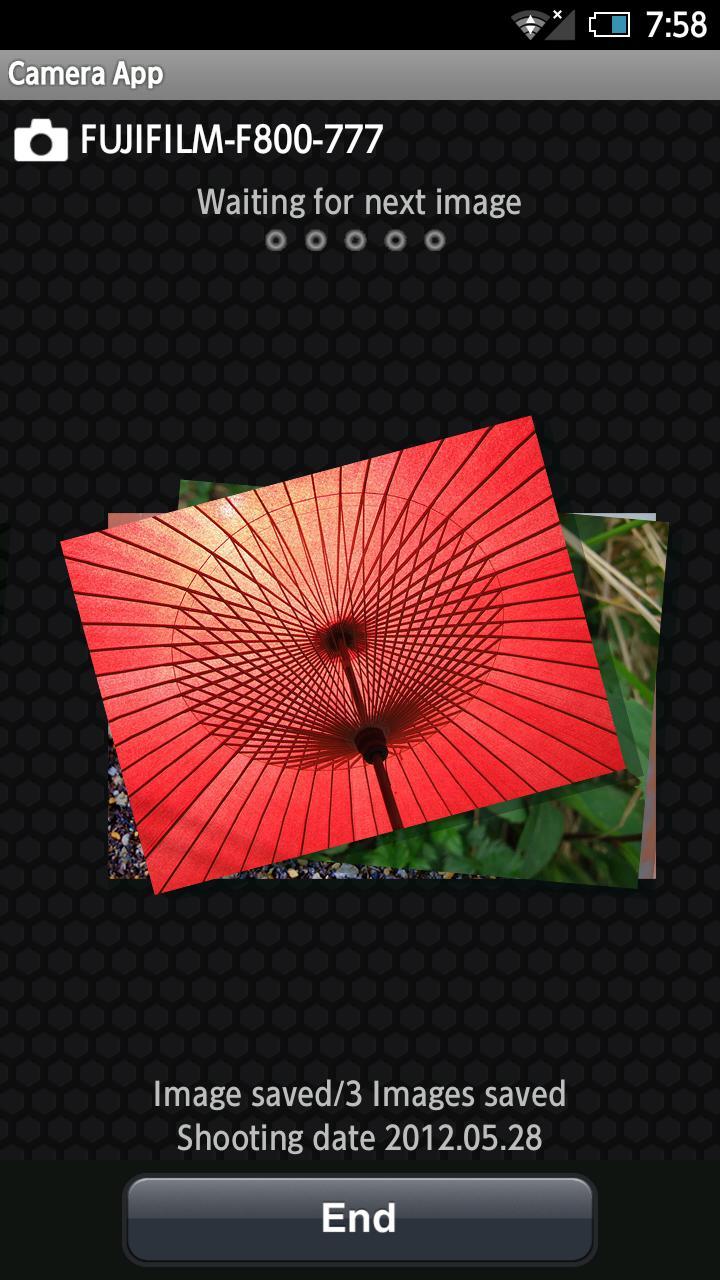
[Smartphone] Tap CONNECT.
7.After checking the name of the device to which the camera is connected, press OK.
Browsing the Camera from a Smartphone
1.Launch the FUJIFILM Camera Application app.
2.Tap Browse Camera.
3.Place the camera and smartphone as close together as possible and operate both devices simultaneously.
[Camera] In the playback menu, select WIRELESS IMAGE TRANSFER > VIEW & OBTAIN IMAGES ON.
[Smartphone] Tap CONNECT.
4.After checking the name of the device to which the camera is connected, press OK.
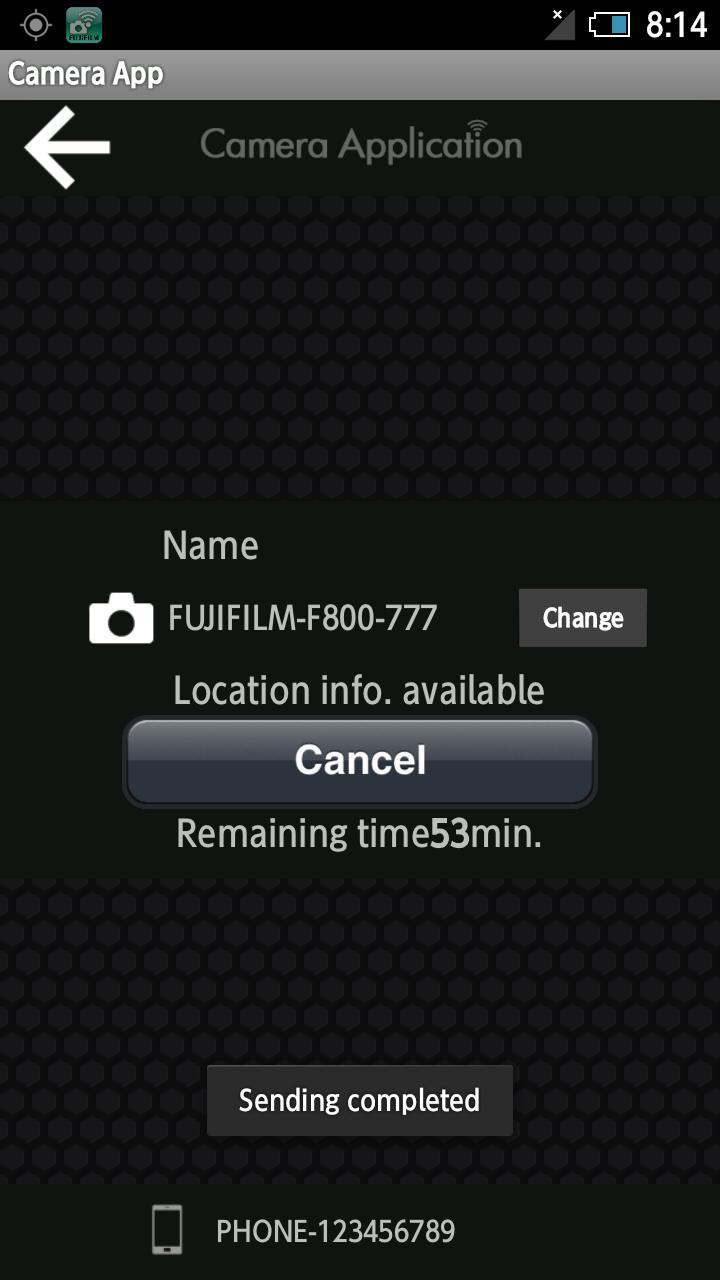
Downloading Location Data from a Smartphone
1.Launch the FUJIFILM Camera Application app.
2.Tap Geotagging.
3.Place the camera and smartphone as close together as possible and operate both devices simultaneously.
[Camera] Select GEOTAGGING SET-UP > LOCATION INFO SEARCH.
[Smartphone] Tap CONNECT.
4.After checking the name of the device to which the camera is connected, press OK.
Latest Version
3.2.0Uploaded by
Mohamed Mohamed
Requires Android
Android 2.2+
Category
Free Photography AppContent Rating
Everyone
Report
Flag as inappropriateLast updated on Jul 8, 2015
Support for Android5.0, 5.1.
Added supported cameras.
Geotagging bug fixes.


APKPure - A multi-platform app store primarily focused on Android, providing extensive app-related content. Discover the app you want easier, faster, and safer, with quick and efficient downloads and installations.