AudioTool helps users who need to check sound conditions on an Android phone instead of guessing by ear. It is built for practical measurement situations in rooms, vehicles, venues, and speaker setups. As a result, the AudioTool APK is better understood as a technical audio analysis tool, not a music creation app. It gives users a way to observe audio behavior, compare readings, and make more informed setup decisions.
Sound level and loudness measurement
AudioTool measures SPL, dB, Leq, Sone loudness, and real time sound pressure levels. You can use these readings when checking how loud a room, speaker, car system, or live setup is. In addition, RT60 reverberation measurement helps users understand how sound decays in a space, which is useful for room acoustics and home theater tuning.
Spectrum and frequency analysis
AudioTool includes a spectrum analyzer for checking how sound energy is spread across frequencies. You can view 1/1, 1/3, 1/6, and 1/12 octave RTA modes, depending on how detailed the reading needs to be. The app also provides spectrogram, waterfall, peak frequency, and chart recorder views, so users can watch changes over time instead of relying on a single number.
Signal generation for testing
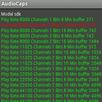
AudioTool provides signal generator tools that help users test speakers, rooms, and audio systems with controlled sounds. You can generate white noise, pink noise, sine, square, triangle, sweep, log sweep, warble, ramp, and impulse signals. These signals are useful when checking system response, finding frequency problems, or setting up equipment before a listening session or gig.
Microphone calibration support
AudioTool supports microphone calibration so measurements can be adjusted for the microphone being used. You can apply ISO 1/3 octave calibration and use calibration files for supported external microphones such as Dayton Audio iMM 6 and MicW i436. This matters because phone microphones and external microphones do not always respond the same way across all frequencies.
Speaker polarity and saved data checks
AudioTool can check loudspeaker polarity to help identify whether a speaker is wired in phase or reversed. This is useful when setting up stereo speakers, home theater channels, or car audio systems. After that, you can save, load, compare, zoom, scroll, and analyze stored spectrum data beside live measurements, which helps when reviewing changes after moving speakers or adjusting a room.
AudioTool is aimed at users who need measurement information rather than music production tools. It suits audio engineers, home theater users, acoustic testing work, gig checks, car audio setup, and speaker verification. Because of this focus, users searching for AudioTool Android should expect meters, analyzers, generators, and calibration options instead of loops, tracks, or studio arrangement tools.
The app has also been recommended by Sound and Vision magazine and is used by audio engineers. This does not mean every user needs professional training, but it does show why the app may feel more technical than a basic sound meter. For users who only want a quick loudness estimate, the AudioTool SPL Meter functions may be enough, while advanced users can work with spectrum views and stored data.
AudioTool works best when the user starts with a clear measurement goal, such as checking room noise, speaker response, or polarity. Before using the AudioTool latest version, choose a quiet setup when possible and keep the phone or external microphone in a consistent position.
AudioTool gives Android users practical tools for SPL checks, spectrum analysis, signal testing, calibration, and speaker polarity verification. Users who need a technical audio measurement app can download AudioTool to inspect sound behavior and compare setup changes directly on a phone.
Latest Version
8.8.1Requires Android
5.0
Category
Music & Audio AppContent Rating
Everyone
Report
Flag as inappropriateLast updated on Sep 29, 2026
This release includes minor bug fixes and general improvements. Update to the latest version for the best experience.



APKPure - A multi-platform app store primarily focused on Android, providing extensive app-related content. Discover the app you want easier, faster, and safer, with quick and efficient downloads and installations.