Scan Date:May 8, 2026
Show More


Microsoft Authenticator helps users confirm identity when signing in to online accounts and services. It reduces reliance on passwords by guiding you through safe approvals during sign-in events, whether for personal use or when connecting to work or school. As a result, everyday logins feel more controlled and consistent across accounts. For quick access on Android, many users look for Microsoft Authenticator APK to set up accounts and keep verification steps in one place.
Easy two factor verification
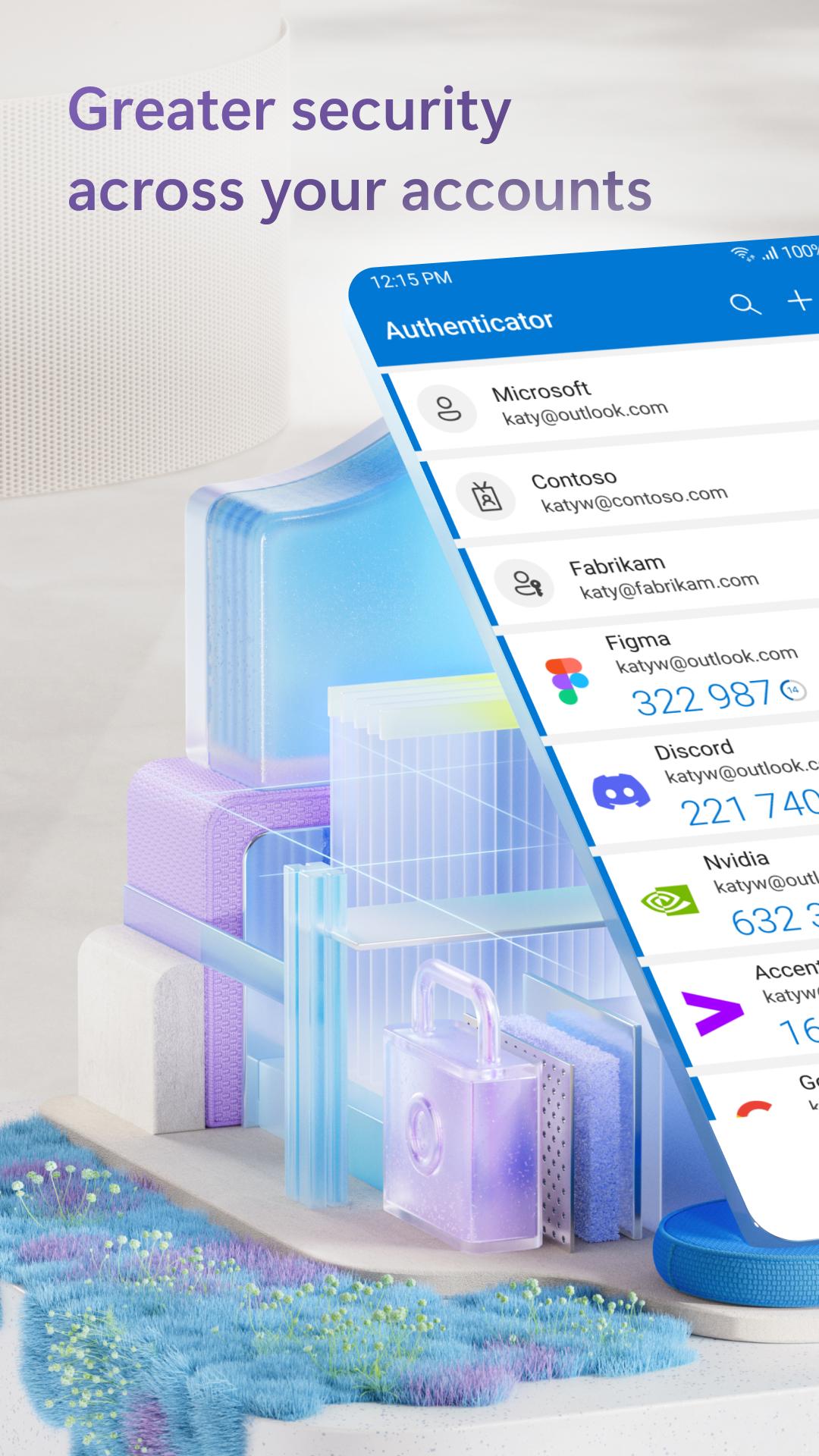
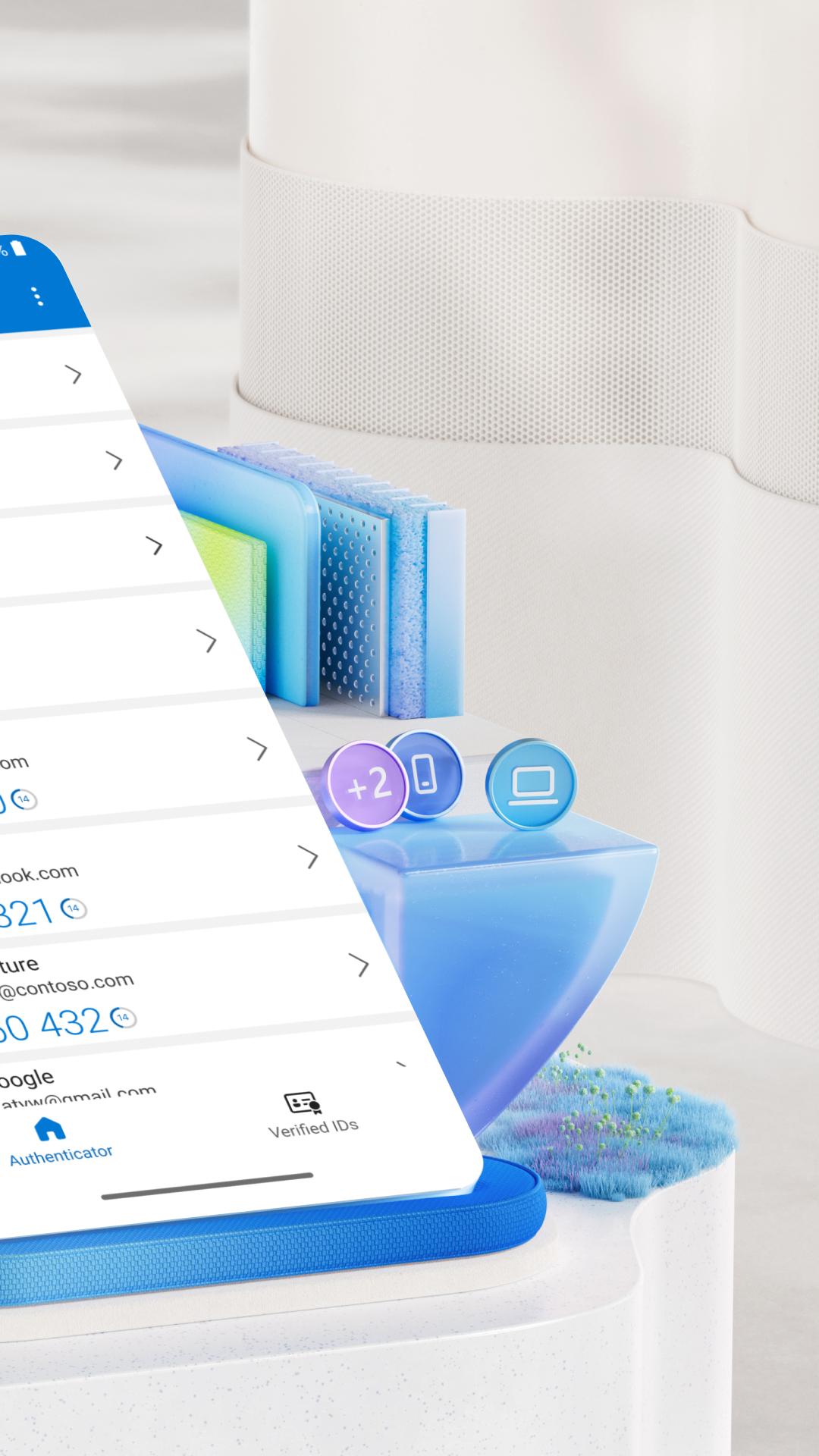
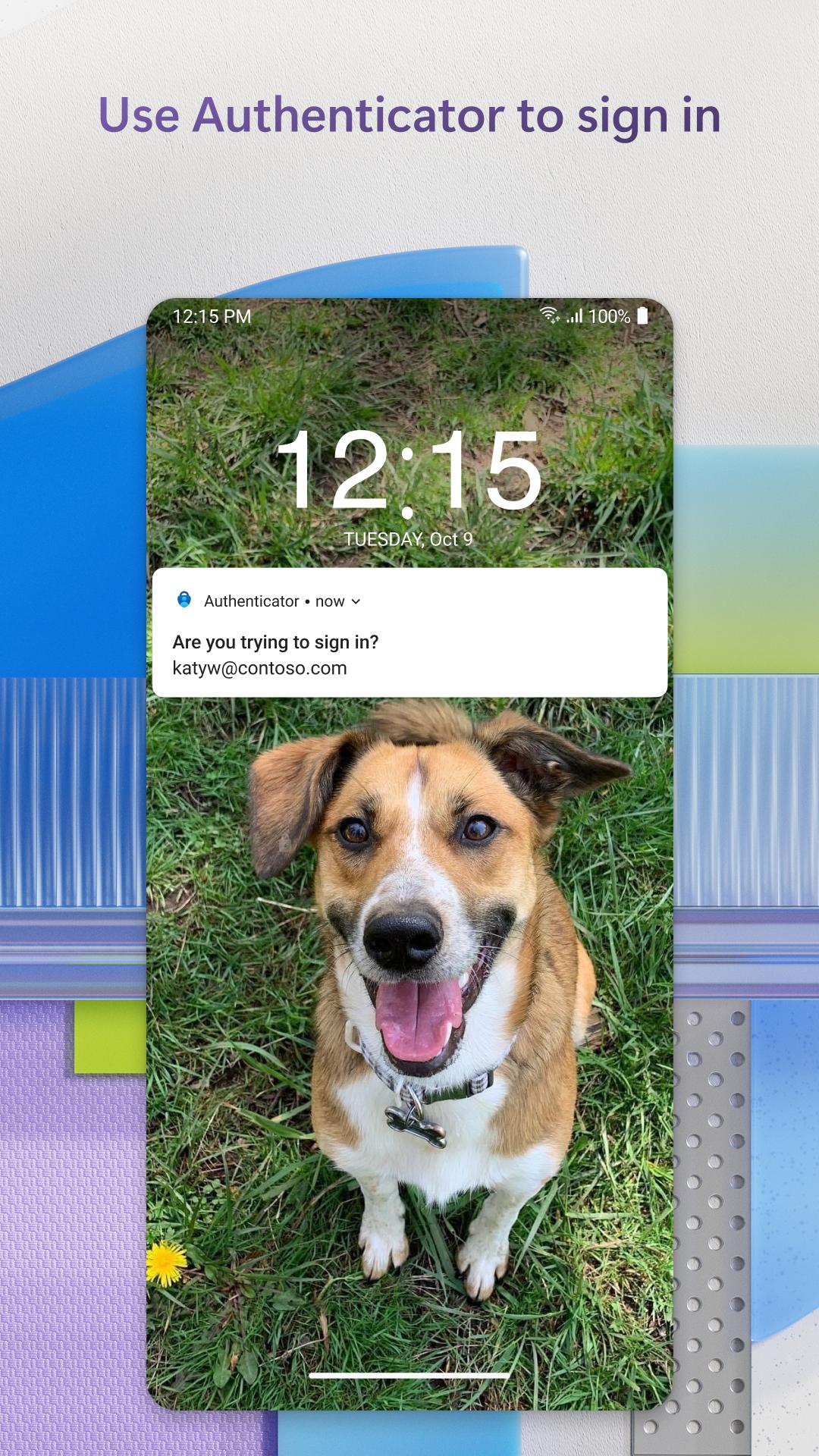
Microsoft Authenticator supports two factor checks with simple push approvals or time based one time passwords. You can approve a notification to verify it is you, or read a six digit code that refreshes every 30 seconds. This helps confirm sign-in attempts across your services without relying only on account passwords.
Passwordless sign in for Microsoft accounts
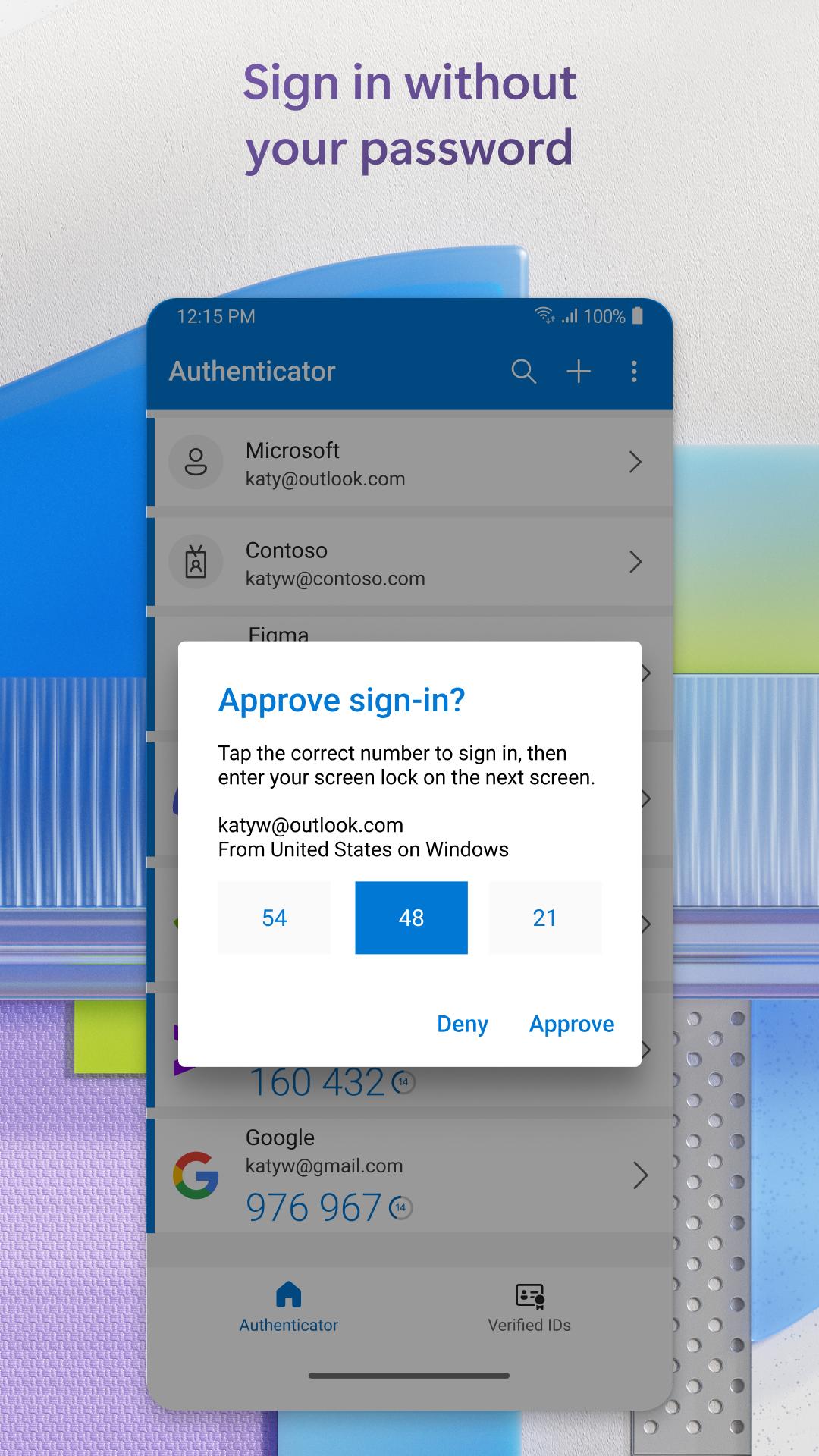
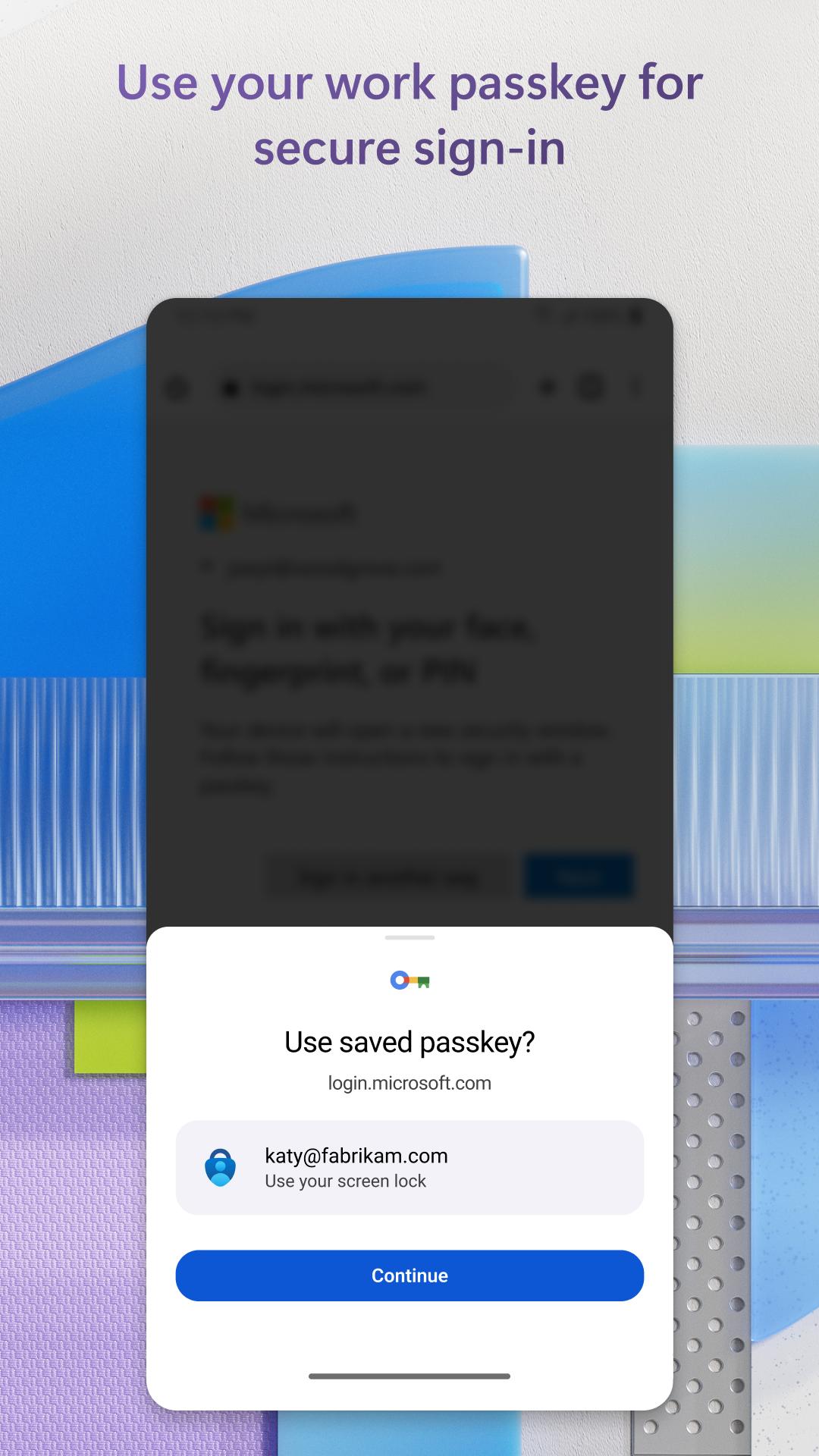
Microsoft Authenticator enables passwordless access for Microsoft accounts. Enter your username during sign-in, then approve on your phone using fingerprint, face, or PIN. This replaces typing a password and provides a consistent way to confirm identity on supported devices.
Works online and offline
Time based codes in Microsoft Authenticator work without network connectivity. You can still view rotating codes if your phone has no signal, and the app is designed to conserve battery during regular use. This makes code access reliable during travel or in low coverage areas.
All your accounts in one app
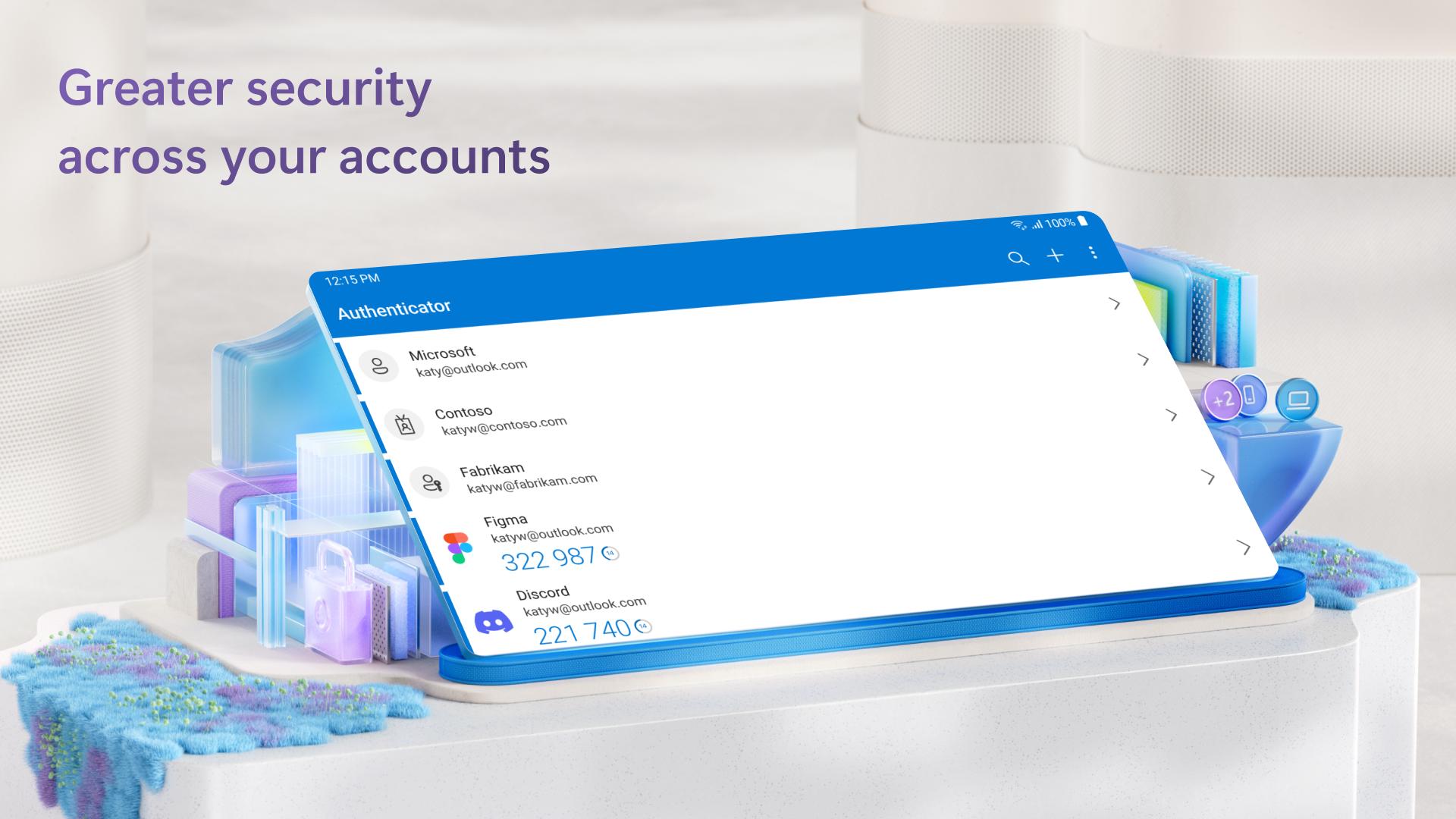
Microsoft Authenticator lets you add multiple personal, work, or school accounts to manage verification in one place. You can also add non Microsoft services through QR codes, including Facebook, Amazon, Dropbox, Google, LinkedIn, and GitHub. This central view helps keep many sign-ins organized with clear labels and icons.
Enterprise ready sign in
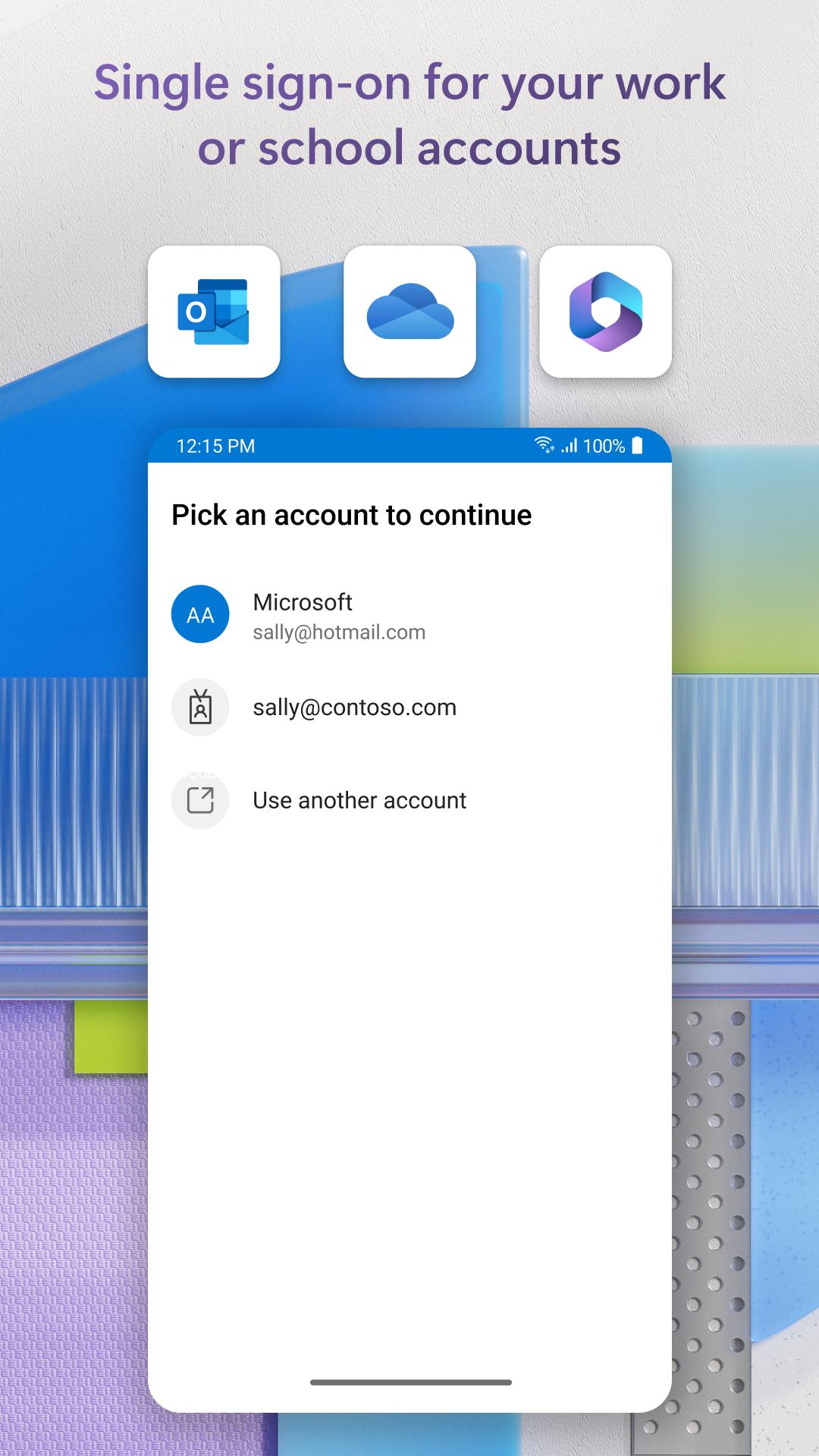
Microsoft Authenticator supports work and school scenarios with device registration and certificate based authentication. On trusted devices, you can get single sign on across Microsoft apps after your admin enables the right policies. In IT managed environments, it works with Microsoft Entra ID to align sign-in behavior with organizational requirements.
Microsoft Authenticator asks for specific permissions to support verification and organizational policies. These are requested only when needed and with your consent.
If you cannot scan a setup QR code, go to https://aka.ms/mobileauthenticator for alternative steps. For new devices, re-add each account by starting setup from the service or your organization portal, then scan the new QR code. If Microsoft Authenticator is not working, check notification permissions, verify time and date settings are automatic, and try using the six digit code as a fallback during sign-in. For common questions and guidance, see the official FAQ at https://aka.ms/authappfaq.
Availability can vary by country or region. Before you download Microsoft Authenticator, confirm the app is available for your location and supported by your services or your IT team.
Set up is straightforward and takes only a few steps. For faster access to updates, many users install the Microsoft Authenticator latest version before adding accounts.
Microsoft Authenticator brings strong verification to everyday logins, with simple approvals and codes for personal, work, and school accounts. To begin on Android, look for Microsoft Authenticator for Android and follow the setup steps for each service you use.
For official guidance and support resources, visit these sites:
Latest Version
6.2605.3042Uploaded by
Microsoft Corporation
Requires Android
Android 8.0+
Category
Free Business AppContent Rating
Everyone
Security Report
Report
Flag as inappropriateLast updated on May 11, 2026
Minor bug fixes and improvements. Install or update to the newest version to check it out!

APKPure - A multi-platform app store primarily focused on Android, providing extensive app-related content. Discover the app you want easier, faster, and safer, with quick and efficient downloads and installations.