Our website uses necessary cookies to enable basic functions and optional cookies to help us to enhance your user experience. Learn more about our cookie policy by clicking "Learn More".
Accept All Only Necessary Cookies
NEWS REVIEWS HOWTO

Top 10 Free IPTV Apps for Android

Here are our top picks of the best IPTV apps for Android TV and mobile devices.
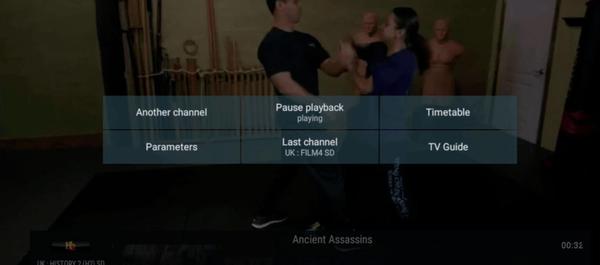
IPTV services are becoming increasingly popular these days. With these IPTV apps, you can access tons of free-to-air content or stream content from paid subscription channels. There are lots of options in the market for IPTV players. Here in this list, we collected some of the best Internet Protocol Television Streaming apps you can install on your Android devices.
  • Perfect Player helps users who want a simple way to watch their own IPTV channels and video files on Android phones, tablets, and TVs. It works as a player only, so you add your own playlists and guide sources in Settings. With a TV like layout, you can browse channels and content with minimal steps, while playback settings help adjust performance on different devices. To find the right build of Perfect Player APK, choose the version that matches your device needs. Perfect Player features for Android viewing TV style interface and clear on screen info Perfect Player presents familiar on screen display menus that resemble a set top box. You see channel and program information while you browse, which keeps navigation simple. This layout reduces extra actions and helps you get to content quickly. Adaptive OSD with Big controls for small screens The scalable on screen display renders accurately across different resolutions and font sizes. When using a phone, you can toggle a Big controls panel with a two finger gesture to improve touch accuracy. This approach makes the app easier to handle on compact screens and varied Android devices. IPTV guide formats and channel organization Perfect Player supports channel groups, channel logos, and extended electronic program guide details. The guide system works with XMLTV and JTV formats, so you can bring in schedules from compatible sources. As a result, your channels display with names, logos, and program timelines that are easier to follow. Flexible sources and network friendly streaming You can play local media files from SDCard or USB storage, and you can load playlists in M3U or XSPF. For networks where multicast traffic causes issues, Perfect Player can use udpxy to convert UDP streams to HTTP. This option may improve stability on home routers and shared Wi Fi setups. PC data server integration and broad control options Perfect Player can connect to its Windows PC version acting as an IPTV data server. This link lets the Android app fetch playlists, EPG, and channel logos and also request instant playlist updates. For living room use, you can operate Perfect Player with a remote, mouse, or keyboard, and it supports the companion Perfect Cast IPTV remote app. Important notes about Perfect Player IPTV Perfect Player is a player only and does not supply or endorse any IPTV channels or services. To use the app, you must provide your own legal M3U or XSPF playlists along with EPG sources in XMLTV or JTV formats. If your home network struggles with multicast streams, consider udpxy to proxy UDP to HTTP, which can help stabilize playback on certain routers. Playback tips and upgrade details Decoder options in Settings can significantly affect performance across Android TV boxes, Fire TV Stick devices, and smartphones. If a stream stutters or fails, try different Decoder choices and test again. For users who prefer an ad free experience and added functionality, the Full version upgrade removes ads and enables extra features. How to use Perfect Player on Android Before starting, prepare your playlist and guide sources so the setup is straightforward. If you plan to download Perfect Player for IPTV viewing, gather your M3U or XSPF links and XMLTV or JTV EPG URLs in advance. Open Perfect Player and allow any storage permissions so local files on SDCard or USB can be accessed. Go to Settings, then add your playlist by choosing an M3U or XSPF file or URL, and add an EPG source in XMLTV or JTV format. Next, select a Decoder option in Settings and test a few channels. If playback is unstable, switch to another Decoder and try again. Then organize channels into groups if your playlist supports it, and apply channel logos where available. Adjust OSD scale and use the two finger toggle for Big controls on smaller screens. Finally, configure udpxy if your network requires HTTP streaming, or connect to the PC data server for centralized playlist and EPG updates. Control playback with a remote, keyboard, mouse, or the Perfect Cast companion app. Get started with Perfect Player Perfect Player provides a TV style way to view your own IPTV and local media on Android. To keep up with improvements and device compatibility, check the Perfect Player latest version and set up playlists and EPG sources that match your needs.
    Perfect Player helps users who want a simple way to watch their own IPTV channels and video files on Android phones, tablets, and TVs. It works as a player only, so you add your own playlists and guide sources in Settings. With a TV like layout, you can browse channels and content with minimal steps, while playback settings help adjust performance on different devices. To find the right build of Perfect Player APK, choose the version that matches your device needs. Perfect Player features for Android viewing TV style interface and clear on screen info Perfect Player presents familiar on screen display menus that resemble a set top box. You see channel and program information while you browse, which keeps navigation simple. This layout reduces extra actions and helps you get to content quickly. Adaptive OSD with Big controls for small screens The scalable on screen display renders accurately across different resolutions and font sizes. When using a phone, you can toggle a Big controls panel with a two finger gesture to improve touch accuracy. This approach makes the app easier to handle on compact screens and varied Android devices. IPTV guide formats and channel organization Perfect Player supports channel groups, channel logos, and extended electronic program guide details. The guide system works with XMLTV and JTV formats, so you can bring in schedules from compatible sources. As a result, your channels display with names, logos, and program timelines that are easier to follow. Flexible sources and network friendly streaming You can play local media files from SDCard or USB storage, and you can load playlists in M3U or XSPF. For networks where multicast traffic causes issues, Perfect Player can use udpxy to convert UDP streams to HTTP. This option may improve stability on home routers and shared Wi Fi setups. PC data server integration and broad control options Perfect Player can connect to its Windows PC version acting as an IPTV data server. This link lets the Android app fetch playlists, EPG, and channel logos and also request instant playlist updates. For living room use, you can operate Perfect Player with a remote, mouse, or keyboard, and it supports the companion Perfect Cast IPTV remote app. Important notes about Perfect Player IPTV Perfect Player is a player only and does not supply or endorse any IPTV channels or services. To use the app, you must provide your own legal M3U or XSPF playlists along with EPG sources in XMLTV or JTV formats. If your home network struggles with multicast streams, consider udpxy to proxy UDP to HTTP, which can help stabilize playback on certain routers. Playback tips and upgrade details Decoder options in Settings can significantly affect performance across Android TV boxes, Fire TV Stick devices, and smartphones. If a stream stutters or fails, try different Decoder choices and test again. For users who prefer an ad free experience and added functionality, the Full version upgrade removes ads and enables extra features. How to use Perfect Player on Android Before starting, prepare your playlist and guide sources so the setup is straightforward. If you plan to download Perfect Player for IPTV viewing, gather your M3U or XSPF links and XMLTV or JTV EPG URLs in advance. Open Perfect Player and allow any storage permissions so local files on SDCard or USB can be accessed. Go to Settings, then add your playlist by choosing an M3U or XSPF file or URL, and add an EPG source in XMLTV or JTV format. Next, select a Decoder option in Settings and test a few channels. If playback is unstable, switch to another Decoder and try again. Then organize channels into groups if your playlist supports it, and apply channel logos where available. Adjust OSD scale and use the two finger toggle for Big controls on smaller screens. Finally, configure udpxy if your network requires HTTP streaming, or connect to the PC data server for centralized playlist and EPG updates. Control playback with a remote, keyboard, mouse, or the Perfect Cast companion app. Get started with Perfect Player Perfect Player provides a TV style way to view your own IPTV and local media on Android. To keep up with improvements and device compatibility, check the Perfect Player latest version and set up playlists and EPG sources that match your needs.
    ... Read More
  • This application allows you to view TV technology-based IPTV. This application does not contain a built-in playlists, and is only a client, allowing convenient and comfortable to watch TV online. Please use playlists in the format m3u or xspf. Features: - m3u-playlist support (in open-view or v zip/gz), feature to add playlists from device file-system, from internet or clipboard; - can play http and udp streams, and links from vk-video/youtube; - internet radio playback via the built-in audio-player; - support several udp-proxys, that can be switched directly with working playlist; - support auto-update playlist, and using a cached version if not available; - customizable main-screen in title-style view, playlists and most watched channels can be placed there, and a base functions of application with titles sorting; - favourites, with support nested folders, grouping same channels in different playlists; - not specified can be linked with template for receiving information from tv-guide; - export playlists and favourites in many file formats; - backup/restore application settings (playlists, favourites, history, settings); - reminder for broadcats from tv-guide; - hystory of watched channels; - support several EPG (in xmltv-format, in open-view or archived zip/gz), that can be switched between EPG when working with playlist; - The ability to download EPG from the device; - Presets of EPG Sources. Are currently available EPG sources: 3 exUssr, 2 Italy, 1 UK (World), 1 Espany, 1 Germany; - customizable playlists views: list (maximum functionality), icons or titles, for each playlist; - customizable channel search in all playlists; - customizable case-insensitive search of TV-shows in the EPG; - different color-themes; - parental control;
    This application allows you to view TV technology-based IPTV. This application does not contain a built-in playlists, and is only a client, allowing convenient and comfortable to watch TV online. Please use playlists in the format m3u or xspf. Features: - m3u-playlist support (in open-view or v zip/gz), feature to add playlists from device file-system, from internet or clipboard; - can play http and udp streams, and links from vk-video/youtube; - internet radio playback via the built-in audio-player; - support several udp-proxys, that can be switched directly with working playlist; - support auto-update playlist, and using a cached version if not available; - customizable main-screen in title-style view, playlists and most watched channels can be placed there, and a base functions of application with titles sorting; - favourites, with support nested folders, grouping same channels in different playlists; - not specified can be linked with template for receiving information from tv-guide; - export playlists and favourites in many file formats; - backup/restore application settings (playlists, favourites, history, settings); - reminder for broadcats from tv-guide; - hystory of watched channels; - support several EPG (in xmltv-format, in open-view or archived zip/gz), that can be switched between EPG when working with playlist; - The ability to download EPG from the device; - Presets of EPG Sources. Are currently available EPG sources: 3 exUssr, 2 Italy, 1 UK (World), 1 Espany, 1 Germany; - customizable playlists views: list (maximum functionality), icons or titles, for each playlist; - customizable channel search in all playlists; - customizable case-insensitive search of TV-shows in the EPG; - different color-themes; - parental control;
    ... Read More
  • IPTV suits users who receive TV channels from an ISP or from web playlists and want a simple way to watch on Android devices. The app loads your own channel lists and optional program data so you can browse and tune live streams with a familiar TV layout. It is made for phones, tablets, and living room screens, and it focuses on straightforward playback and navigation. For users looking for an easy setup, IPTV APK keeps things light while leaving content choice entirely up to you. IPTV features that matter Broad playlist support and management IPTV accepts M3U, M3U8 including M3U Plus, and XSPF playlists, so you can bring in channels from many sources. You can add multiple playlists without limits, save favorites for quick access, and review playlist history when you switch between lists. IPTV does not include any channels, and all playback depends on the playlists you provide. Guide ready viewing with EPG IPTV supports EPG files in XMLTV and JTV formats to show schedules and channel information. Once you add an EPG, the app can display program names and time slots alongside your channels, which helps you find what to watch. You can keep the guide updated by replacing the EPG file or link when needed. Flexible playback and quick search IPTV includes a fast internal player designed for steady viewing, and it also lets you use an external player if you prefer. A quick channel search helps you jump to a name or number without scrolling. Playback quality such as SD, HD, or 4K depends on the stream source, and the app focuses on stability to reduce freezes. Network friendly streaming for home setups IPTV can handle multicast streams through a UDP proxy, which is useful on many home networks. Setting a proxy on a router or a PC often improves LAN playback and can reduce buffering for multicast sources. This approach helps the app work with the way some ISPs deliver channels on local networks. TV friendly navigation and family options IPTV offers grid, list, and tile views so you can choose the layout that fits your screen and distance. A recall option returns you to the last channel, and Pro adds auto play of the last channel at launch for a quick start on TVs. Parental control is available for households that want to limit access, and the Pro upgrade removes ads, adds start on boot for set top boxes, and extends history. Before you use IPTV No channels are included in IPTV. You must supply your own playlist links or files and, if desired, an EPG. If your ISP provides a channel list, use those details. For other sources, ensure you have the right to access and view the content. Legal use and content sources in IPTV IPTV is a player only and is not affiliated with any third party content providers. The app does not host or distribute content. Users should avoid copyright infringement and only use playlists and guides that they are legally allowed to access in their region. Home network tips for IPTV If your channels are delivered as multicast and you notice buffering, consider using a UDP proxy on your router or a PC on the same network. This setup often improves performance for LAN streaming and can help stabilize playback on compatible routers and home networks. How to use IPTV on Android To get started, download IPTV and prepare your playlist link or file and optional EPG. The process is simple and works on phones and tablets, with the same basics applying to living room devices. Open IPTV, then choose to add a playlist. Enter a playlist URL from your ISP or select a local file stored on your device. If you have an EPG, go to the guide settings and add the XMLTV or JTV link or file. Wait for the guide to load. Next, pick your preferred player inside the app or set an external player if you use one. Then adjust audio and subtitle options if available from the source. If streams are multicast and stutter on your LAN, enable UDP proxy in settings and set the proxy address that runs on your router or PC. Finally, browse channels using grid, list, or tiles, add favorites, and use parental control if needed. Use recall to jump back to the last channel. Start watching with IPTV IPTV provides a focused player for your own channel playlists and guides, with tools for phones, tablets, and Android TV. For users who want a reliable setup that respects their content choices, the IPTV latest version keeps controls clear and navigation simple. For official information or support, use the details below. Website: https://firehawk.ai/iptvplayer Email: support.iptvplayer@firehawk.ai
    IPTV suits users who receive TV channels from an ISP or from web playlists and want a simple way to watch on Android devices. The app loads your own channel lists and optional program data so you can browse and tune live streams with a familiar TV layout. It is made for phones, tablets, and living room screens, and it focuses on straightforward playback and navigation. For users looking for an easy setup, IPTV APK keeps things light while leaving content choice entirely up to you. IPTV features that matter Broad playlist support and management IPTV accepts M3U, M3U8 including M3U Plus, and XSPF playlists, so you can bring in channels from many sources. You can add multiple playlists without limits, save favorites for quick access, and review playlist history when you switch between lists. IPTV does not include any channels, and all playback depends on the playlists you provide. Guide ready viewing with EPG IPTV supports EPG files in XMLTV and JTV formats to show schedules and channel information. Once you add an EPG, the app can display program names and time slots alongside your channels, which helps you find what to watch. You can keep the guide updated by replacing the EPG file or link when needed. Flexible playback and quick search IPTV includes a fast internal player designed for steady viewing, and it also lets you use an external player if you prefer. A quick channel search helps you jump to a name or number without scrolling. Playback quality such as SD, HD, or 4K depends on the stream source, and the app focuses on stability to reduce freezes. Network friendly streaming for home setups IPTV can handle multicast streams through a UDP proxy, which is useful on many home networks. Setting a proxy on a router or a PC often improves LAN playback and can reduce buffering for multicast sources. This approach helps the app work with the way some ISPs deliver channels on local networks. TV friendly navigation and family options IPTV offers grid, list, and tile views so you can choose the layout that fits your screen and distance. A recall option returns you to the last channel, and Pro adds auto play of the last channel at launch for a quick start on TVs. Parental control is available for households that want to limit access, and the Pro upgrade removes ads, adds start on boot for set top boxes, and extends history. Before you use IPTV No channels are included in IPTV. You must supply your own playlist links or files and, if desired, an EPG. If your ISP provides a channel list, use those details. For other sources, ensure you have the right to access and view the content. Legal use and content sources in IPTV IPTV is a player only and is not affiliated with any third party content providers. The app does not host or distribute content. Users should avoid copyright infringement and only use playlists and guides that they are legally allowed to access in their region. Home network tips for IPTV If your channels are delivered as multicast and you notice buffering, consider using a UDP proxy on your router or a PC on the same network. This setup often improves performance for LAN streaming and can help stabilize playback on compatible routers and home networks. How to use IPTV on Android To get started, download IPTV and prepare your playlist link or file and optional EPG. The process is simple and works on phones and tablets, with the same basics applying to living room devices. Open IPTV, then choose to add a playlist. Enter a playlist URL from your ISP or select a local file stored on your device. If you have an EPG, go to the guide settings and add the XMLTV or JTV link or file. Wait for the guide to load. Next, pick your preferred player inside the app or set an external player if you use one. Then adjust audio and subtitle options if available from the source. If streams are multicast and stutter on your LAN, enable UDP proxy in settings and set the proxy address that runs on your router or PC. Finally, browse channels using grid, list, or tiles, add favorites, and use parental control if needed. Use recall to jump back to the last channel. Start watching with IPTV IPTV provides a focused player for your own channel playlists and guides, with tools for phones, tablets, and Android TV. For users who want a reliable setup that respects their content choices, the IPTV latest version keeps controls clear and navigation simple. For official information or support, use the details below. Website: https://firehawk.ai/iptvplayer Email: support.iptvplayer@firehawk.ai
    ... Read More
  • OTT Navigator helps users view their IPTV provider content on phones, tablets, TVs, and TV boxes. To start, download OTT Navigator, then add your provider playlist or another source you trust. The app does not supply channels or videos, it relies on the data you link. However, once configured, it presents live streams, archives, and program details from available EPG sources in a clear layout that suits daily viewing. Setup involves adding a playlist and optional EPG links provided by your service. OTT Navigator Features Live TV and multi stream viewing OTT Navigator plays live channels from your provider playlist. It can start the last watched channel on launch. Timeshift is supported when your provider offers archives. Picture in picture and studio mode let you watch multiple streams at once for quick checking and comparison. Channel organization and reminders You can mark favorite channels, and the app groups channels and categories automatically. It also reminds you about shows you find interesting, so you can return on time without hunting through the guide. Archive and catch up controls Watch archived shows and browse the media library. Filter by channel, category, genre, season, year, favorites, age, or country. Search across available sources with plain keywords. Save playback progress and resume automatically from the previous moment. Adjust playback speed to match your viewing needs. Network playback and program data Beyond provider streams, you can browse and play local network files via UPnP or DLNA, then add them to a media library. Program details come from several EPG sources, including links you provide. AFR and DRM support, plus recommendations, help the app fit different setups. Set up OTT Navigator and start watching OTT Navigator centers on your own IPTV sources and keeps viewing simple across devices. Before installing, check the OTT Navigator latest version to match your provider and features. Add your playlist and EPG, then start watching live channels and catching up when archives are available.
    OTT Navigator helps users view their IPTV provider content on phones, tablets, TVs, and TV boxes. To start, download OTT Navigator, then add your provider playlist or another source you trust. The app does not supply channels or videos, it relies on the data you link. However, once configured, it presents live streams, archives, and program details from available EPG sources in a clear layout that suits daily viewing. Setup involves adding a playlist and optional EPG links provided by your service. OTT Navigator Features Live TV and multi stream viewing OTT Navigator plays live channels from your provider playlist. It can start the last watched channel on launch. Timeshift is supported when your provider offers archives. Picture in picture and studio mode let you watch multiple streams at once for quick checking and comparison. Channel organization and reminders You can mark favorite channels, and the app groups channels and categories automatically. It also reminds you about shows you find interesting, so you can return on time without hunting through the guide. Archive and catch up controls Watch archived shows and browse the media library. Filter by channel, category, genre, season, year, favorites, age, or country. Search across available sources with plain keywords. Save playback progress and resume automatically from the previous moment. Adjust playback speed to match your viewing needs. Network playback and program data Beyond provider streams, you can browse and play local network files via UPnP or DLNA, then add them to a media library. Program details come from several EPG sources, including links you provide. AFR and DRM support, plus recommendations, help the app fit different setups. Set up OTT Navigator and start watching OTT Navigator centers on your own IPTV sources and keeps viewing simple across devices. Before installing, check the OTT Navigator latest version to match your provider and features. Add your playlist and EPG, then start watching live channels and catching up when archives are available.
    ... Read More
Comment Loading...
Ooops! No such content!
Subscribe to APKPure
Be the first to get access to the early release, news, and guides of the best Android games and apps.
No thanks
Sign Up
Subscribed Successfully!
You're now subscribed to APKPure.