

SoundAssistant addresses everyday moments when audio needs change quickly, such as switching from music to calls or keeping alerts private in public places. It integrates with Galaxy features so routine adjustments feel consistent across apps, headphones, and speakers. Feature availability can vary by One UI version and device, and you can check supported items inside the app from Menu followed by About. For first-time setup, an in-app help video provides guidance, and users who want flexible control can download SoundAssistant with confidence in its Galaxy-focused design.
Per app and precise volume control
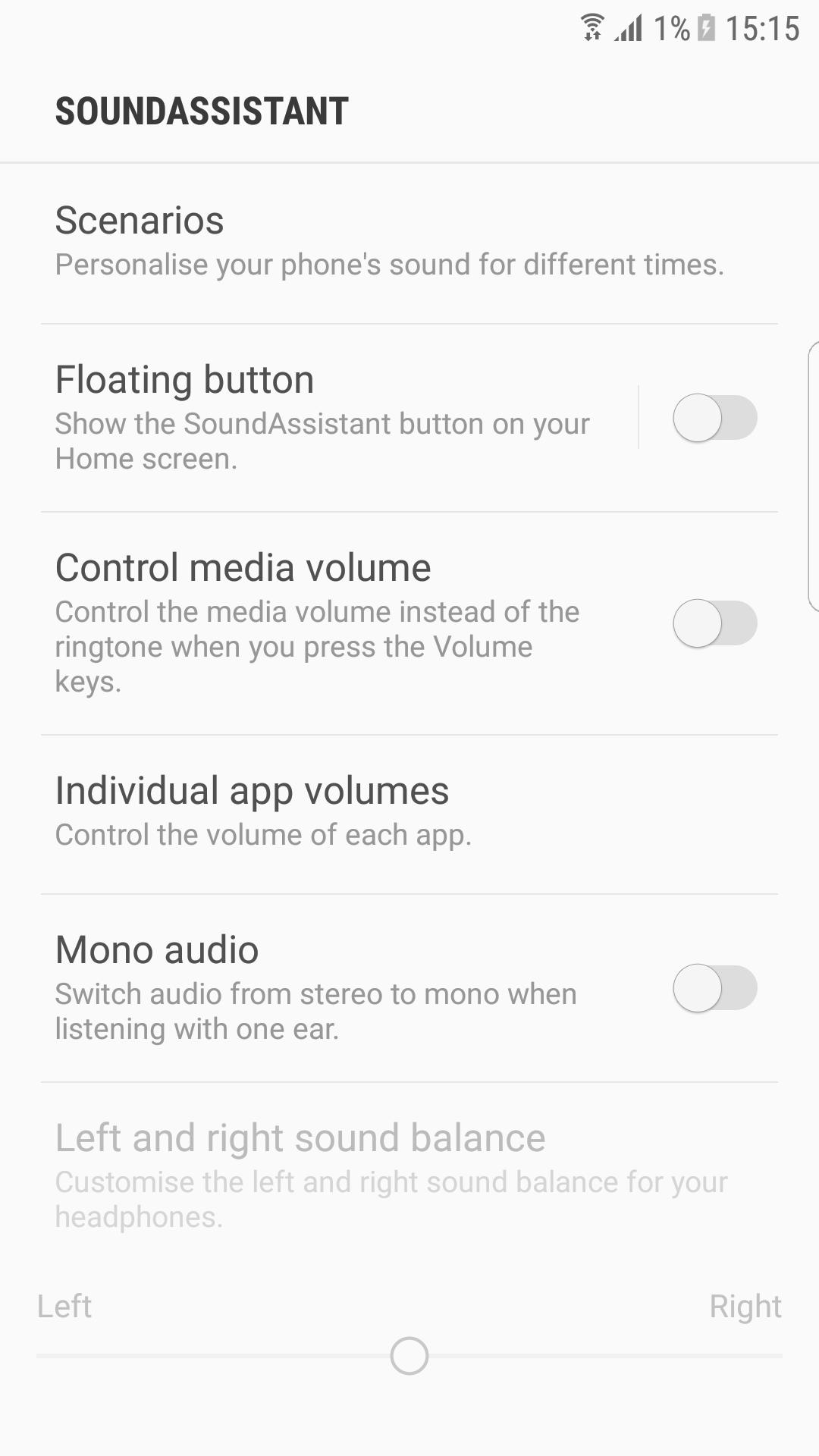
SoundAssistant lets you adjust volume for each app separately, so games, music, and calls can keep different levels. You can set hardware keys to control media volume instead of ringtone for more consistent behavior. Up to 150 volume steps are available, and you can change the step size to make small or big adjustments faster.
Floating controls and volume panel
For quick actions, SoundAssistant provides a floating dialog with controls you can reach from any screen. Flux Volume UI and Dual App Volume View offer a clear panel for current audio and side-by-side app volume when needed. From the floating panel you can mute or unmute, play or pause, and long press to jump directly into the app for deeper settings.
Equalizer, presets, and effects
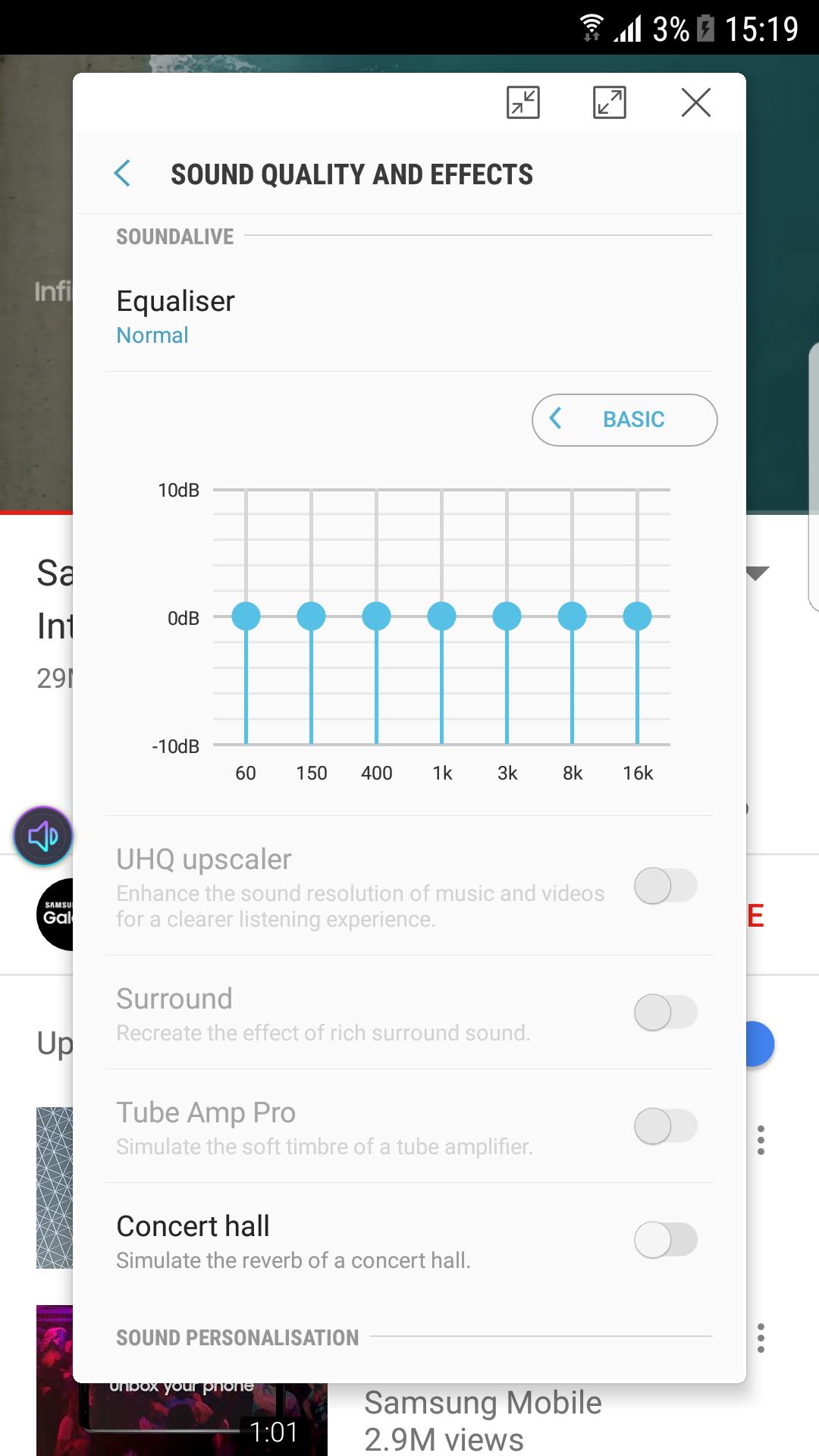
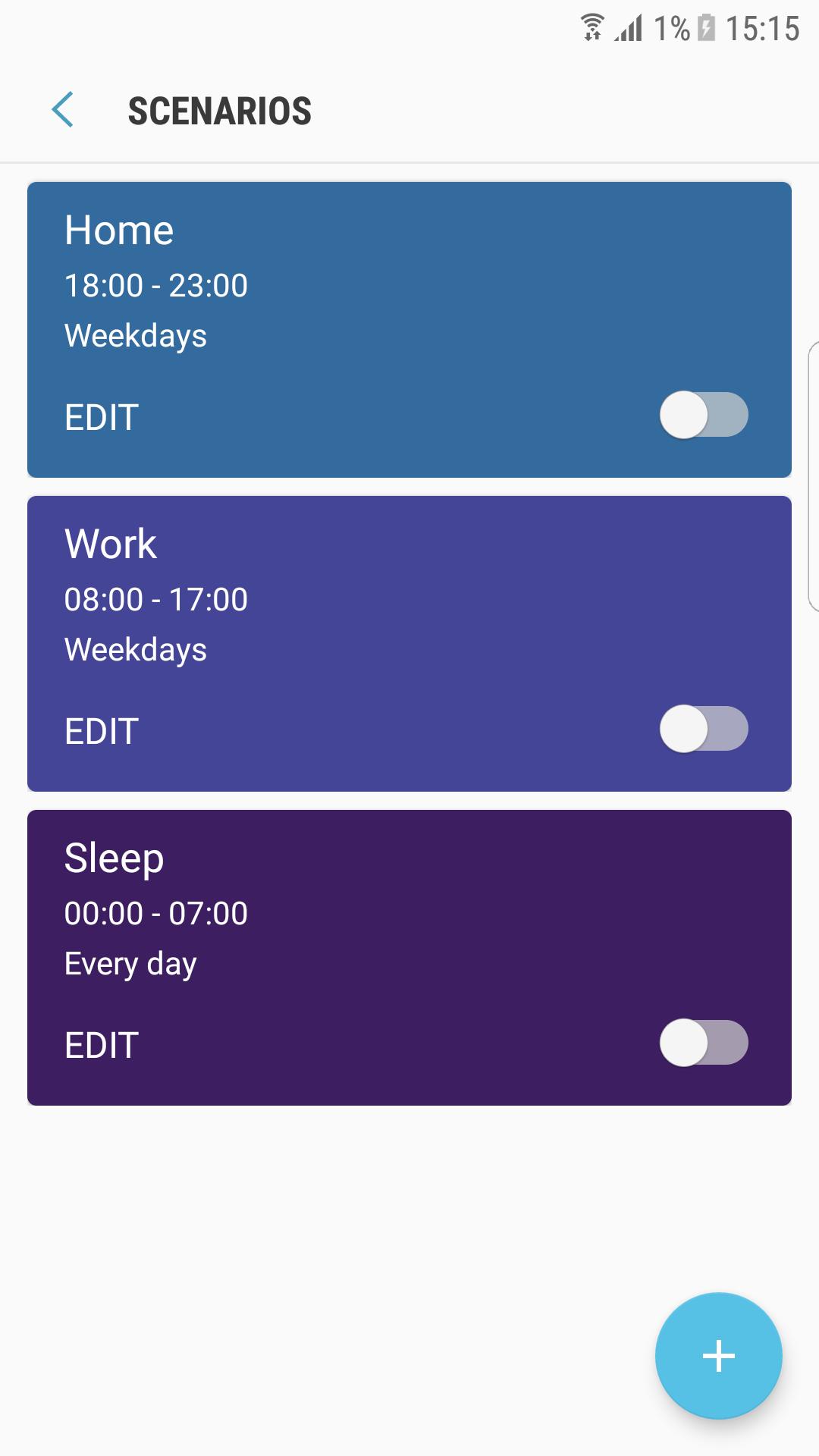
You can open a floating equalizer to fine-tune frequencies without leaving what you are doing. Create personal profiles for different scenarios, then save or share EQ presets to reuse across your day. Extra effects, including a concert hall ambiance and customizable voice effects for game chat or recording, add flexible options when you need them.
Output switching and accessibility tools
SoundAssistant helps route sound where it makes sense. You can switch an app’s audio between Bluetooth and the phone speaker from the floating dialog, which reduces trips into system menus. Accessibility options include mono audio, left and right balance controls, channel swap on headphones, and the choice to route ringtone, notifications, and alarms to headphones only.
Multiple sound and hardware key shortcuts
When needed, you can play audio from multiple apps at the same time to keep background music going while another app provides focus sounds. Set a favorite media app so the hardware volume keys control it right away. You can also skip tracks with volume key presses, and there is a reverse option if a different direction feels more natural.
This quick guide covers the basics to start using SoundAssistant right after installation. If you install the SoundAssistant APK, the steps below help you set up controls, output, and presets in a simple flow.
Open SoundAssistant, go to Menu followed by About to confirm supported features on your device, and watch the help video if available.
Set media as the default for hardware volume keys, then adjust per app volume so games, music, and calls keep their own levels. Change volume step size if you want finer or larger increments.
Enable Flux Volume UI and Dual App Volume View in settings to use the floating panel. Try mute, play, and pause, and long press items to enter the app for detailed options.
Connect headphones or Bluetooth audio, then use the floating dialog to switch an app’s output between devices. If needed, set mono audio or balance left and right for comfortable listening.
Open the equalizer, create a preset for your common scenario, and save it. Set a favorite media app and enable track skipping with volume keys if you want quick control from the side buttons.
SoundAssistant centralizes daily audio tasks so you can keep consistent controls across apps, outputs, and effects on your Galaxy device. To stay current with fixes and improvements, consider the SoundAssistant latest version when setting up or updating your device.
Latest Version
8.5.00.1Uploaded by
SE Co Ltd
Requires Android
Category
Free Music & Audio AppContent Rating
Everyone
Report
Flag as inappropriateLast updated on Mar 17, 2026
This release includes minor bug fixes and general improvements. Update to the latest version for the best experience.



APKPure - A multi-platform app store primarily focused on Android, providing extensive app-related content. Discover the app you want easier, faster, and safer, with quick and efficient downloads and installations.