Scan Date:Sep 22, 2025
Show More


Send files to TV (SFTTV) focuses on quick, private transfers inside your home network so you can move videos, photos, music, APKs, and documents directly to your Android TV or Google TV without using cables or cloud storage. It automatically finds nearby devices running SFTTV on the same Wi Fi or LAN and lets you start a transfer in a few taps. The interface is simple and easy to learn, and it works on phones, tablets, TVs, and desktop systems through companion apps. Get the Send files to TV APK on APKPure to begin, and make sure the app is installed on both the sender and the receiver.
Private local transfers without Internet
Send files to TV uses your local Wi Fi or wired LAN, and it does not require an Internet connection for sending or receiving. This helps keep files inside your network and delivers faster speeds than Bluetooth for large videos and multi file batches.
Cross platform coverage for phone, TV, and PC
SFTTV works across Android phones and tablets, Android TV and Google TV, and desktop systems through companion apps for Windows, macOS, and Linux. Install it on both sides so you can send from your phone to TV, TV to phone, or TV to PC and back.
Automatic device discovery and one tap sending
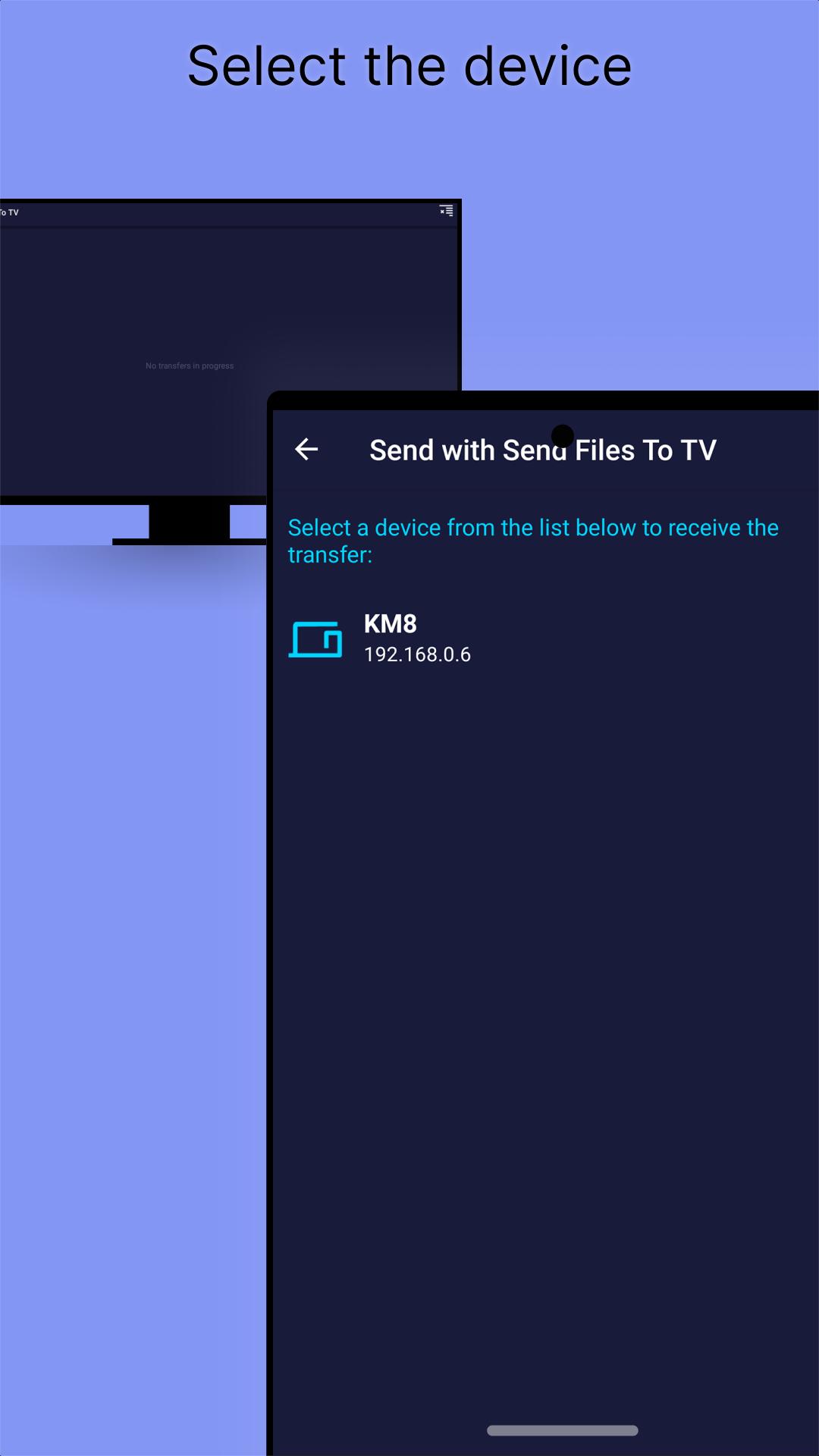
When all devices are on the same network and the app is open, Send files to TV lists available targets automatically. You choose the device and confirm to start the transfer, and the connection is handled for you.
Any file type with multi select
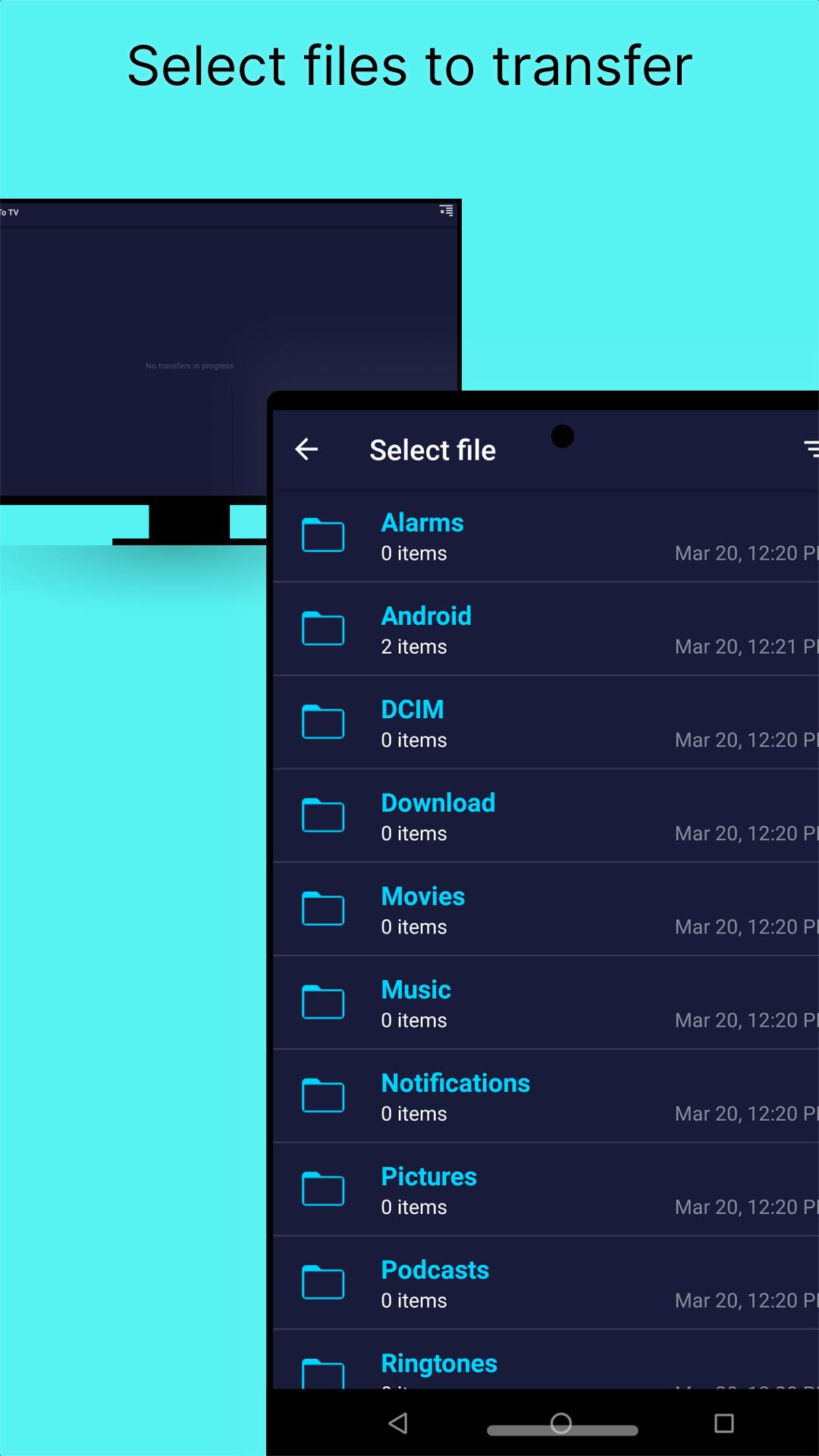
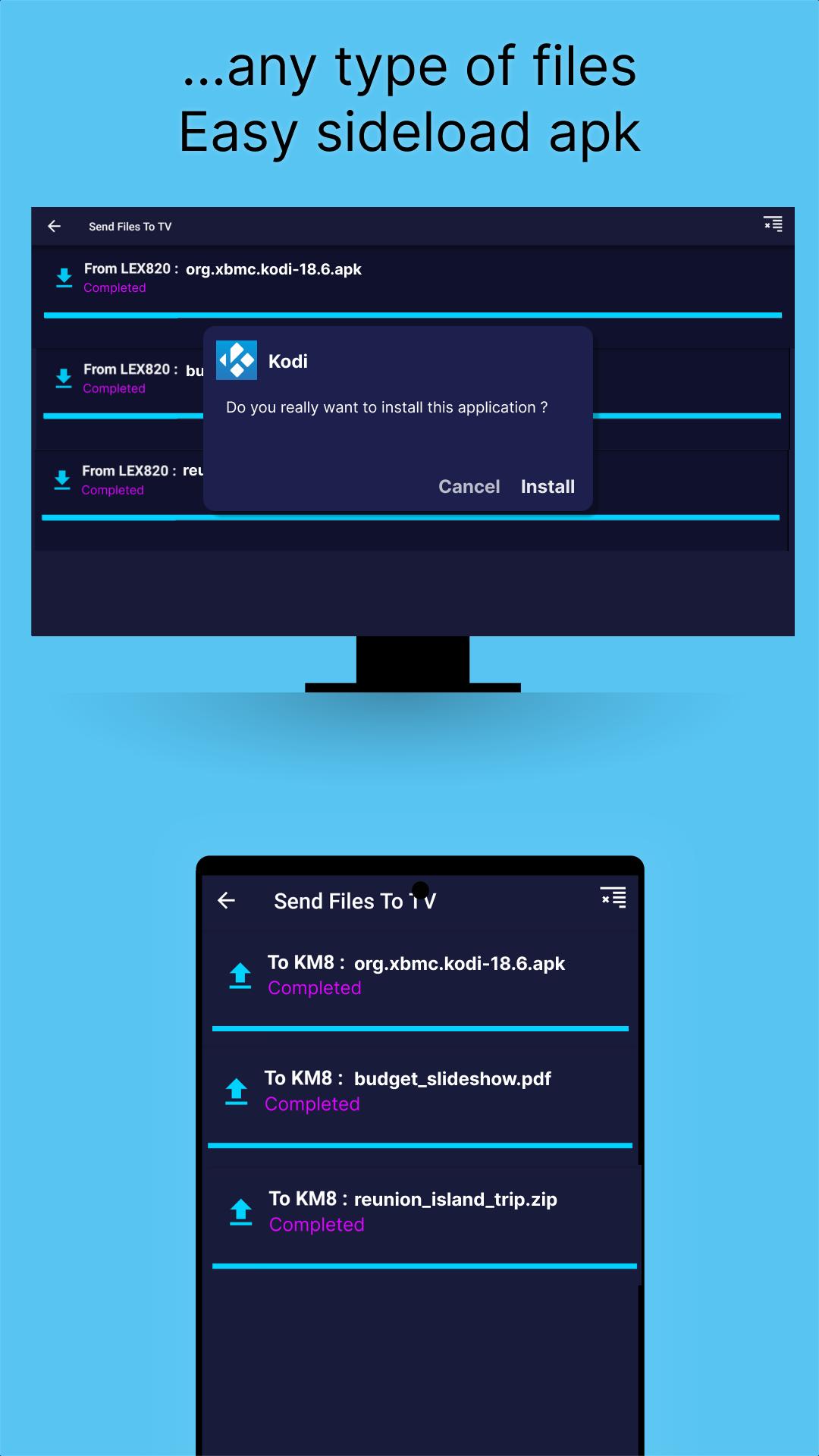
You can send videos, photos, music, APKs, and documents, and you can select many files at once. If you need to move a whole folder, zip it first or select the files inside the folder to send them in one go.
Choose where files are saved
Send files to TV lets you pick the receive folder on both TV and mobile so your downloads are easy to find. You can change this location anytime in Settings to match your storage preferences.
Simple setup and free to use
The interface is straightforward and focuses on sending and receiving. The app is free with ads and offers optional in app purchases, so you can start quickly and adjust later if needed.
Both devices need SFTTV installed and open for auto discovery to work. They must also be on the same Wi Fi or LAN with no guest network isolation. If you are sending to or from a PC, make sure any firewall allows local traffic for SFTTV, and try disabling VPNs that may block device discovery.
To change or find your receive folder on TV, open SFTTV on your TV, go to Settings, then Receive folder to view or select a new path. On mobile, open SFTTV, tap Settings, then Save location to choose where files are stored. This makes it easy to locate items after transfers finish.
If your goal is to move entire directories, the app does not natively send folders. You can compress a folder into a zip file before sending, or select all files within that folder and send them together. This approach helps keep the structure intact when you extract the zip on the TV or PC.
Send files to TV moves data on your local network and does not rely on cloud uploads. According to the developer’s disclosures, data is encrypted in transit and deletion requests are supported. High level categories of data that may be shared or collected can include device identifiers or diagnostics for app performance, and advertising may use limited data to show relevant ads. For full details, review the developer’s policy on the official website listed below.
For added privacy, keep all devices on your trusted home network and avoid guest or public networks. You can also disable mobile data during transfers if you want to ensure all activity stays on LAN.
For TV to PC or PC to TV workflows, use the companion apps for Windows, macOS, or Linux. You can find links to desktop builds through the official site, then pair your PC with your TV inside SFTTV for fast local transfers. This is useful for moving large movies or offline media libraries to the TV.
Some Android versions restrict sending or installing APK files. If you send an APK, you might need to allow installations from this source in system settings, or open the APK with a file manager on the receiving device. On TV, ensure the installation source has permission in the Security settings so the APK can be installed after transfer.
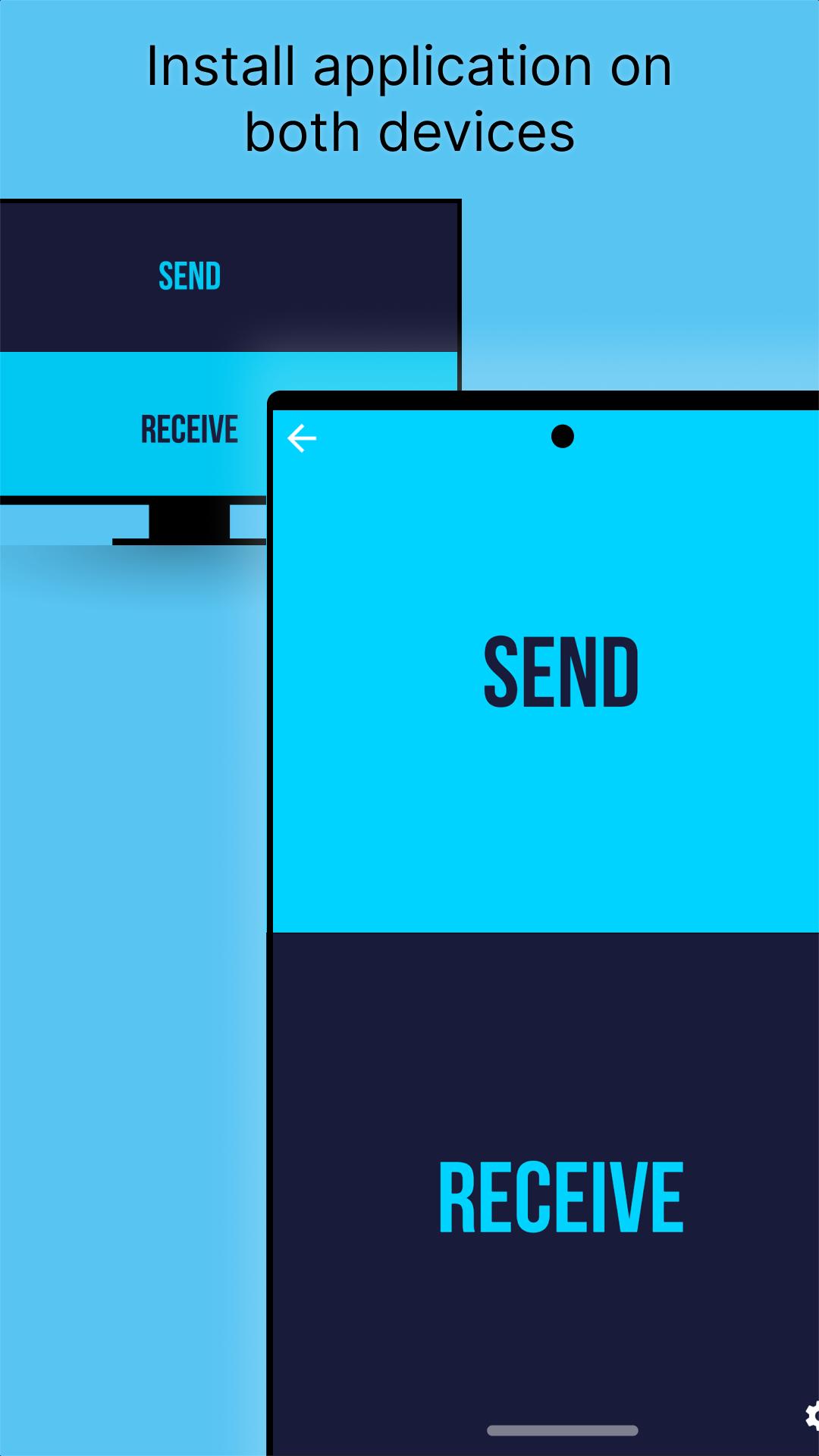
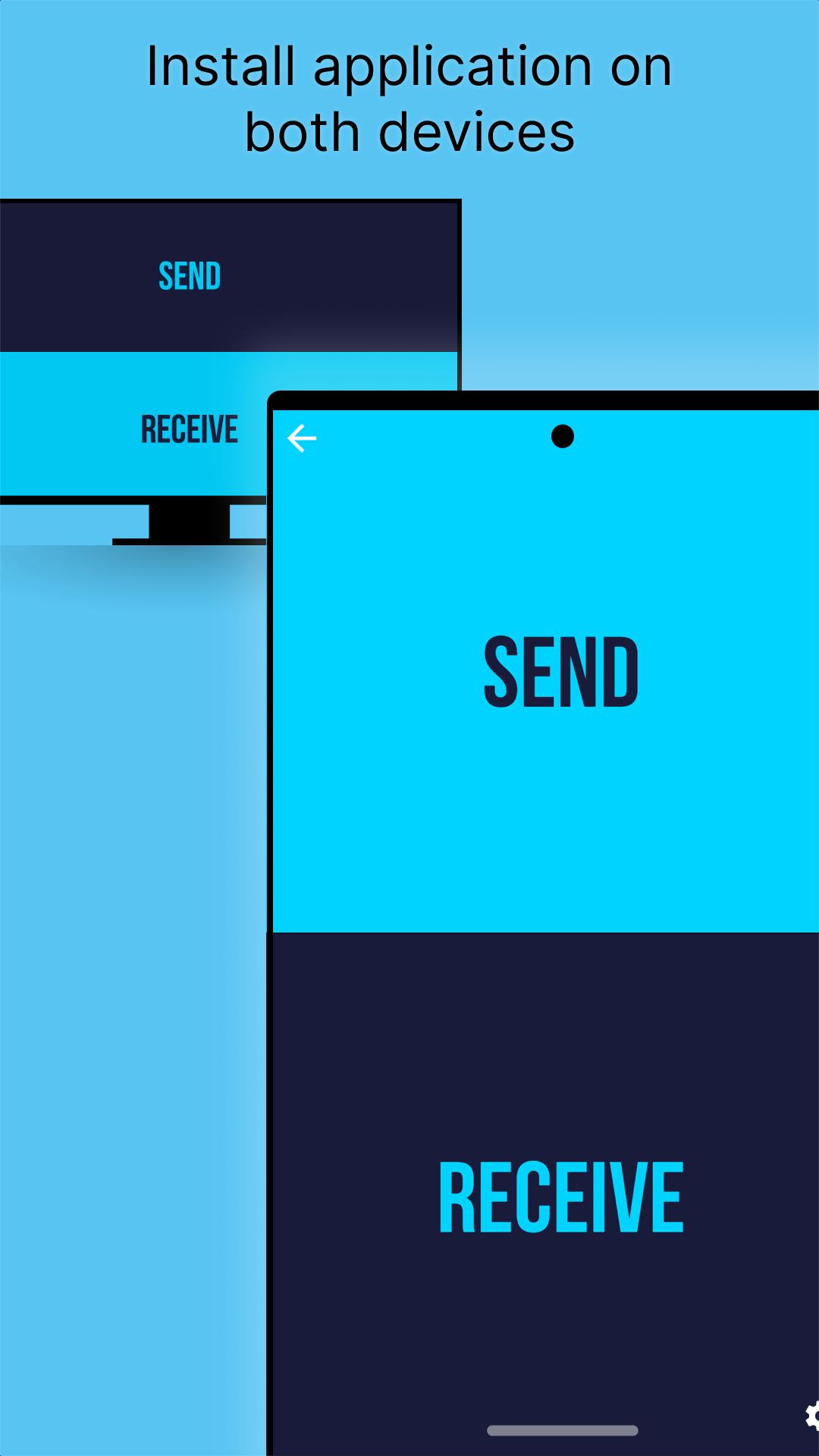
Follow this quick process to move files between your phone and TV over your home network. Install the app on each device, then use Send on the sender and Receive on the target to complete the transfer.
Install Send files to TV on both devices, for example on your phone and on your Android TV or Google TV.
Connect both devices to the same Wi Fi or LAN and open the app on each to enable device discovery.
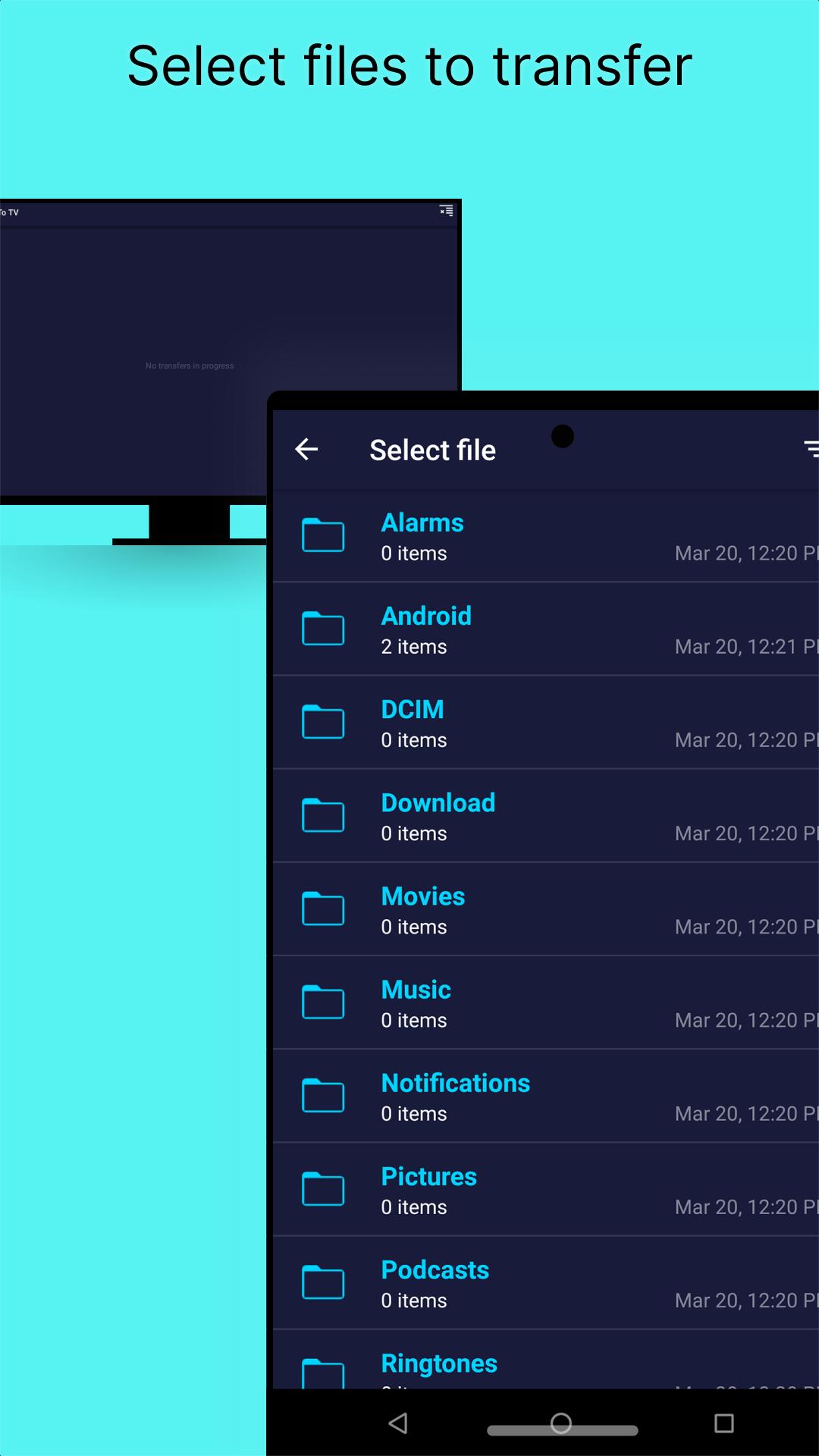
After that, on the sending device tap Send and select the videos, photos, music, APKs, or documents you want to move.
Choose the target device from the list of discovered devices, then confirm to start the transfer.
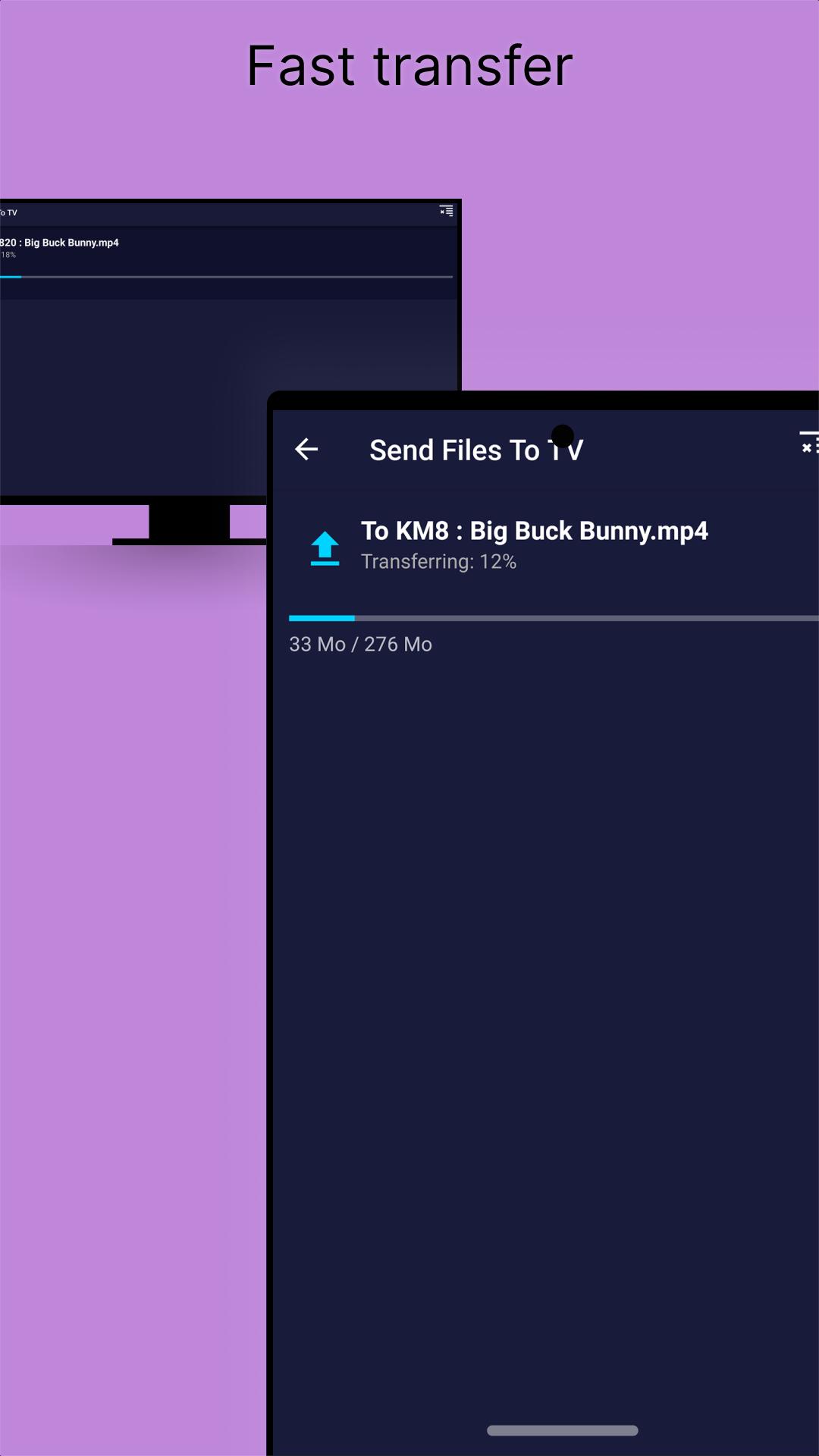
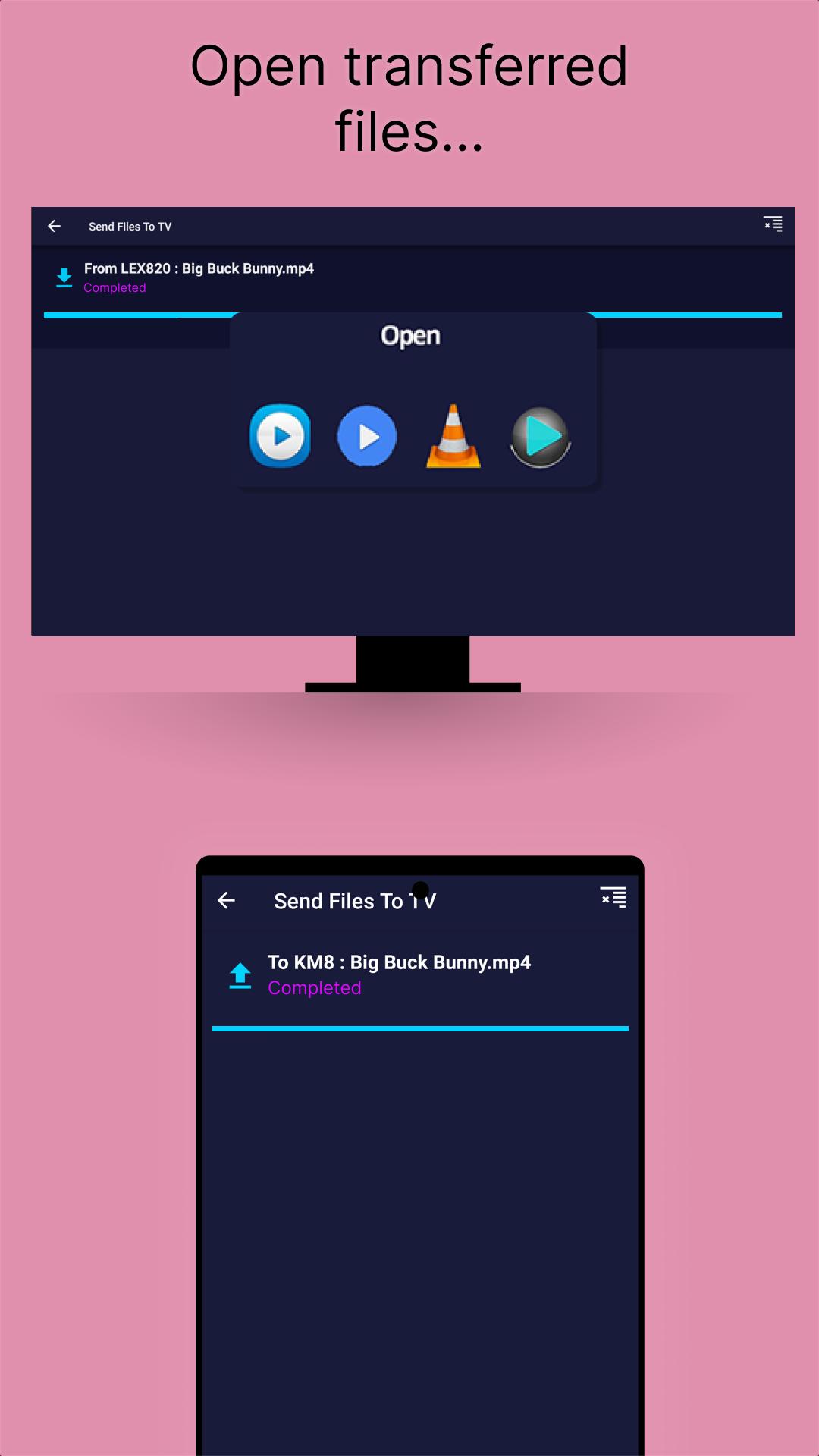
On the receiving device accept the incoming request if prompted and wait for completion. You can view files in the app’s Received section or in your chosen save location.
Send files to TV makes local sharing simple and fast for phones, TVs, and PCs. Get the Send files to TV APK latest version on APKPure, then follow the steps above to move files privately on your home network.
Official resources:
Website: https://www.sendfilestotv.app/
Support email: beyable.io@gmail.com
Does Send files to TV require the Internet to work?
No, Send files to TV uses your local Wi Fi or LAN and does not need an Internet connection for transfers. You only need both devices on the same network with the app open.
Why is my device not showing up in Send files to TV?
The most common reasons are that both devices are not on the same network, the app is not open on one device, or a VPN or firewall is blocking discovery. Ensure both sides run SFTTV, connect them to the same router, and temporarily disable VPNs or allow SFTTV through your PC firewall.
Where are received files saved on my TV?
By default, Send files to TV saves items to the receive folder set in the TV app. Open SFTTV on your TV, go to Settings, then Receive folder to view or change the path so you always know where transfers are stored.
Can I send entire folders with Send files to TV?
Send files to TV does not send folders as a single item. You can zip the folder before sending or select all files inside the folder to transfer them together.
How do I download and update Send files to TV on my device?
To download Send files to TV and get updates, use APKPure. Install the Send files to TV APK from APKPure and revisit the app page to update to the Send files to TV APK latest version when it becomes available.
Latest Version
1.4.22Uploaded by
Irawanan Nan
Requires Android
Android 6.0+
Category
Free Tools AppContent Rating
Everyone
Security Report
Report
Flag as inappropriateLast updated on Sep 22, 2025
Transfer service auto stop if inactive
Fix notification permission
Fix send button
Fix Android 15+ device discovery foreground service
Improve file explorer performance
Improv transfer performance
Fix minor bugs

APKPure - A multi-platform app store primarily focused on Android, providing extensive app-related content. Discover the app you want easier, faster, and safer, with quick and efficient downloads and installations.