

Package Name:com.shpak.quicktimer
SHA-256:f9eaa3df02d0e035d1e26350d84d272f3f9c3ec6fed65050397cea7f6aeb7101
Show More
Quick Timer Tile makes managing your time effortless and distraction-free.
Add it to your Quick Settings, and you're ready to go – no app icon or traditional interface. Everything happens through a timer dialog and notification.
How to get started:
1. Add the Timer to Quick Settings:
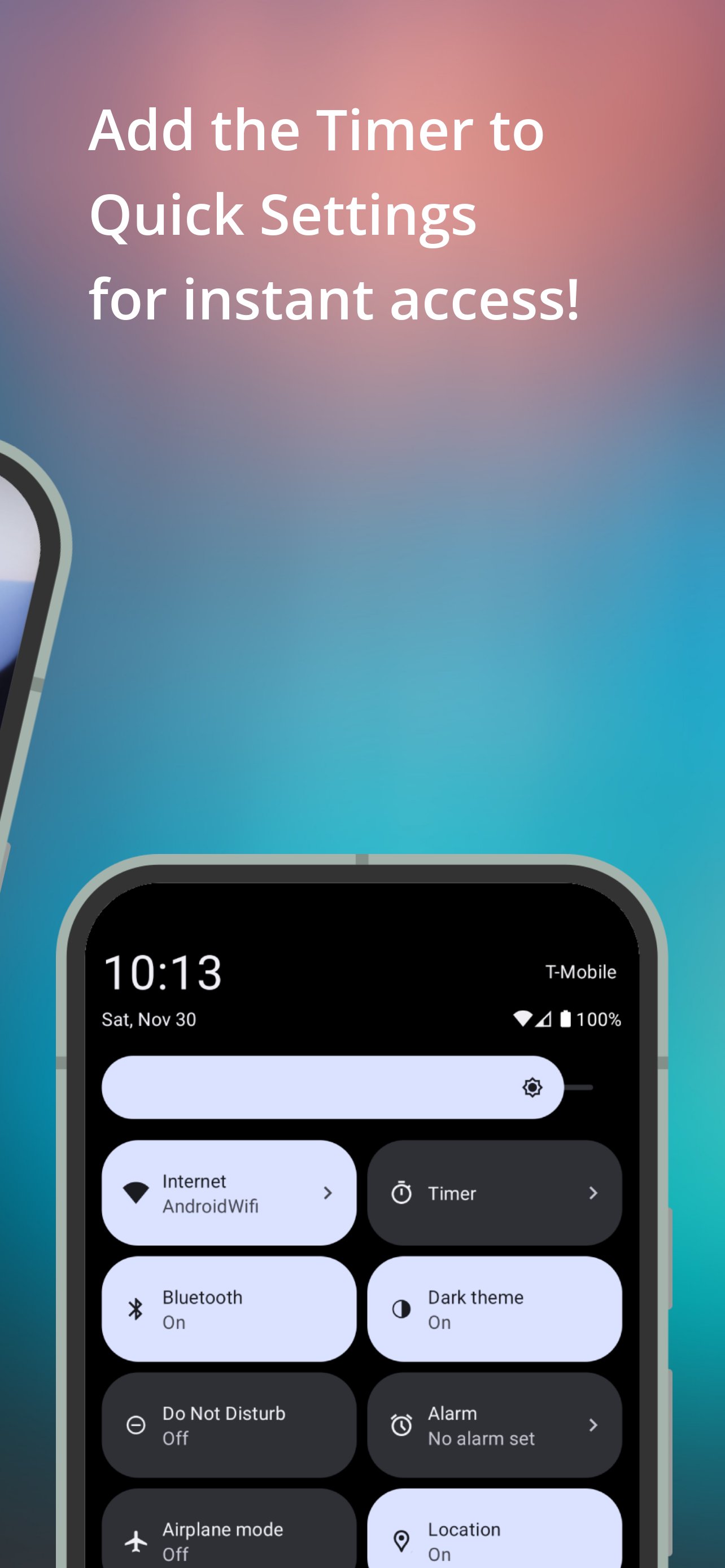
• Swipe down from the top of your screen to open Quick Settings.
• Tap the pencil icon or "Edit" to customize your tiles.
• Drag the "Timer" tile into the active area.
2. Set up your timer:
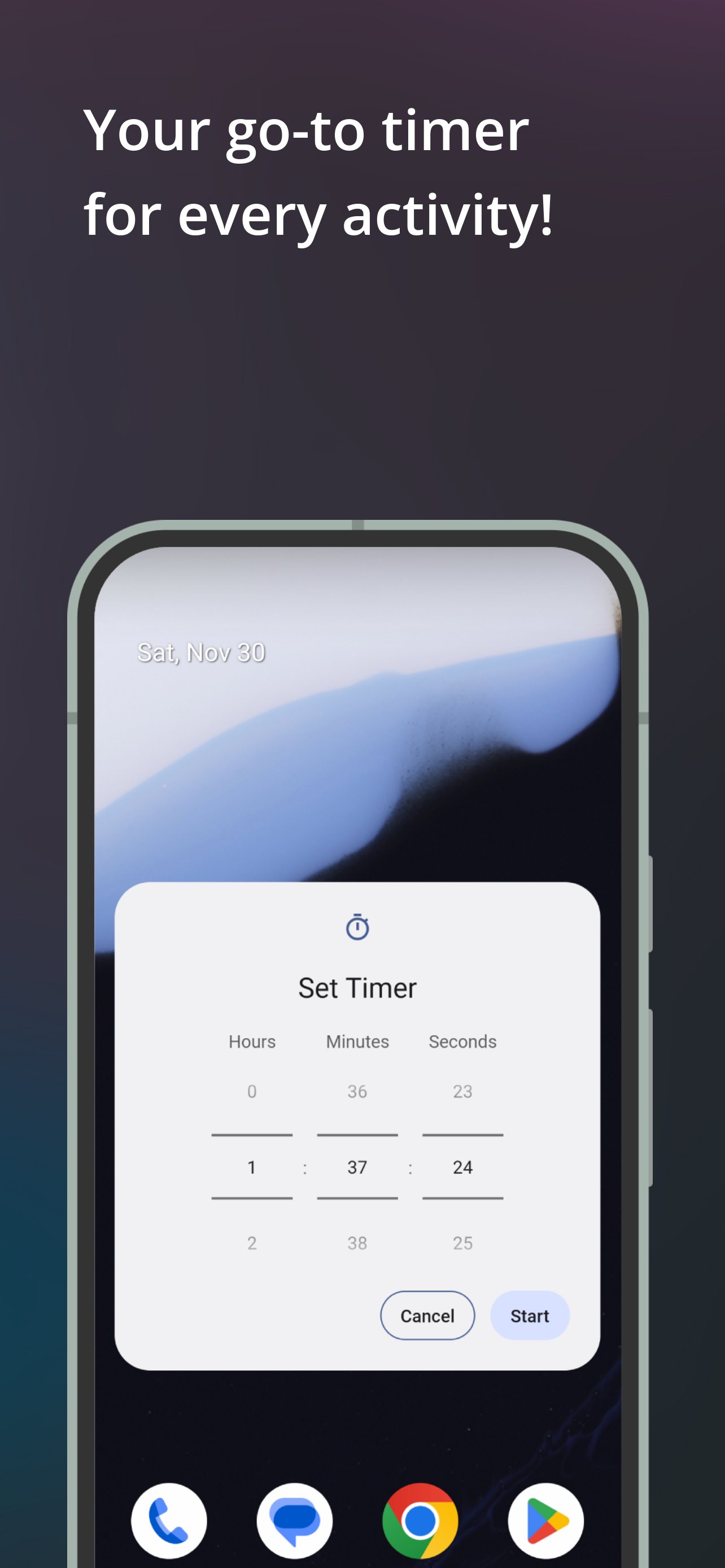
• Tap the "Timer" tile to open the timer setup dialog.
• Grant notifications permission (if needed).
• Use the pickers to set the desired time and press "Start".
3. Follow the Timer in Notifications:
• Once the timer starts, a notification shows the remaining time.
• Pause, resume, or cancel the timer directly from the notification with one tap.
Why use Quick Timer?
• Quick access: start a timer in seconds straight from Quick Settings.
• No clutter: no app screen or icon – just a clean, efficient experience.
• Convenient notification: always know how much time is left at a glance.
Perfect for cooking, workouts, or any activity where timing matters!
Latest Version
1.0Uploaded by
ThweThwe Lin
Requires Android
Android 8.0+
Category
Free Productivity AppContent Rating
Everyone
Security Report
Check Now
Report
Flag as inappropriateLast updated on Jul 29, 2025
Minor bug fixes and improvements. Install or update to the newest version to check it out!




APKPure - A multi-platform app store primarily focused on Android, providing extensive app-related content. Discover the app you want easier, faster, and safer, with quick and efficient downloads and installations.