Scan Date:Nov 13, 2019
Show More
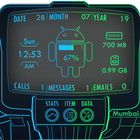
NOTE: This app was previously not working due to UCCW issues, it has been updated and will support new android versions.
A stunning interface for your Android device! Please read the installation instructions for UCCW APP.
UCCW App is required to use this skin: http://goo.gl/33y9P
This is the first phase of this widget, I will be updating this widget soon.
How to Use:
Install UCCW application. (http://goo.gl/33y9P)
Create a new UCCW widget on homescreen.
Search Splinter widgets on your skins list.
Re-size according to your screen grids.
Enjoy!
Mail me at attified.designs@gmail.com if you have a doubt or issue.
FAQ:
SKIN DOES NOT SHOW IN WIDGETS
After downloading the skin and UCCW from google play, move on by adding a UCCW widget to your homescreen, then choose which skin to apply.
THE WIDGETS LOOKS TOO SMALL / DOESN'T ALIGN WELL
You need to change the grid size of your launcher accordingly to your screen resolution. Try hiding your notification bar (if supported by your launcher) and the dock, this will increase the screen real estate.
HOW DO I EDIT HOTSPOTS?
Open UCCW and go to its settings menu, select "lock widgets", set it to "OFF". Tap the widget you wish to edit, set "lock widgets" to "ON" when done.
HOW TO ENABLE UNREAD EMAIL COUNTER?
Email counter is only supported by the Gmail application as of now. You can however link any other types email (such as Yahoo, Outlook etc.) to the Gmail application. Start by opening UCCW and go to its settings menu, select "lock widgets", set it to "OFF". Tap the email widget and navigate to "Objects". Find and select "Gmail", then "Gmail settings". Finally, select your gmail account and inbox. Set "lock widgets" to "ON" when done.
LOCATION NAME IS NOT CORRECT.
Open the UCCW appication and go into the settings menu. Under "Location", select whether to manually input your location or to let UCCW automatically find your location.
Disclaimer: This skin is NOT affiliated with Bethesda Soft or Fallout 4 Game.
Latest Version
2.0Uploaded by
عبق الياسمين
Requires Android
Android 5.0+
Category
Free Personalization AppContent Rating
Everyone
Security Report
Report
Flag as inappropriateLast updated on Jul 28, 2019
Piptek Version 2.0
Now supports all android versions!
Added an Electric Blue version of the widget.
Remodeled widget design.
Removed weather due to its inaccuracy.
Added FAQ within the app.



APKPure - A multi-platform app store primarily focused on Android, providing extensive app-related content. Discover the app you want easier, faster, and safer, with quick and efficient downloads and installations.