This app allow you to blur video and images using phone gallery items or media captured from camera.
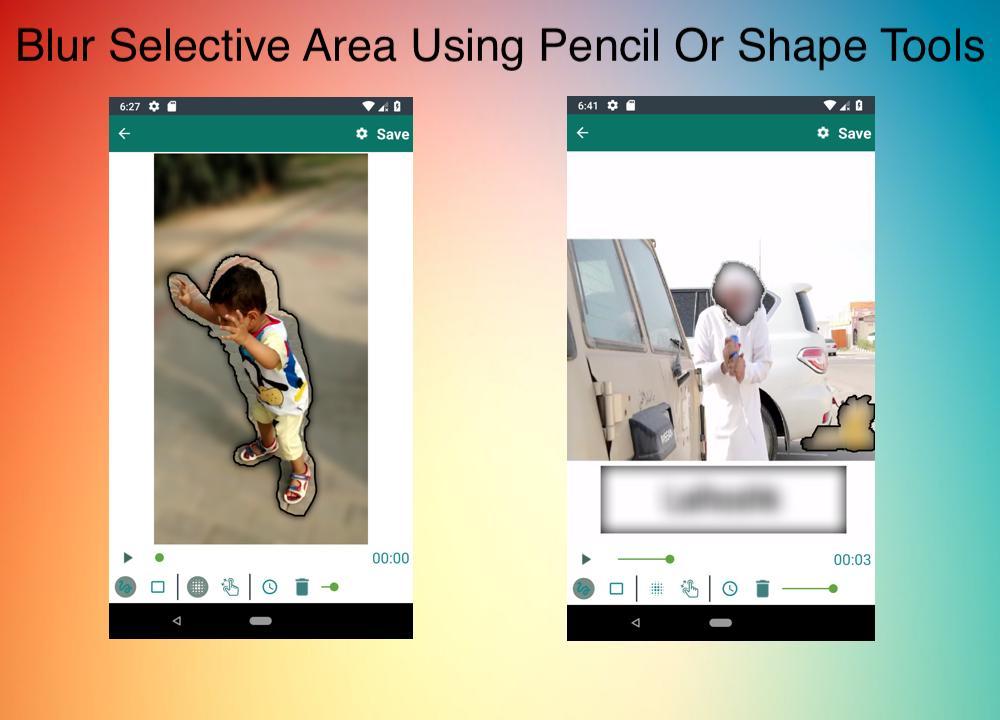
Unlike other apps on playstore you can define more than 1 areas to blur using rectangle or custom shapes(lasso select/using your finger), you can also define the duration of each area and adjust the intensity of blur along with the option to blur selected or unselect area.
You can also change the background of image/video to change it,s aspect ratio.
HOW TO USE
✔As soon as you start the app it show you option to select image or video
✔After selection you are asked if you want to select from gallery or capture a new one
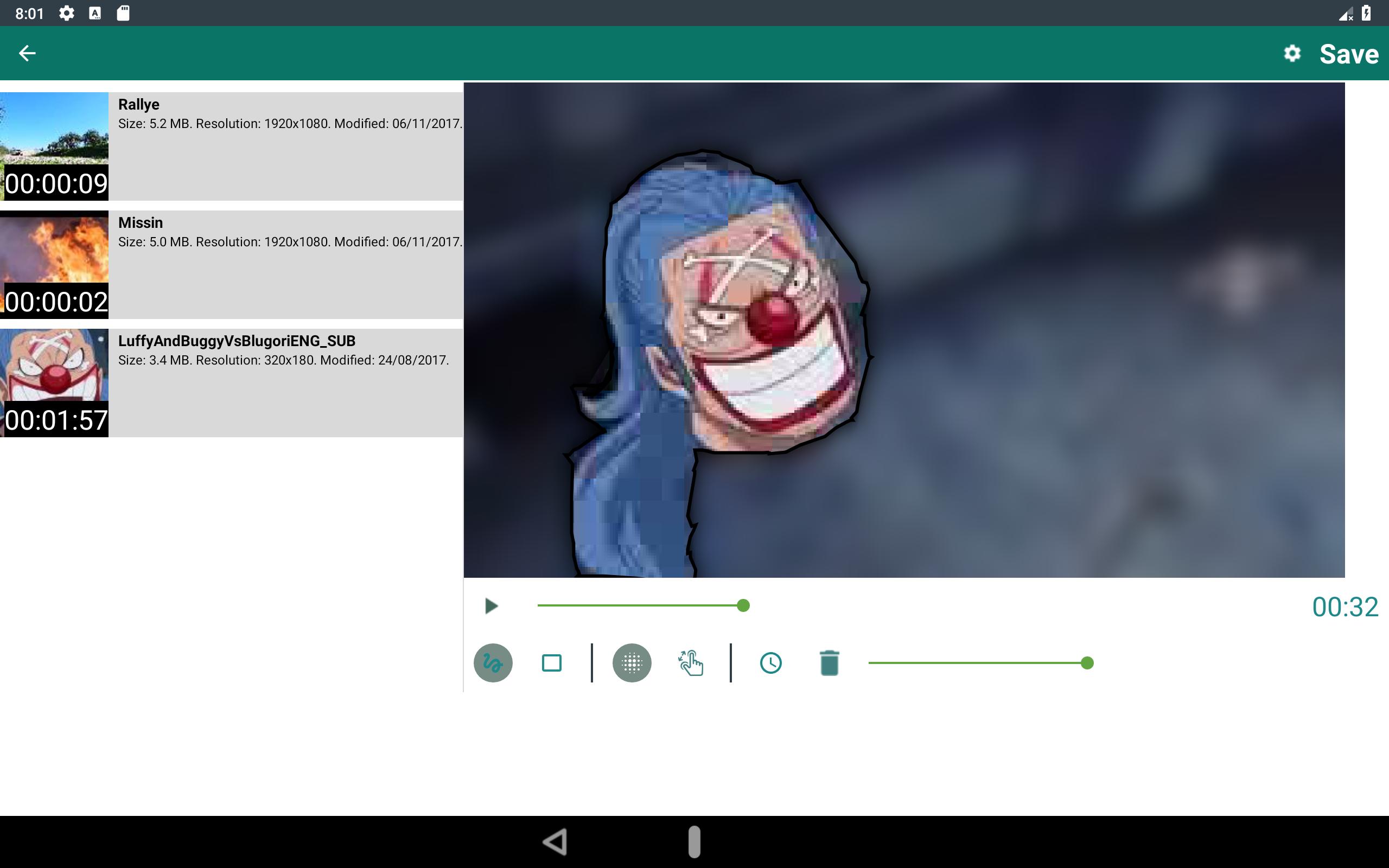
✔In next screen at the bottom bar you see 2 options, first is pencil blur/lasso select and the other is rectangle blur, using pencil blur/lasso select you can use your hand to define the area to blur and in the other case you can use adjustable rectangle area, after selecting area to blur press the save button on top right corner and wait for process to finish.
How to specify more than 1 area to blur
In case of pencil blur you can add as many areas you want using your finger and in case of rectangle there will be Plus button in bottom bar to add a new rectangle area to blur.
What are different options to blur
You can specify the intervals for which to apply blur filter, you can also blur selected or unselected part of video and images.
How to zoom area to blur
First click on 4th button in bottom bar(Hand figure) then pinch to zoom the required area, after that click the 1st or 2nd icon from bottom bar to select proper blur tool and apply it to required place, after you have done then press the zoom button to switch to normal mode.
How to specify blur area duration
First select the area you want to apply duration by tapping on it(Last added area will be selected by default) then click on clock icon(3rd from the left) in the next screen you can define duration of that selected blur area , you can add more than 1 intervals by clicking the + icon on the top of screen.
Latest Version
1.4-LiteUploaded by
Diiegooh Rodrigues
Requires Android
Android 4.2+
Category
Free Video Players & Editors AppContent Rating
Everyone
Report
Flag as inappropriateLast updated on Nov 13, 2018
Fixed app crashing issues





APKPure - A multi-platform app store primarily focused on Android, providing extensive app-related content. Discover the app you want easier, faster, and safer, with quick and efficient downloads and installations.