Giving a presentation?
Demonstrate an application?
Watching a movie?
Hearing your favorite music?
Serfing with your favorite Browser?
Do you want to Zoom, Pan and Draw to your PC Desktop?
Then use the Remote with clean, minimalist design.
Remote turns your mobile phone or tablet into a wireless user-friendly remote control for your PC. It’ll surprise you with fully simulated touchpad, soft keyboard and draw panels which make your remote experience simple and efficient.
Connect your mobile phone or tablet with your PC with Wi-fi.
Download and run Trackpad server from our website http://www.gdo.com/trackpad, choose Wi-fi connection,open the app and connect.
Wi-fi (One-click auto-connect with no need for IP address configuration through a local network connection).
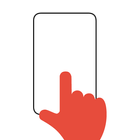
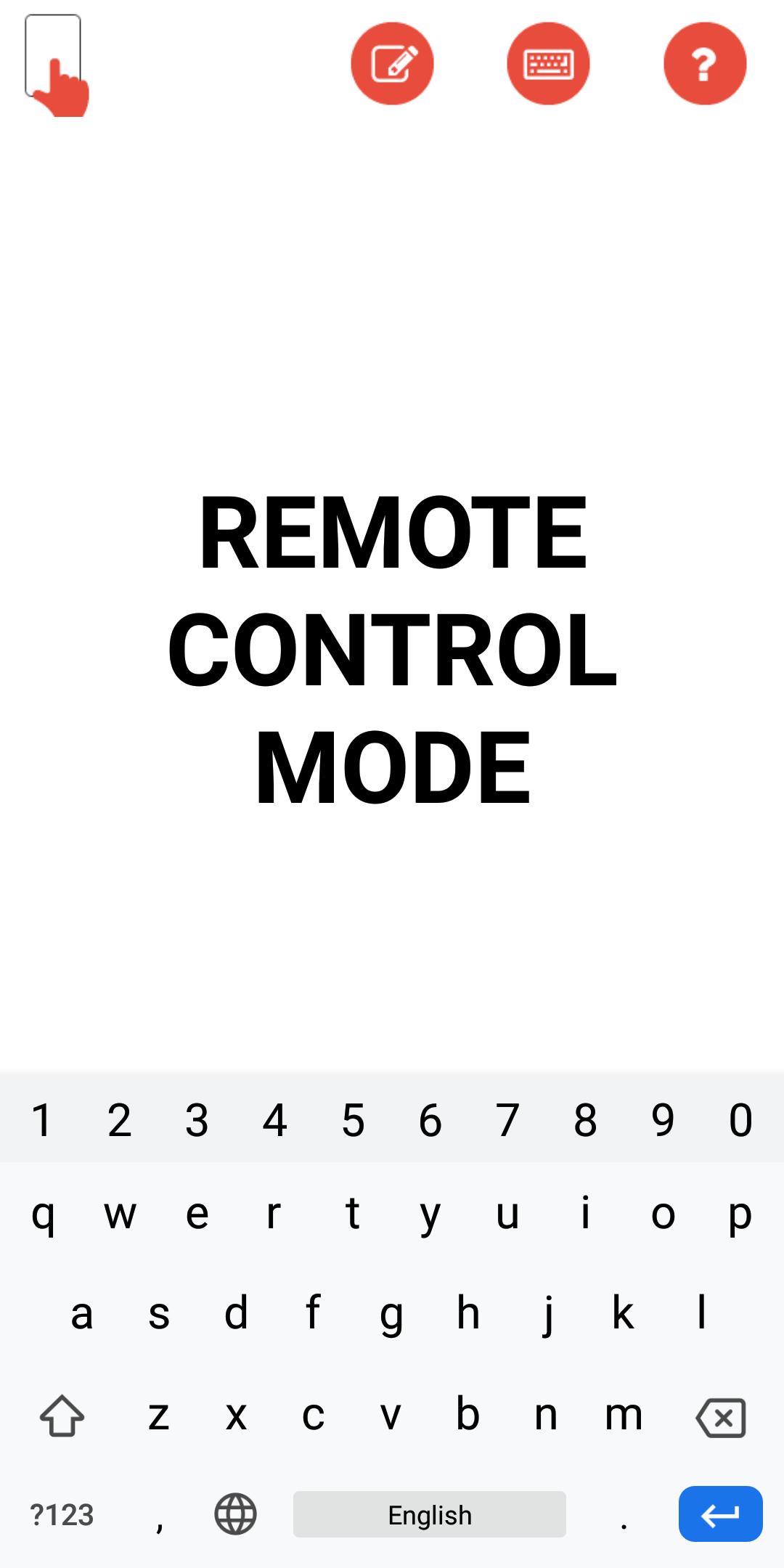
Remote has two modes(Remote Control Mode & Draw Zoom Mode).
REMOTE CONTROL MODE
Use your mobile phone or tablet as a wireless user-friendly remote control for your PC.
[ + ] Move on the screen for mouse cursor movement.
[ + ] Tap on the screen for left mouse click.
[ + ] Tap and hold for one second for double click.
[ + ] Press up,down voice buttons for up,down PC keys.
[ + ] Tap "Keyboard" button to show/hide Soft Keyboard to write.
[ + ] Tap "Draw" button to capture the desktop(Zoom Draw Mode).
[ + ] Tap "Help" button to view help for the app.
DRAW ZOOM MODE
You can Zoom Pan & Draw your captured desktop image.
[ + ] Zoom in and out with the up and down voice buttons.
[ + ] Pan just moving on the screen.
[ + ] Tap at "Pencil" to start/stop drawing.
[ + ] Tap "Back" button to clear your Desktop(to leave Zoom Draw Mode).
[ + ] Tap "Save" button to save your image.
[ + ] Tap "Black" button to change the color of your desktop to black.
[ + ] Tap "White" button to change the color of your desktop to white.
[ + ] Tap "Color" button to change the Color of the Pen.
[ + ] Tap "Mark" button to mark any area of your Desktop.
Press The Back button of mobile phone or tablet to Exit.
Phiên bản mới nhất
2.1Yêu cầu Android
8.0
Danh mục
Công cụ ỨNG DỤNGXếp hạng nội dung
Everyone
Báo cáo
Gắn cờ là không phù hợpLast updated on Oct 28, 2019
Minor bug fixes and improvements. Install or update to the newest version to check it out!



APKPure - Kho ứng dụng đa nền tảng chủ yếu tập trung vào Android, cung cấp nội dung phong phú về ứng dụng. Khám phá ứng dụng bạn muốn dễ dàng, nhanh chóng và an toàn hơn, với tính năng tải xuống và cài đặt nhanh chóng và hiệu quả.