

Google AI Mode Personal Intelligence: Drive, Wallet and Gemini Explained

2026-11-27
Personal Intelligence in AI Mode now links Google Wallet, Drive and the Gemini app. Here is what each one reads, what it cannot do and how to opt in.
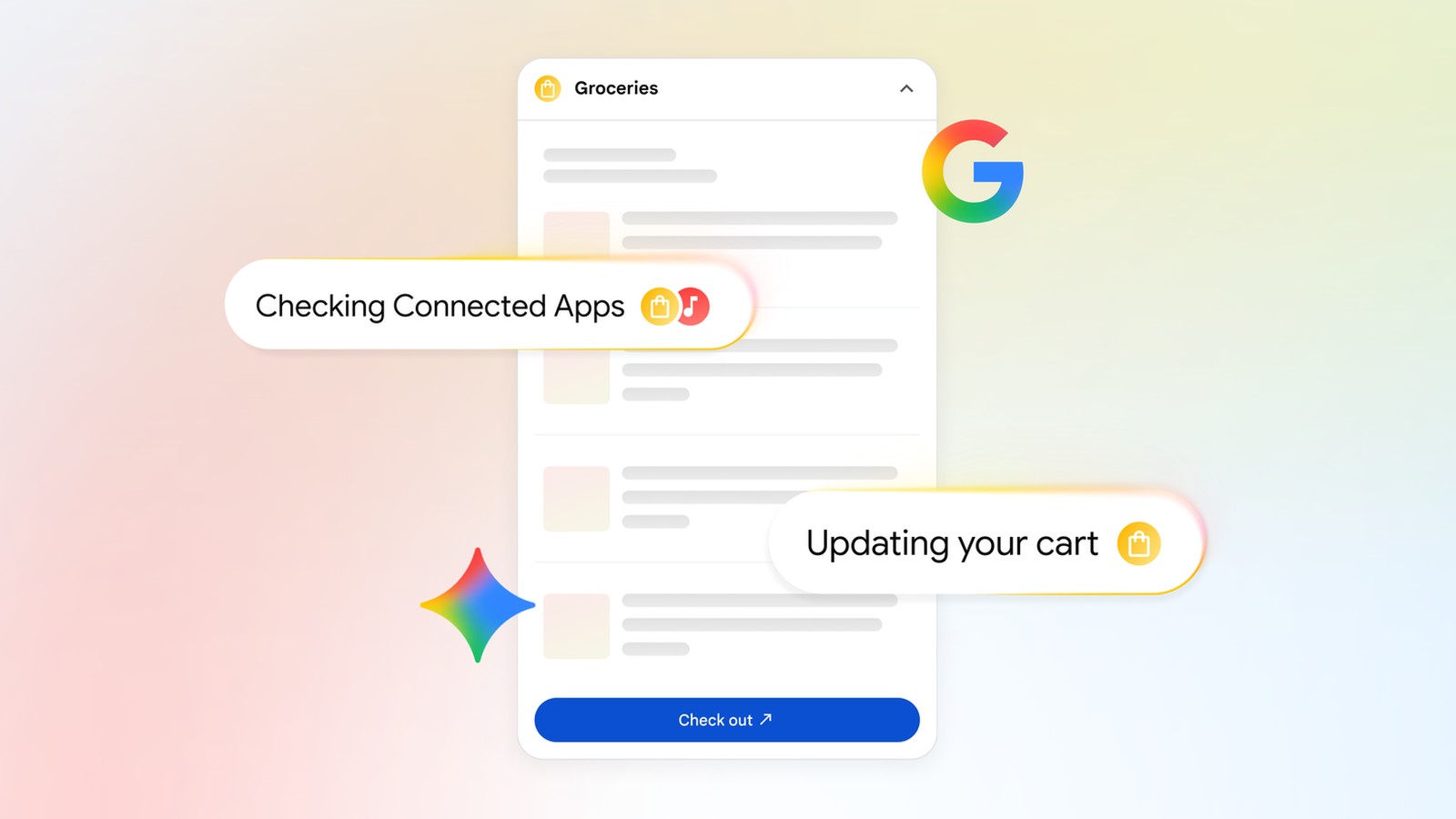
Google's AI Mode has been able to read your Gmail, Calendar, and Photos for a while. As of November 23, that list is growing. Personal Intelligence in AI Mode now connects Google Wallet, with Drive and the Gemini app following in the coming weeks, and the whole point is to stop you from repeating context that Google already has.

Google Wallet is a digital wallet app that lets you tap to pay and securely store cards, passes, tickets, IDs, and keys.
The short version: your spending, your documents, and your chats become sources for AI Mode answers, if you turn each one on. There's nothing to download for it, since the switches live inside Search settings on web and in the Google app. Here's what each connection actually does, what it can't do, and where the privacy line sits.
What AI Mode Personal Intelligence Now Connects
Personal Intelligence is Google's name for the layer that lets Search pull from your own accounts rather than the open web. It started with Photos, Gmail, and Calendar. Wallet, Drive, and the Gemini app are the three additions announced this week.
Each one answers a different kind of question. Wallet covers money. Drive covers documents. The Gemini app covers conversation history and the attachments you've shared there. Together they move AI Mode from "search that knows your calendar" to "search that knows your context."
Everything is opt-in, per app. You can connect Wallet and leave Drive off, or the other way around.
Google Wallet Comes First, and It Is Read-Only
Wallet is the only one of the three live today. Connect it and AI Mode can look at your spending and card benefits, then use that to answer questions about your money.
The useful examples Google gives are practical. Mapping financial milestones. Finding places to trim everyday spending. Working out which card to use for cash-back categories, travel perks, or reward points, based on the cards you've linked.
The limit is the important part. AI Mode can read information from Wallet accounts, and it cannot move, manage, or invest your money. Read-only sounds like a small detail until you imagine the alternative. It's the difference between a budgeting assistant and something with your bank credentials.
Google Search AI Mode Reads Your Drive Documents
Drive is next, arriving over the coming weeks. Once connected, AI Mode can read your Docs, Sheets, and PDFs, which turns a vague question into a specific answer.
The example Google uses is a tax-season preparation plan built from your own files. That's a better illustration than it first appears. Tax prep is exactly the kind of task where the useful information is scattered across a spreadsheet, a PDF from an accountant, and a doc of notes you made in March.
The same logic applies to work. If you have a project brief in Docs and a budget in Sheets, AI Mode can answer questions that span both without you pasting either one into the chat.
The Gemini App Integration Closes the Loop
The third connection is the one that changes how the product feels. You can now opt in to connect the Gemini app to Personal Intelligence in AI Mode, after the existing option to connect Search history to Personal Intelligence inside Gemini.
In practice, that means context flows both ways. Explore an idea in Gemini, then open AI Mode and continue from that foundation. Go the other way and the Gemini app picks up what you were researching in Search.
Google says this arrives in the coming weeks, alongside Drive. When it lands, the two products stop feeling like separate assistants that happen to share a logo.
How to Turn On Connected Apps in AI Mode
The path is short. Open Search Personalization, select Connected Apps, then choose the apps you want to connect. Each one is a separate switch.
You can turn a connection off at any time, and Google says the choice stays with you. That's standard language for a privacy feature, and in this case it's also the actual mechanism: nothing is read until you connect it.
If you've never opened Search Personalization, expect to find it under your Google account's Search settings. The Connected Apps section is the same place you'd have enabled Gmail or Calendar previously.
What the Personalization Icon Shows You
Google is adding a way to see what AI Mode used. A "Personalization" icon will appear below any tailored response, and tapping it shows the context behind the answer.
That's a meaningful addition for a feature built on invisible context. If an answer mentions your budget, you should be able to see which document it came from. The icon is also how you correct the model: tell AI Mode something like "I'm no longer a vegetarian" in the thread, and the context updates.
The icon rolls out soon rather than today, so early users will be working without it for a short window.
Google Search Update: Personalization Beyond AI Mode
The changes don't stop at AI Mode. Google says AI Overviews and AI Mode will both serve more personally relevant responses based on your recent search context.
The example is a trip you've been planning. Start researching flights in one thread, then open a new search later and pick up where you left off instead of restating the destination and dates. That's continuity, and it's the part of this update most people will notice without ever connecting an app.
Personalization settings still control all of it, and you can adjust or turn it off in Search Settings.
Privacy: What You Are Opting Into
| App | What AI Mode can read | What it cannot do | Status |
|---|---|---|---|
| Google Wallet | Spending, linked cards, rewards categories | Move, manage or invest money | Live now |
| Google Drive | Docs, Sheets, PDFs | Edit or delete files | Coming weeks |
| Gemini app | Chats, photos, files, audio and video attachments | Act without your opt-in | Coming weeks |
| Gmail, Calendar, Photos | Existing Personal Intelligence sources | Anything outside their scope | Already live |
The honest summary is that this is a lot of context in one place. Google's framing is control: per-app switches, a visible context icon, and the ability to correct the model in plain language.
The part worth thinking about is cumulative. Each connection is reasonable on its own. All of them together mean AI Mode can answer a question using your bank statements, your work documents, and your chats, which is a different level of intimacy than reading your calendar.
That's not an argument against using it. It's an argument for connecting one app at a time and watching what the answers start to include.
Who Should Connect Which App
Connect Wallet if you're actively trying to cut spending or maximize card rewards. The read-only limit makes it the lowest-risk of the three, and the payoff is concrete.
Connect Drive if your work or study lives in Google's office apps. The tax-prep example generalizes well: any task with documents behind it gets better when the documents are visible.
Connect the Gemini app if you already use both products. If you don't open Gemini, the connection does nothing for you.

Google Gemini is a personal assistant app that helps you write, plan, study, research, and create content.
Skip all three if you use AI Mode for general research. Personal context helps with personal questions and adds nothing to "what's the tallest building in Asia."
The Verdict on AI Mode Personal Intelligence
This is the most useful thing Google has added to AI Mode this year, and also the one that asks the most of you. Wallet is live and genuinely handy. Drive and Gemini are weeks away and will matter more for people whose work lives in Google's apps.
The design choices are sound. Read-only money access, per-app opt-in, and a context icon that shows its work are the right guardrails for a feature this invasive.
Turn on Wallet first, watch what changes in your answers, and add Drive when you have a task that needs it. That order keeps the trade visible. For anyone who wants Search to stop asking the same questions twice, the verdict is that this is worth it, one app at a time.
 NEWS
 REVIEWS
 HOWTO