

How to Set Up Xbox Cloud Connect on the Xbox Nano Controller

2026-11-09
Cloud Connect skips the TV and sends controller input straight to Xbox servers. Ten-minute setup, plus the preview limits worth knowing first.
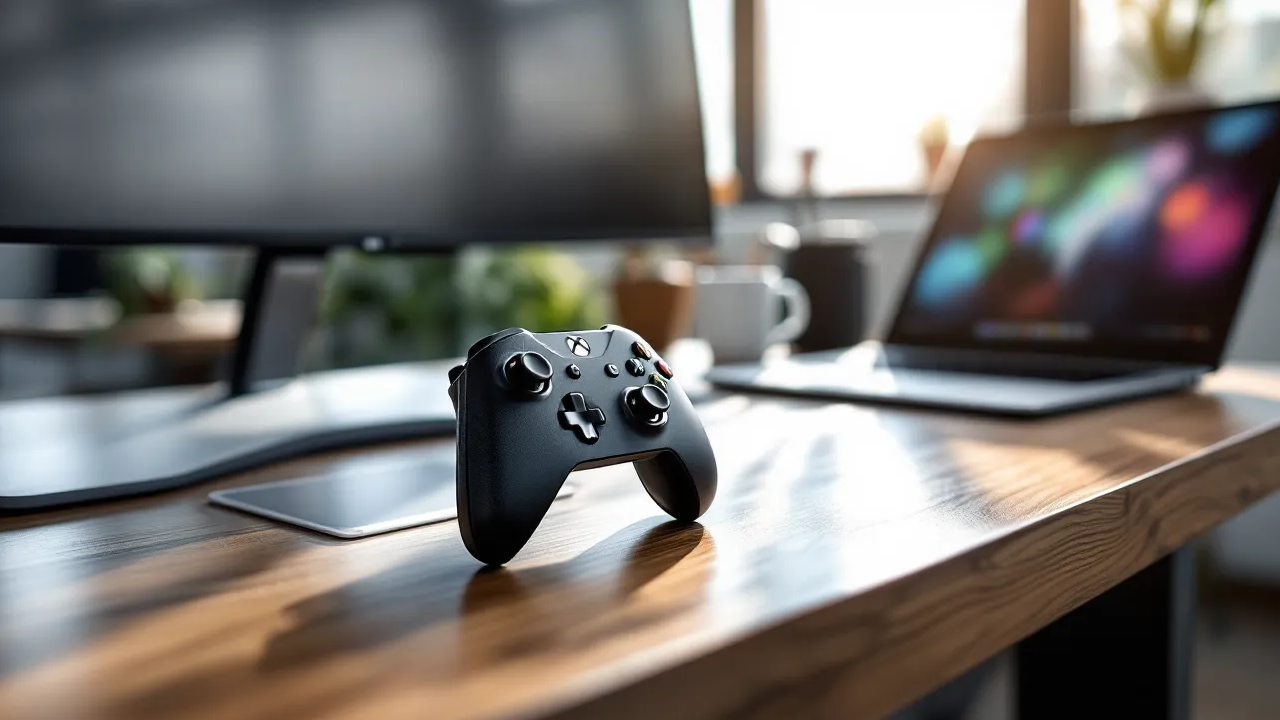

Xbox is a mobile companion app that keeps you connected to friends and games.
Microsoft opened a preview on November 4, 2026 that removes a link from the cloud gaming chain. Instead of pairing the Xbox Nano controller to your TV over Bluetooth and letting the TV talk to the server, Cloud Connect puts the controller on your Wi-Fi network and lets it talk to the server directly. Fewer hops, less delay, one less device that can misbehave.
The catch is that this is a preview, and it is limited to the United States right now. If you bought a Nano and want to try it tonight, the setup takes about ten minutes. Here is the full path, including the parts Microsoft's announcement leaves out.
What Xbox Cloud Connect Changes About Cloud Gaming
A normal cloud session on a smart TV runs through three devices. Your controller sends input over Bluetooth to the TV, the TV sends it over the internet to the Xbox server, and the picture comes back the same way. Every hop costs a few milliseconds, and Bluetooth is the weakest link in that chain.
Cloud Connect cuts the TV out of the input path. The controller joins your Wi-Fi, finds the server running your game, and sends button presses straight to it. The Xbox team's own wording is careful: it "can help reduce input latency, so gameplay may feel more responsive." Can, not will. Wi-Fi quality decides how much you actually gain, and a crowded 2.4GHz band can make the whole thing feel worse than Bluetooth ever did.
This is also the clearest sign yet that Microsoft is building toward console-free cloud gaming. The controller no longer needs a console, a dongle, or a TV to reach a game. It needs your account and a network.
What You Need Before You Start
| Item | What to Check |
|---|---|
| Controller | Xbox Nano Controller, $49.99, on sale since November 4, 2026 |
| Phone | Android phone with the Xbox beta app installed |
| Network | A Wi-Fi network the controller can join, ideally 5GHz |
| Account | The same Xbox account on your phone and in the cloud session |
| Subscription | An active Game Pass Ultimate plan for Xbox Cloud Gaming |
| Region | A US account for the Cloud Connect preview |
The Nano itself is small: 133mm long, 101 grams, with a rechargeable battery rated for about five hours and a USB-C port for charging. It connects over Xbox Wireless to a console, and over Bluetooth to phones, tablets and smart TVs. Cloud Connect adds a third radio path on top of those two.
The battery number matters more than it looks. Five hours is short for a long session, and streaming drains the controller faster than a local console does. Charge it before you start, or keep a cable nearby.
Step 1: Confirm the Preview Is Live for Your Account
- Open the Xbox Cloud Gaming site or a supported smart TV app and sign in.
- Go to Settings, then Account.
- Look for Preview Features and switch it on.
That toggle covers the phone-as-controller preview on TVs. Cloud Connect on the Nano is a separate rollout tied to the US, and Microsoft says it is available there starting today. If you are outside the US, the controller side of this guide will not work yet, but the TV preview might.
Do not skip this check. A preview that has not reached your account looks exactly like a broken setup, and you will spend twenty minutes reinstalling apps for no reason.
Step 2: Install the Xbox Beta App on Android
Cloud Connect is configured from the Xbox beta app on Android, not from the regular Xbox app. The beta build is the one that carries the controller Wi-Fi setup flow right now.
- Install the Xbox beta app from APKPure.
- Sign in with the Microsoft account tied to your Game Pass Ultimate subscription.
- Let the app finish its first-run sync before you touch the controller.
Android will ask for location and nearby-device permissions while the app scans your network. Those permissions are how the app sees Wi-Fi names at all, so grant them during setup and revoke them later if you prefer.
Xbox is a mobile companion app that keeps you connected to friends and games.
If you would rather use a PC, the Xbox Accessories app on Windows can also set up Cloud Connect. That route requires Xbox Insider enrollment, so the phone is the shorter path for most people.
Step 3: Pair the Nano Controller With Your Phone
The Nano pairs like any other Xbox controller, with one extra step that trips people up.
- Turn the controller on by holding the Xbox button until it lights up.
- Hold the pairing button on the top edge until the light starts flashing quickly.
- Open Bluetooth settings on your Android phone and select the Nano when it appears.
- Wait for the beta app to confirm the controller is connected.
If the light keeps flashing and nothing shows up in Bluetooth, the controller is still holding a connection to a console or TV. Turn that device off, or hold the pairing button longer until the controller drops the old link.
Step 4: Move the Controller Onto Your Wi-Fi Network
This is the step that makes Cloud Connect different from every controller setup you have done before.
- In the Xbox beta app, open the controller page for the Nano.
- Choose the Cloud Connect setup option.
- Pick your Wi-Fi network from the list and enter the password.
- Keep the controller close to the router during this step.
- Wait for the app to confirm the controller has joined the network.
The controller stores the network details, so you only do this once per network. Change your router password and you will have to repeat it, which is worth remembering before you rotate credentials for unrelated reasons.
I have not seen an official list of supported access points or bands. Xbox says availability and supported devices may be limited during the test, so treat any failure here as a preview limitation first and a hardware problem second.
Step 5: Start a Cloud Game and Check the Connection
- Open a supported Xbox Cloud Gaming experience on your TV or in the browser.
- Sign in with the same account you used during setup.
- Start a game and press a button. The controller should connect through Cloud Connect automatically.
Test with something that exposes latency. A racing game or a shooter will tell you in ten seconds whether the direct link is helping. A turn-based game will feel fine either way and teach you nothing.
If the game starts but the controller does nothing, the account mismatch is the usual cause. Cloud Connect ties the controller to the account that configured it, so a second profile on the same TV will not pick it up.
Step 6: Try the Phone Controller Preview on a Smart TV
The second preview is for the nights when you want to play on the TV and every controller is out of reach. On supported smart TVs, an Android or iOS phone can act as the controller, with the buttons running in the phone's browser.
- Turn on Preview Features under Settings, then Account, on the TV.
- Launch a game without a controller connected.
- Scan the QR code on the TV with your phone.
- Tap the controls and start playing.
The phone as controller trick sounds like a gimmick until you are three floors from your pad. Some games get layouts tailored to how they play, which is a nice touch for anything with a lot of menus. Everyone else gets a standard pad on a touchscreen, and that is exactly as comfortable as it sounds. Fine for a quick session, rough for a boss fight.
Tips for a Stable Cloud Connect Session
- Put the controller and the TV on the same 5GHz network when your router splits bands.
- Keep the controller within sight of the router for the first session, then test from your usual seat.
- Close background downloads on the phone during setup, since the app and the controller share the link.
- Charge the Nano to full before a long session. Five hours is the rated ceiling, not a guarantee.
- Recheck Preview Features after any app update, because previews can be pulled without notice.
Troubleshooting Xbox Cloud Connect
The app cannot find the controller. Forget the Nano in your phone's Bluetooth list, then pair it again. Stale pairings survive app reinstalls.
The controller joins Wi-Fi but games ignore it. Sign out of the cloud session and back in with the account used during setup. Cloud Connect will not follow a different profile.
Input feels worse than Bluetooth. Switch the controller to a 5GHz network or move closer to the router. A weak Wi-Fi link adds more delay than the Bluetooth hop you removed.
The setup option is missing entirely. Check your region and your app build. The feature is US-only in preview, and the standard Xbox app does not expose it.
The controller drops mid-session. Plug it in and check the battery level in the app. Low battery and weak Wi-Fi produce the same symptom, a controller that stops responding for a second at a time.
Conclusion
Cloud Connect is the first cloud gaming feature in years that changes how the hardware works rather than what the service offers. Setup is short, the payoff is real on a good network, and the preview label is doing a lot of work right now. Install the Xbox beta app, put the Nano on your Wi-Fi, and test it in a game where latency shows. Bottom line: try it once on a 5GHz network before you decide the Wi-Fi link is not worth the trouble.
 NEWS
 REVIEWS
 HOWTO