How to Install Minecraft APK on Android: A Complete Setup Guide

2026-07-22
Step-by-step guide on how to download and install Minecraft APK on Android. Covers installation steps, storage requirements, Microsoft account setup, and common problems.
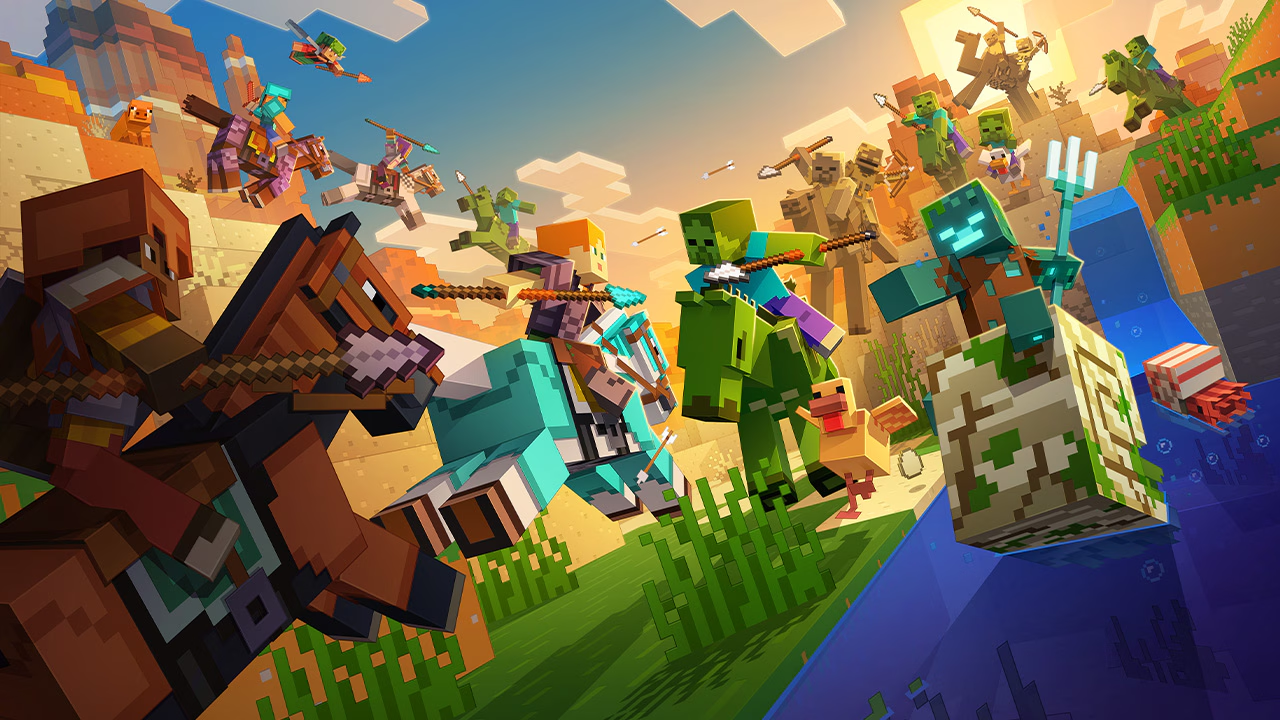
Installing Minecraft on Android isn't complicated, but there are a few things that trip people up — mostly around the Microsoft account login and making sure you're grabbing the right APK version. This guide walks you through the whole process, from download to your first world, without any unnecessary steps.
Whether you're switching from Java Edition on PC or picking up Minecraft for the first time on mobile, here's what you need to know.
Before You Start: Minecraft Android Requirements
A few things to check before downloading:
- Android version: 5.0 (Lollipop) or newer. Most phones made after 2015 are fine, but older tablets sometimes aren't.
- Storage space: The Minecraft APK is roughly 250 MB for the base install, but with world saves, resource packs, and add-ons, expect it to use 1-2 GB over time. Clear some space if you're running low.
- Internet connection: You'll need Wi-Fi or mobile data to download the APK and sign into your Microsoft account the first time. After that, offline play works fine for single-player worlds.
- Microsoft account: Required. If you don't have one, you can create it for free during setup. This is the same account used for cross-platform play and Marketplace purchases.
Downloading the Minecraft APK
Go to the Minecraft page on APKPure and download the latest version.
After the download finishes, you'll find the APK in your device's Downloads folder or notification panel. Don't open it yet — you need to allow installations from your browser or file manager first.
Enabling APK Installation on Android
Android blocks installations from outside Google Play by default. Here's how to allow them:
- Open your device's Settings app.
- Go to Apps or Security (the exact name varies by phone brand).
- Find your browser or file manager in the app list and tap it.
- Look for Install unknown apps or Allow from this source and toggle it on.
On some Android versions, this setting is under Settings > Security > Unknown sources. If you can't find it, search "install unknown" in the settings search bar — it'll take you straight there.
Once that's enabled, tap the downloaded APK file and follow the installation prompt. It takes about 30 seconds on most devices.
Signing Into Your Microsoft Account
When you open Minecraft for the first time, you'll see a sign-in screen. You need a Microsoft account to play — this is what saves your worlds to the cloud, lets you join multiplayer servers, and gives you access to the Marketplace.
If you already have a Microsoft account (the same one you use for Xbox, Windows, or Minecraft Java Edition), sign in with that. Your purchases and achievements will sync across devices.
If you don't have one, tap Create account and follow the prompts. You'll need an email address and a phone number for verification. It's free and takes about two minutes.
Setting Up Your First World
After signing in, you'll land on the main menu. Here's how to get into your first game:
- Tap Play.
- Tap Create New.
- Choose Create New World.
- Pick your game mode. Survival is the default — you gather resources, build shelter, and deal with mobs at night. Creative gives you unlimited blocks and flying, which is better for building without restrictions.
- Tap Create on the left side of the screen.
The world generates in about 10-15 seconds on most modern phones. After that, you're in.
If you want to play with friends, tap the Friends tab from the main menu. You can join their world if they're online, or invite them to yours. Both players need to be signed into their Microsoft accounts and added as friends through Xbox Live.
Common Minecraft Android Installation Problems
A few issues that come up frequently and how to fix them:
"App not installed" error: This usually means you already have a different version of Minecraft installed that's signed with a different certificate. Uninstall the existing version first, then install the new APK. Your worlds should be safe as long as they're backed up — but if you've never synced to a Microsoft account, export your worlds first from the in-game settings.
Microsoft account won't sign in: Check that your device's date and time are set to automatic. A wrong clock causes sign-in failures more often than you'd think. If that doesn't work, try signing in through a web browser first to confirm your password is correct.
Game crashes on launch: This happens most often on devices with less than 2 GB of RAM. Close all other apps before launching Minecraft. If it still crashes, go to Settings > Storage and clear the Minecraft cache — don't clear data, just cache.
Download won't start: If the APK download hangs, switch from mobile data to Wi-Fi or vice versa. Some carriers throttle large downloads on mobile data.
What to Do After Installing
Once Minecraft is running, a few things worth doing right away:
- Go to Settings > Video and adjust the render distance. The default is usually too aggressive for older phones. Dropping it to 6-8 chunks improves performance noticeably without making the world feel cramped.
- Check the Marketplace tab. There's often a free skin pack or add-on available — Minecraft rotates these monthly through Marketplace Pass promos.
- If you're on a data-limited plan, go to Settings > Profile and disable "Use cellular data" for multiplayer. This prevents accidental data drain if you join a server on mobile data.

 NEWS
NEWS REVIEWS
 HOWTO
HOWTO