How to Use Spotify AI Features on Android

2026-09-15
Spotify AI DJ, artist verification badges, and AI persona labels explained. Here's how to find and use every Spotify AI feature on your Android phone.

Spotify is a digital audio app that lets you stream music, podcasts, and audiobooks.
Spotify has been putting AI into nearly every corner of its app. From a personal DJ that talks to you between songs to badges that separate real artists from AI-generated ones, the platform is betting big on machine learning. If you've got Spotify on your phone and aren't using these features yet, you're missing out on half of what your subscription pays for.
This guide walks through the three major Spotify AI features available on Android: AI DJ, AI artist labels, and AI persona badges. You'll learn what each one does, where to find it, and how to get the most out of it.
What Is Spotify AI DJ and How to Find It
Spotify AI DJ is a personalized music companion that plays tracks based on your listening history, mixed with spoken commentary from an AI-generated voice. Think of it as a radio station where the host knows exactly what you like and never runs out of things to say. The feature launched in early 2023 for Premium users in the US and Canada, then rolled out globally to over 60 markets by the end of that year.
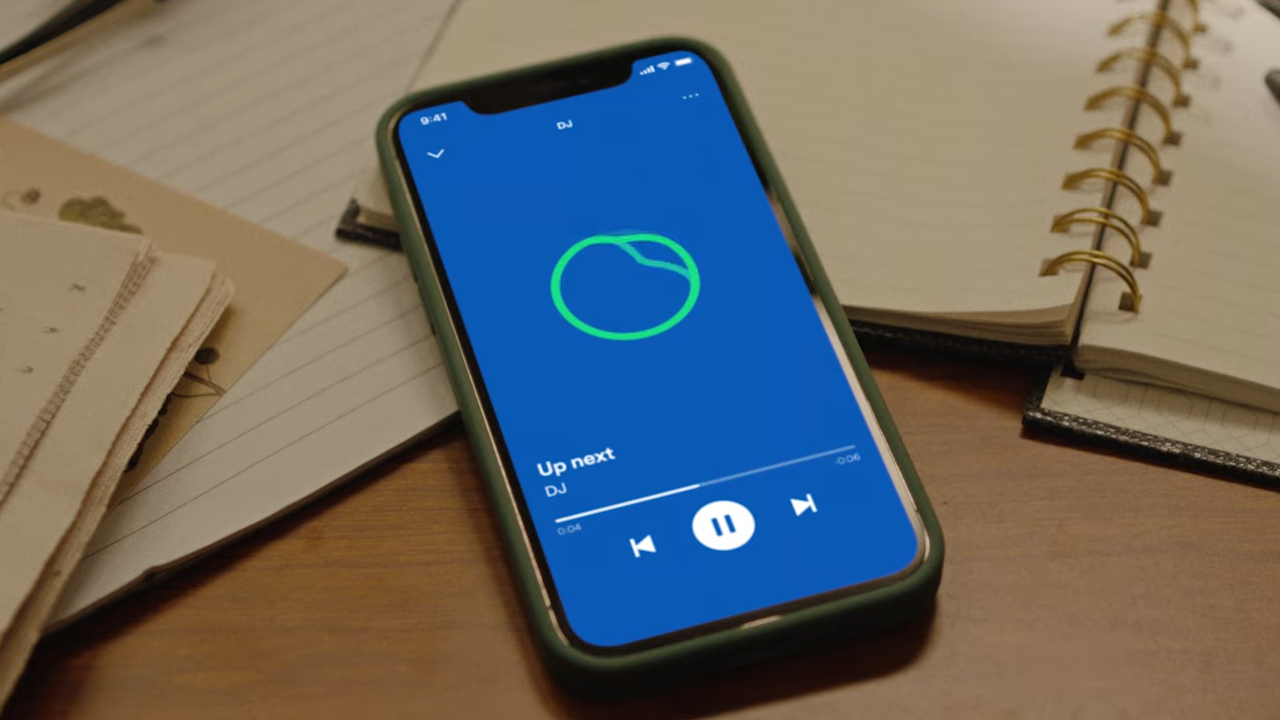
To find it on Android, open the Spotify app and go to Search. Type "DJ" and tap the card that appears. Playback starts immediately with a short voice intro, followed by a mix of songs you already love and others the algorithm thinks you'll enjoy. A DJ button appears in the Now Playing bar at the bottom of the screen, and tapping it switches the mood or skips to a different segment.
The DJ pulls from your full listening history, not just your most recent tracks. That means songs you haven't heard in months can resurface in context, grouped with similar artists or themed around a specific genre. It's a different experience from just shuffling a playlist, because the commentary adds context you wouldn't get otherwise.
Step 1: Start Your First AI DJ Session
Getting started with AI DJ takes about ten seconds if you already have a Premium account. Here's the exact path on Android:
- Open Spotify and tap the Search icon at the bottom.
- Type "DJ" in the search bar.
- Tap the DJ card in the results.
- Wait for the voice intro to finish, then start listening.
The first time you use it, the DJ will introduce itself and explain what it does. After that, sessions begin with a brief comment about what's coming up, then jump straight into music. You don't need to configure anything or answer questions about your taste. Spotify's recommendation engine already knows.
If you don't see the DJ card in search results, check that your Spotify app is updated to the latest version. The feature also requires a Premium subscription, so free users won't have access. In some regions, the DJ may still be rolling out, but it's been widely available since late 2023.
Step 2: Interact With the AI DJ Using Voice and Text
The original DJ feature only played music with commentary. Now you can actually talk back to it. Spotify added two-way interaction that lets you request specific genres, moods, or artists using either voice or text.
To make a request, tap the DJ button in the Now Playing bar. You'll see three options: type a request in the text box, tap the microphone to speak, or pick from personalized suggestions that Spotify generates based on your habits. The text input is handy when you're in a quiet place and don't want to talk to your phone. Voice works better when you're driving or walking.
The DJ understands natural language. You can say something like "play something for a workout" or "I want chill acoustic stuff" and it will adjust the mix. If you're not sure what to ask for, the suggestion chips give you quick prompts based on your recent listening patterns. Tap one and the music shifts immediately.
Changing the language of the DJ is also possible. Tap the DJ button, then the settings icon (three dots on Android), and select DJ language. English and Spanish are currently supported, with more languages expected as Spotify expands the feature.
Step 3: Understand Spotify AI Artist Labels
Spotify AI artist labels are the platform's response to the flood of AI-generated music that has hit streaming services. In 2025 alone, Spotify removed roughly 75 million tracks it classified as low-quality AI spam, and the company has built a cross-departmental team specifically to detect and remove this kind of content.
The most visible part of this effort is the "Verified by Spotify" badge. It's a green checkmark that appears on artist profiles and in search results. To qualify, an artist needs to show ongoing listener engagement, follow platform rules, and prove they're a real person through things like concert listings, merchandise, and active social media accounts. The key rule: artists whose content is primarily AI-generated or who operate as AI personas are not eligible.
This matters for listeners because it gives you a way to tell whether the artist you're discovering is a real human or a machine-generated act. When you see the green badge, you know Spotify has vetted that profile. When you don't see it, that's a signal to listen with appropriate skepticism.
Step 4: Spot AI Persona Badges on Artist Profiles
Beyond the verification badge, Spotify has started displaying AI persona badges on certain artist profiles. These badges appear when an artist or their label has disclosed that the content involves AI-generated elements. The badge is part of Spotify's broader transparency push, which also includes policies against uploading AI content to deceased artists' pages without authorization.
To check for these badges, open any artist profile on Android by searching for their name or tapping their name from a track you're listening to. Look at the profile header area, right below the artist name and monthly listener count. The badges appear as small labels that indicate whether AI was used in creating the artist's content.
Not every artist will have one. The system relies partly on self-reporting from labels and distributors, similar to how Apple Music's Transparency Tags work. But for artists who do disclose, the badge gives you the information needed to decide whether that matters to your listening choices.
Tips for Getting Better Spotify AI Recommendations
The AI DJ only works well if you feed it good data. Every track you play, skip, like, or block becomes training input for the recommendation engine. Here are practical ways to improve what Spotify sends your way.
- Use the like button strategically. When a song comes on that fits your taste, tap the heart. This tells the algorithm to find more tracks in that vein. Do the same for songs you dislike by using the block or "not interested" option.
- Let songs finish. The algorithm treats plays that go all the way to the end as a positive signal. If you skip after ten seconds, that's a negative signal. Let songs you enjoy play through.
- Explore actively, not passively. The DJ gets better when you search for new artists and listen to full albums, not just your saved playlists. Active exploration gives the AI more data points to work with.
- Check your taste profile. Spotify lets you exclude specific playlists from your taste profile in settings. If you have a sleep playlist or kids' music that you don't want influencing recommendations, exclude them under Settings > Privacy & Social > Exclude from your taste profile.
Troubleshooting Common Spotify AI Issues
- The DJ card doesn't appear in search. First, confirm your Spotify Premium is active under Settings > Account. Then update the app from the Play Store or APKPure. If neither works, the feature may not be available in your region yet. Try using a VPN set to the US or UK as a temporary workaround.
- The DJ voice sounds wrong or cuts out. This is usually a connection issue. The AI voice requires streaming data, so switch from Wi-Fi to mobile data or vice versa. If the problem persists, clear the app cache under Settings > Apps > Spotify > Storage > Clear cache. Your library and playlists won't be affected.
- AI DJ language won't change. The language setting only appears if the feature is available in your market and the app is updated. Tap the DJ button during playback, then the three-dot menu, then DJ language. If the option is greyed out, your region may not support multiple languages yet.
- Verified badge is missing from an artist I follow. Not every artist gets verified overnight. The rollout covers over 99% of user-searched artists, but newer or smaller artists may still be in the queue. The artist also needs to meet the engagement and authenticity criteria, so if their profile is brand new or has low activity, verification may take longer.
Spotify is a digital audio app that lets you stream music, podcasts, and audiobooks.
Spotify's AI features work best when you use them together. The DJ introduces you to music, the artist labels help you trust what you're hearing, and your listening habits train the system to get better over time. Download Spotify on your Android device, fire up the DJ, and start feeding the algorithm. The more you interact, the sharper the recommendations get.
 NEWS
NEWS REVIEWS
 HOWTO
HOWTO