Scan Date:Feb 15, 2025
Show More

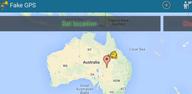
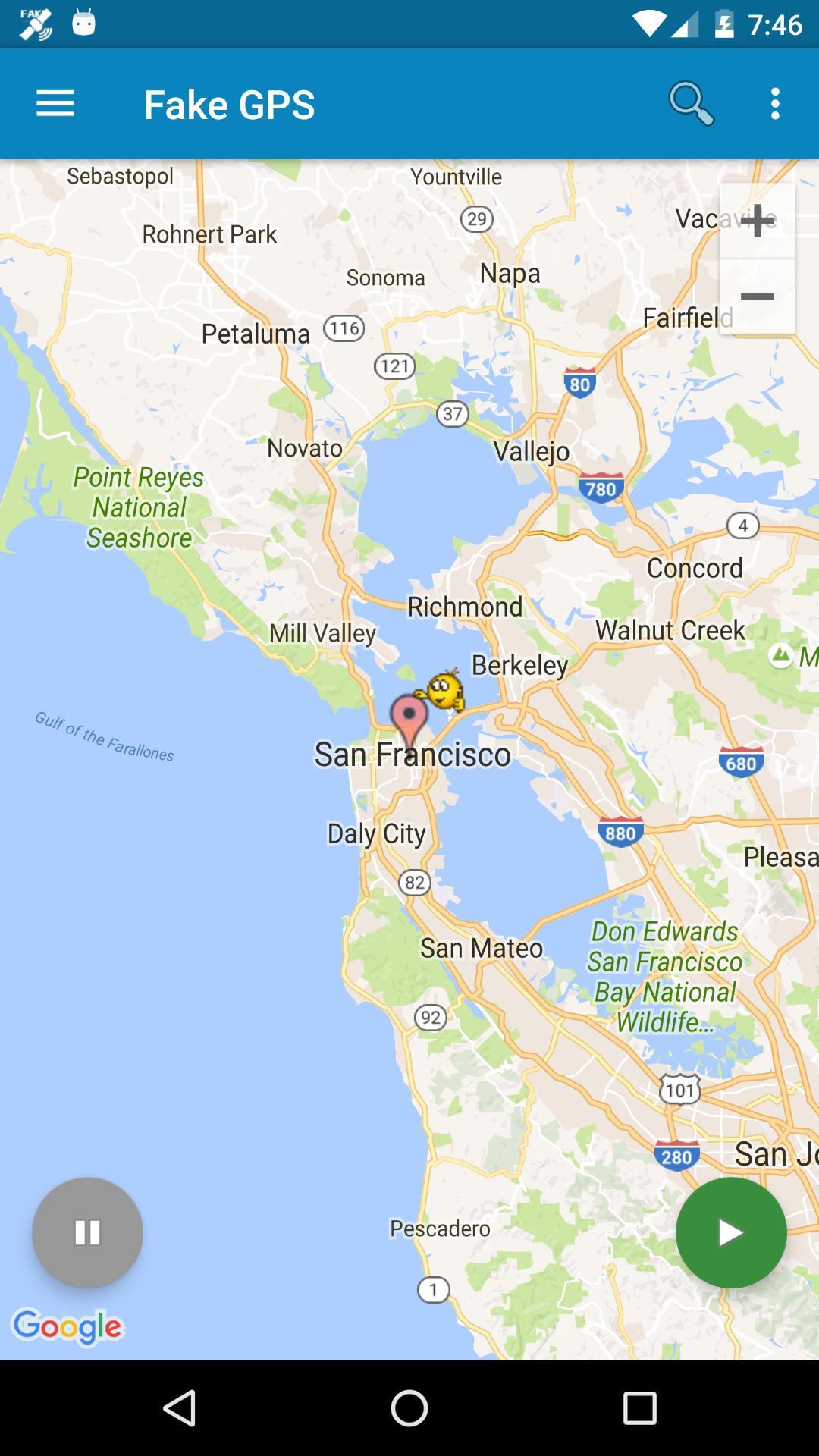
Fake GPS helps users quickly simulate a location for demos, QA testing, or development scenarios when a real trip is not practical. It presents a mock position that other apps accept as your current location, making repeatable tests easier to run across different apps. In addition, the app supports both simple manual use and more advanced setups, so you can move from quick spot checks to automated routines smoothly. For convenient distribution and setup, many users look for the Fake GPS APK.
Fake GPS sets a mock position that appears system-wide, so your other apps read the same location instantly. You pick any spot on the map and start the mock with just two taps. This approach is useful when you need a consistent test location across navigation, ride-hailing, or geotagging apps at the same time.
Tasker and command-line automationUsers who run repeatable test scenarios can automate start and stop actions through Tasker or the command line. Fake GPS responds to these triggers so you can build workflows that set specific locations at scheduled times or as part of a broader test script. This reduces manual steps and keeps location changes consistent during test runs.
Root-friendly method without enabling mock locationsOn rooted devices, Fake GPS offers an advanced option to mock location without turning on the “Allow mock locations” switch in Developer Options. This path is intended for power users who maintain rooted test environments and prefer system-level control. The developer notes that detailed instructions and file paths are provided in the documentation for those who need this setup.
Guided fix for “location locked” after mock useIf your device appears stuck on the last mock position, Fake GPS includes clear guidance to restore a real GPS fix. One recommended method is to use the “GPS Status” utility to refresh and calibrate sensors, then wait for a clean satellite lock outdoors. Alternatively, disable the mock, leave the device in a real location for several hours, and allow the GPS to reacquire an accurate position.
Privacy-friendly design and testing intentThe developer declares that Fake GPS collects no data and shares no data. The app is free and intended for testing and development use, covered by an end-user license agreement. This transparency helps users understand how the app behaves and what it is designed to support in a test environment.
To use Fake GPS on Android, you must enable Developer Options and select Fake GPS as your mock location app. This is a standard prerequisite for apps that set system-wide test locations. Fake GPS does not limit the mock to a single app, so all apps that read location will see the same test position. Some apps can detect mocked locations and may refuse service, so plan your tests accordingly. Automation features require external tools like Tasker or command-line access to be set up first.
Many location-based apps rely on device signals and may apply checks to spot mock locations. Fake GPS does not bypass app-level detection, so outcomes vary by app. The tool is built for Android testing use and is not designed for iOS. For advanced users with rooted devices, optional methods are available to mock without enabling the “Allow mock locations” setting, as described by the developer.
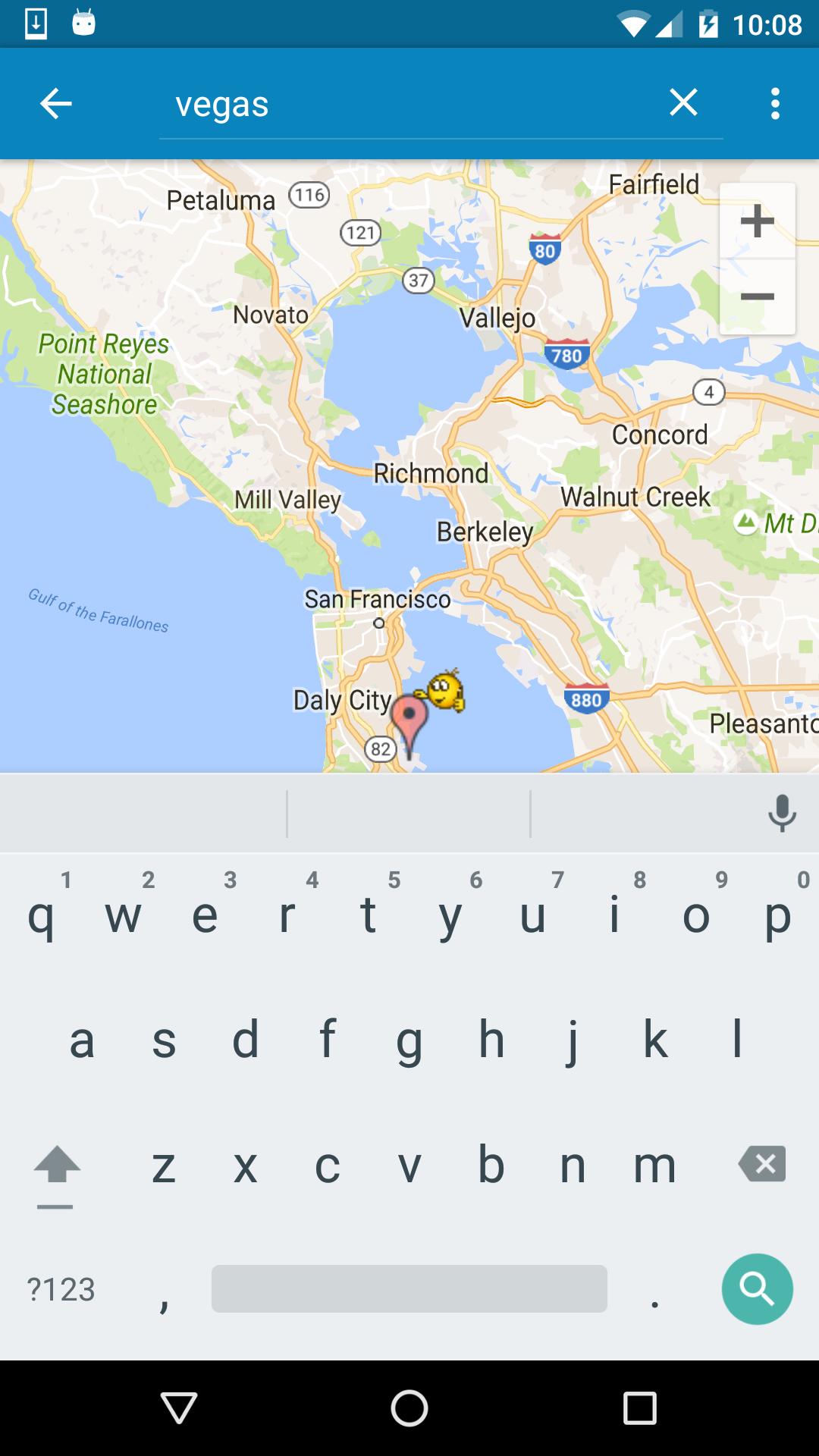
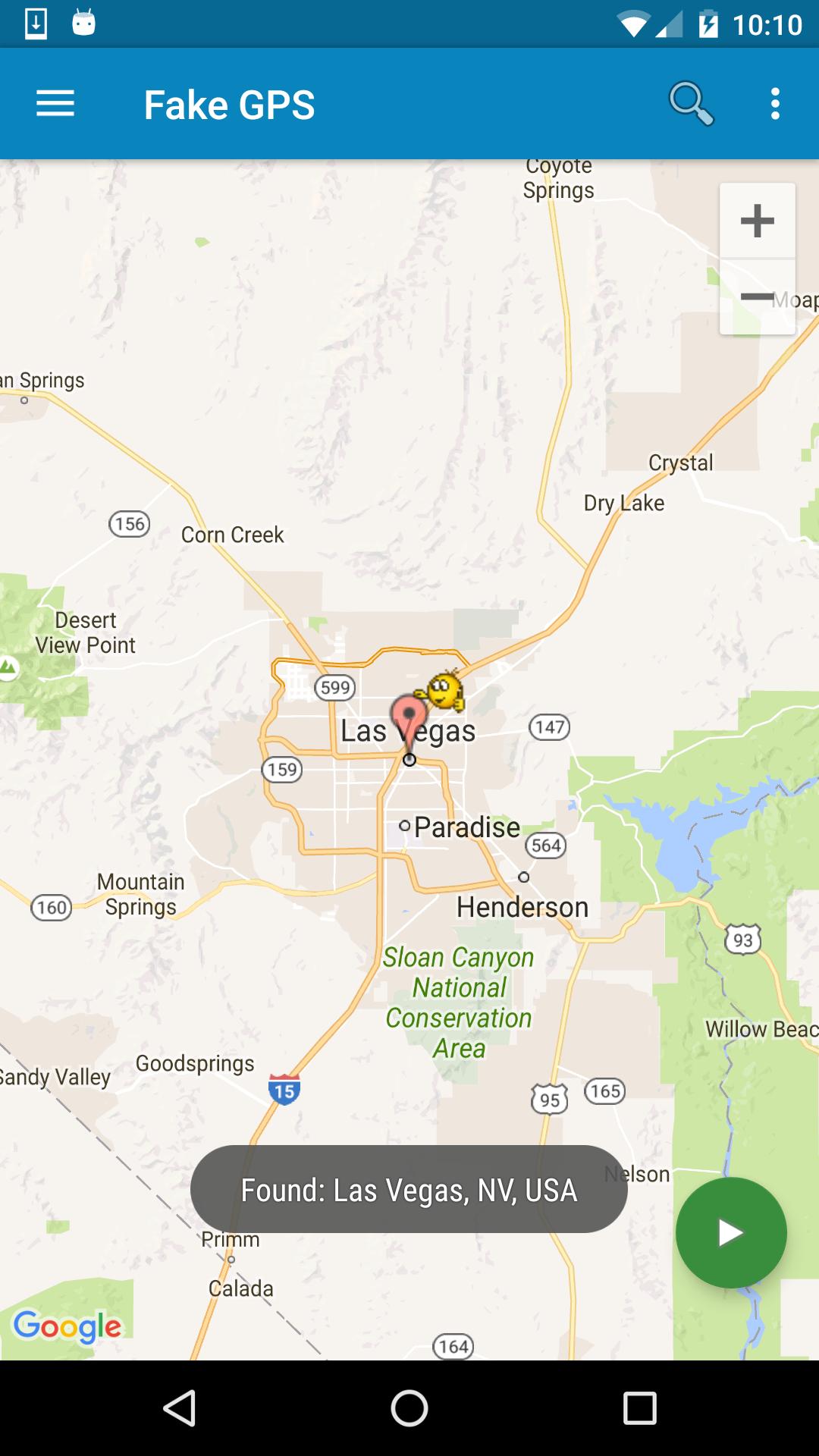
Follow this simple flow to get started with testing mock locations on Android. If needed, download Fake GPS to set up your device for repeatable location tests.
Fake GPS provides quick, system-wide mock locations for demos and QA work. For updates and improvements, you can look for the Fake GPS latest version when planning new test cycles.
For official support information, use the links below.
Latest Version
2.1.2Uploaded by
Tanim Chowdhury
Requires Android
Android 5.0+
Category
Free Tools AppContent Rating
Everyone
Security Report
Report
Flag as inappropriateLast updated on Aug 18, 2022
Fix OpenStreetMap, address some crashes


APKPure - A multi-platform app store primarily focused on Android, providing extensive app-related content. Discover the app you want easier, faster, and safer, with quick and efficient downloads and installations.